Dashboard
The dashboard page is the hub of the HiTechAdmin interface and provides the overview of the current server performance and usage.
The dashboard page contains widgets:
- User Activity widget: Displays real-time combined activity log of all HiTechCloud users.
- Latest News widget: Displays blog articles from the HiTechCloud blog.
- System Information widget: Displays Information about your server configuration: Hostname, OS, HiTechCloud version, Kernel, CPU type, Uptime, NUmber of Running Processes and available Package Updates.
Usage
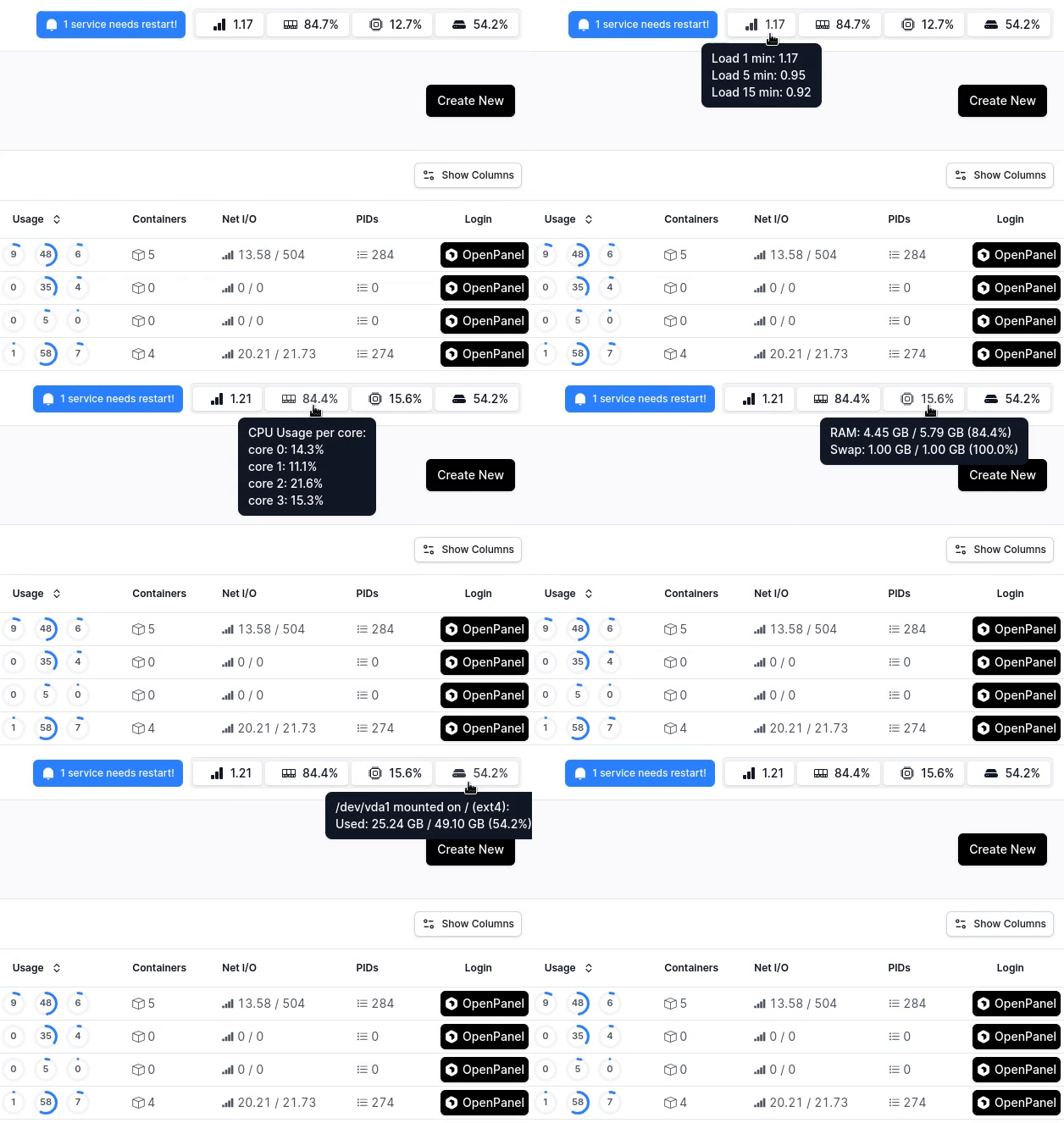
In the top-right corner of every page in HiTechAdmin, administrators can monitor real-time resource usage, including Load, Memory, CPU, and Disk.
Hovering over each metric provides detailed information:
- Load – Average system load over 1, 5, and 15 minutes
- Memory – Usage of physical memory and SWAP
- CPU – Usage per CPU core
- Disk – Usage per disk partition
User Activity
The User Activity widget provides a combined list of latest actions from all HiTechCloud users (their activity logs).
Latest News
The Latest News widget displays news from HiTechCloud Blog.
System Information
The System Information widget displays information about your server:
- Hostname
- OS
- HiTechCloud version
- Server Time
- Kernel version
- CPU model
- Uptime
- Number of running processes
- Available Package updates
Try Enterprise
The Try Enterprise widget is displayed on Community Edition only and displays features for Enterprise edition and options to upgrade.
Found a Bug
By default, every page in both the HiTechCloud and HiTechAdmin UIs includes a "Found a bug? Let us know" link at the bottom. This link allows users to report issues directly to our GitHub Issues page and includes basic information to help reproduce the problem.
For the HiTechCloud UI, administrators can disable this link by going to HiTechAdmin > Settings > HiTechCloud and toggling off the "Display link to report bugs" option.
Dark Mode
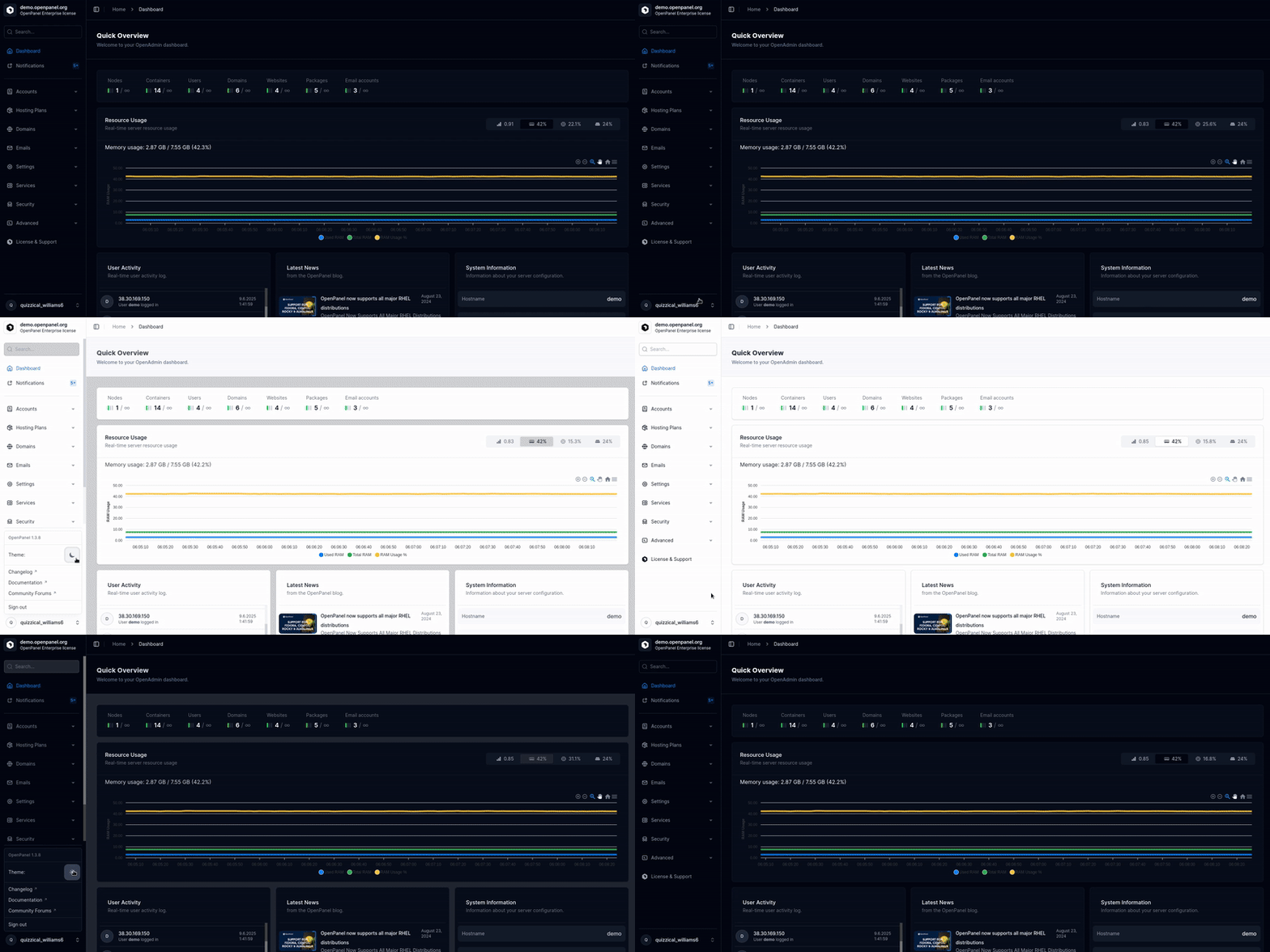
To enable Dark Mode, click your username in the bottom-left corner and select the Moon icon. To switch back to Light Mode, click the Sun icon.
Menu
HiTechAdmin menu lists all available options in the HiTechAdmin interface. Simply click on a menu item to open it.
Search
Search returns:
- HiTechCloud users with login link for their HiTechCloud
- Website/Domains of users
- Features/pages in the Admin interface
Keyboard Shortcuts
HiTechAdmin UI can be navigated using keyboard shortcuts: view documentation.
Logout
To log out of the HiTechAdmin account, click your username in the bottom-left corner and select 'Sign out' option.