Notifications
Configure HiTechAdmin notifications and Email alerts settings.
- With HiTechAdmin
- With HiTechCloudCLI
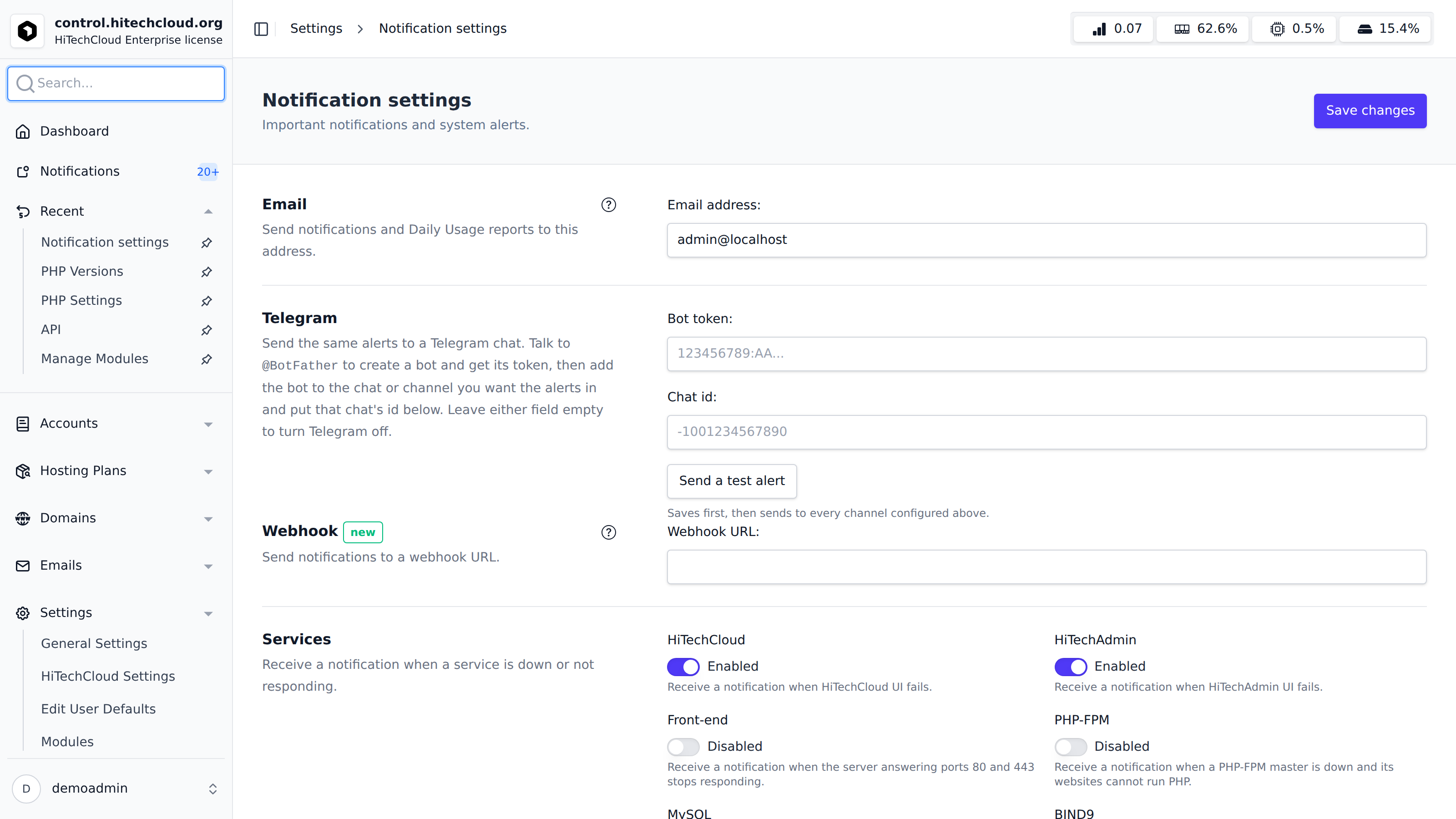
To view or edit current notification settings, go to HiTechAdmin > Settings > Notifications or click the 'Edit Settings' button on the Notification page.
To view notification settings, run:
hitechcloudcli admin notifications get <OPTION>
Example:
# hitechcloudcli admin notifications get reboot
yes
To update notification settings, run:
hitechcloudcli admin notifications update <OPTION> <NEW-VALUE>
Example:
hitechcloudcli admin notifications update load 10
Updated load to 10
Email
Configure email address to be used for receiving system notifications and alerts.
Enter your email address in the Email for notifications field. Leave it empty to disable email alerts.
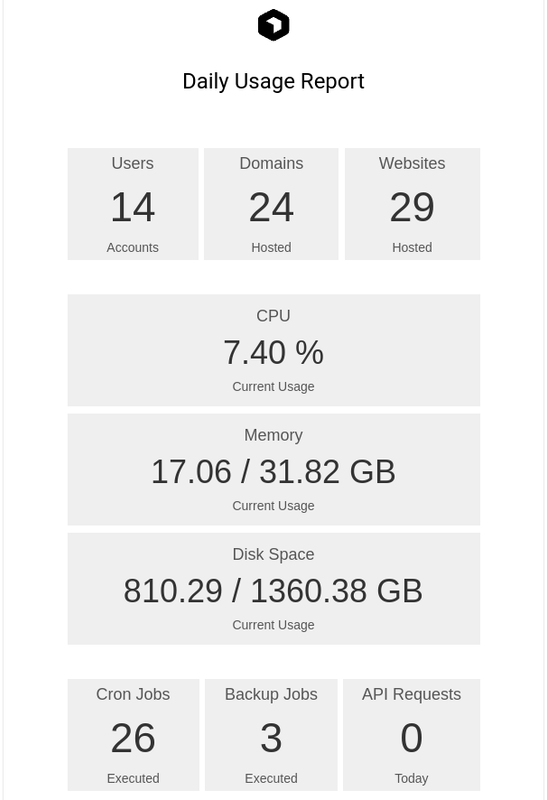
If email address is set, daily usage report will be sent to the address, schedule is configurable from 'Advanced > System Cron Jobs'.
Webhook
Send notifications to a webhook URL (discord or any other).
Services
Receive notifications when services are down or unresponsive. Services are checked every 5 minutes.
- HiTechCloud: Notification if HiTechCloud UI fails.
- HiTechAdmin: Notification if HiTechAdmin UI fails.
- Caddy: Notification if webserver is not responding.
- MySQL: Notification if database is unreachable.
- Docker: Notification if Docker service is down.
- BIND9: Notification if DNS service is down or unresponsive.
- Sentinel Firewall: Notification if Sentinel (CSF) is disabled.
Resource Usage
Get alerts when resource usage exceeds thresholds (checked every 5 minutes):
- Load Average
- CPU %
- RAM %
- Disk Usage %
- SWAP %
Server actions
Receive notifications when specific server-level actions are detected:
- Server rebooted
- Website under attack
- User reaches plan limit
- HiTechAdmin accessed from a new IP address
- New HiTechCloud update available
User Actions
Get notified whenever an action occurs in the admin or user panels.
- HiTechAdmin enabled/disabled
- API access enabled/disabled
- Admin account created
- Reseller account created
- Admin password changed
- Admin/Reseller renamed
- Admin/Reseller suspended
- Admin/Reseller unsuspended
- WAF enabled/disabled for a domain
- WAF enabled/disabled on the server
- User added
- User deleted
- User suspended/unsuspended
- User email changed
- User IP changed
- User password changed
- User renamed
- FTP account created
- FTP account deleted
- FTP account password change
- Domain added
- Domain deleted
- Domain suspended/unsuspended
- SSL type changed
- HSTS enabled/disabled
SSH Allowlist
Specify IP addresses (or CIDRs) that will be exempt from SSH login checks.
SMTP Settings
By default, email alerts are sent from noreply@hitechcloud.org.
To use your own SMTP server for email delivery, configure the following:
- With HiTechAdmin
- With HiTechCloudCLI
Set server port, TLS or SSL, Username and Password to use for authentication.
Configure each value via hitechcloudcli config update commands, for example:
hitechcloudcli config update mail_server example.net
hitechcloudcli config update mail_port 465
hitechcloudcli config update mail_use_tls False
hitechcloudcli config update mail_use_ssl True
hitechcloudcli config update mail_username user@example.net
hitechcloudcli config update mail_password strongpassword123
hitechcloudcli config update mail_default_sender user@example.net