General Settings
Change ports, domain, enable ssl, etc.
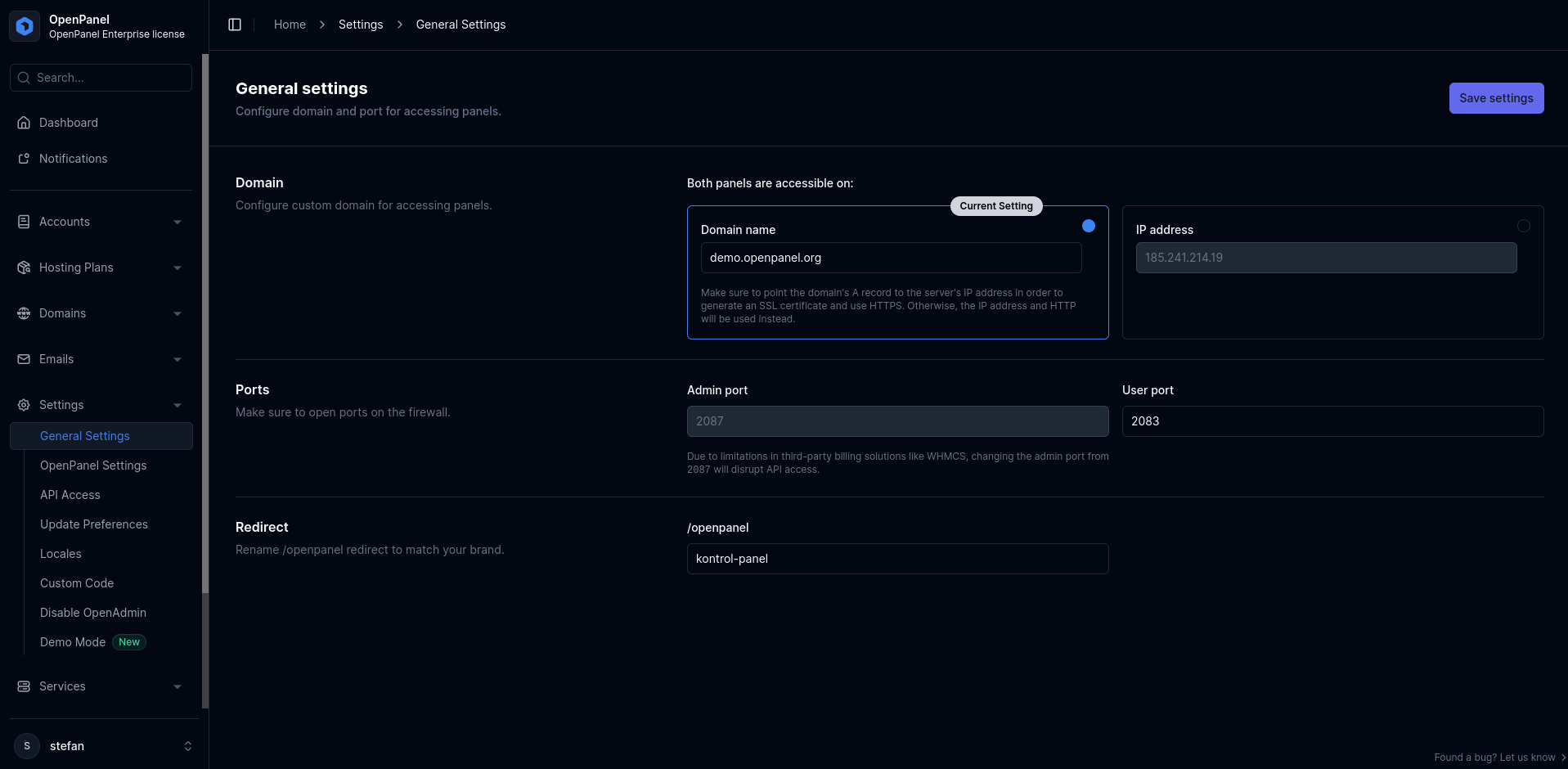
The General Settings page enables you to edit settings that affect both admin and user panel:
- domain to access panels
- ports to be used
- update preferences
Set domain for HiTechCloud
To enable access to both HiTechAdmin and HiTechCloud through a domain name, such as srv.your-domain.com:2083, follow these three steps:
-
Set hostname: Set the desired subdomain as server hostname:
hostnamectl set-hostname server.example.net -
Configure DNS: Point the subdomain to the public IP of the server. Use a tool such as https://www.whatsmydns.net/ to check that domain is pointed to server ip.
-
Set in General Settings Switch from IP to the domain name in HiTechAdmin > General Settings.

Set IP address for HiTechCloud
To access HiTechCloud and HiTechAdmin via server public IP address, choose the "Server IP address" option and click save. The modification is immediate, redirecting you to the designated IP:2087 for the admin panel upon saving.

Change HiTechCloud port
Port configurations for HiTechAdmin and HiTechCloud interfaces can be modified from their default settings (2087 for HiTechAdmin and 2083 for HiTechCloud).

To change the port for the HiTechCloud from the default 2083 to another value, you can easily set the desired port in the "HiTechCloud Port" field.
It's important to note that the port must fall within the range of 1000-33000.
Change HiTechAdmin port
NOTE: Changing admin port from 2087 is currently not possible, as external tools such as WHMCS do not have option to set custom port.

Force HTTPS
Enabling the "Force HTTPS" option ensures that the panels are accessible via HTTPS, recommended for enhanced security features like CORS and header checks in the HiTechCloud interface. To activate HTTPS, select the "Force HTTPS" option; to deactivate, simply uncheck it.
Change /hitechcloud
By default, when users add a domain, the addition of "/hitechcloud" to the domain URL will redirect them to the HiTechCloud interface. However, you have the flexibility to customize this, such as changing it to "/awesome," allowing users to access their HiTechCloud via "their-domain.com/awesome".
To change the "/hitechcloud" to something else, simply set the value for the "HiTechCloud is also available on:" field and click on save. Changes take effect instantly without service interruption.

Enable Updates
The Update Preferences section provides the option to enable or disable Auto updates and Auto patches. Patches involve minor updates aimed at fixing bugs without introducing new features. On the other hand, Updates encompass major updates that introduce new features, potentially impacting existing functionality.
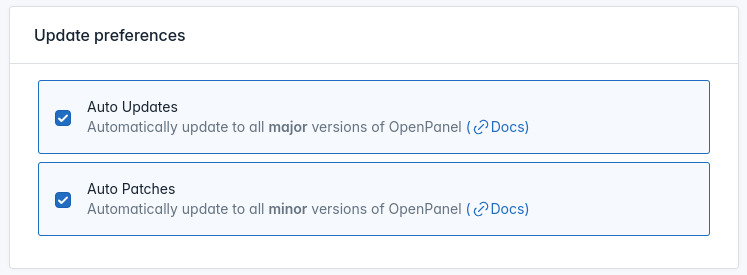
Examples:
- Autoupdate: 1.0.2 will NOT be updated to 1.0.3 BUT 1.0.2 will be updated to 2.0.0
- Autopatch: 1.0.2 will be updated to 1.0.3 BUT 1.0.2 will NOT be updated to 2.0.0