Docker
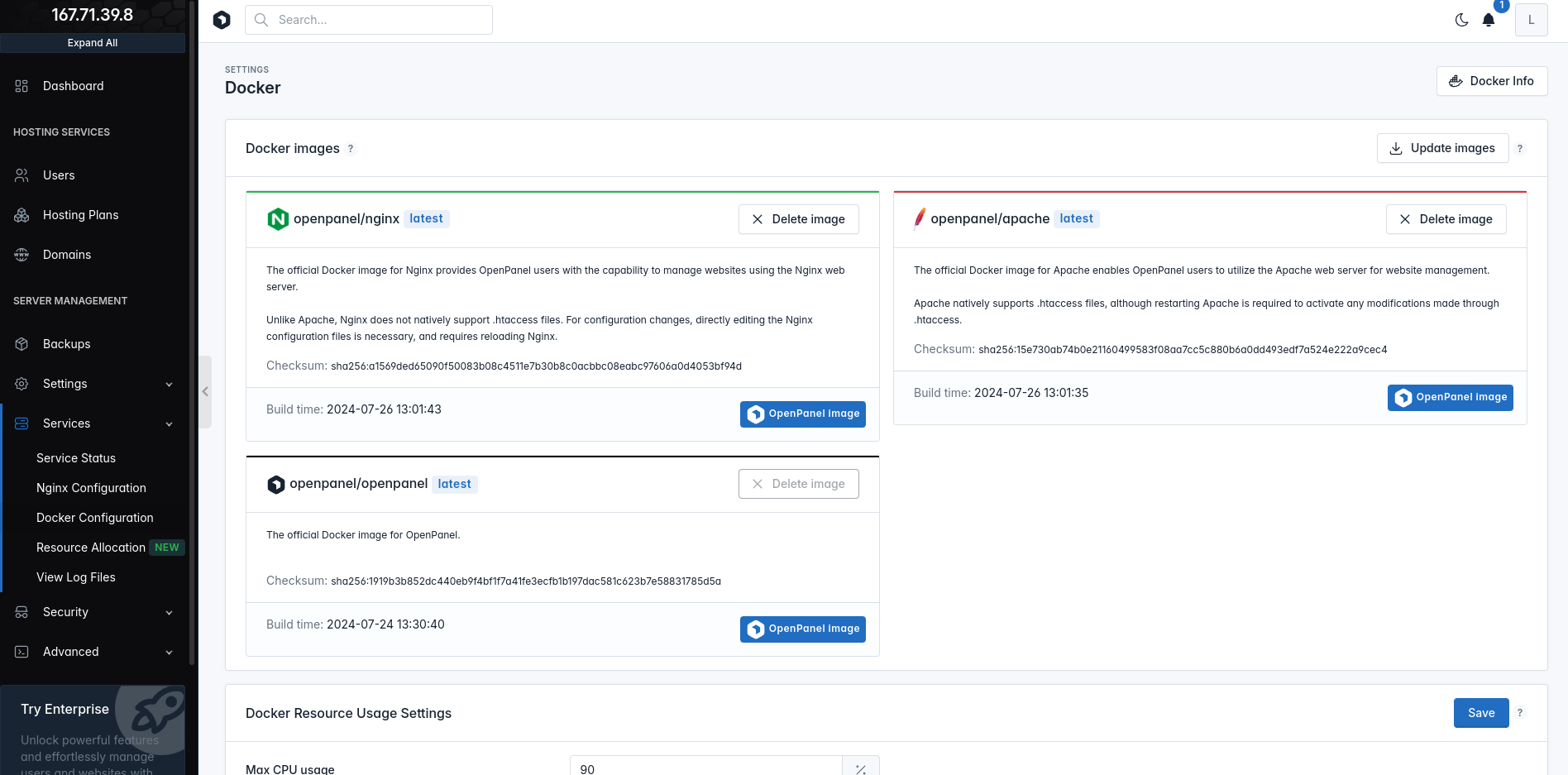
To download Docker images, click the "update images" button.
To remove an unnecessary image, click the delete button next to the image and confirm your action in the pop-up modal.
Docker images
Docker images serve as the foundation for HiTechCloud user accounts, determining the technology stack available to the user.
Update images
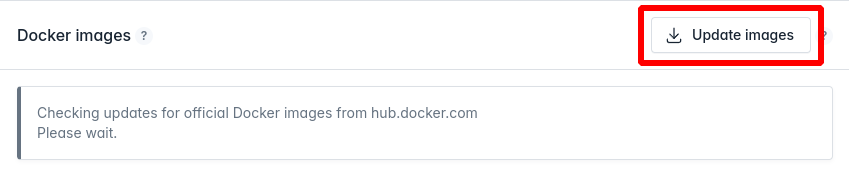
Updating Docker images involves downloading the latest versions from the hitechcloud servers, and these updated images will be used only for new users. Existing users' setups will remain unaffected.
To update docker images click on the 'Update images' button:
Delete images
To remove an unnecessary image, click the delete button next to the image and confirm in the pop-up modal:
| Step 1. | Step 2. |
|---|---|
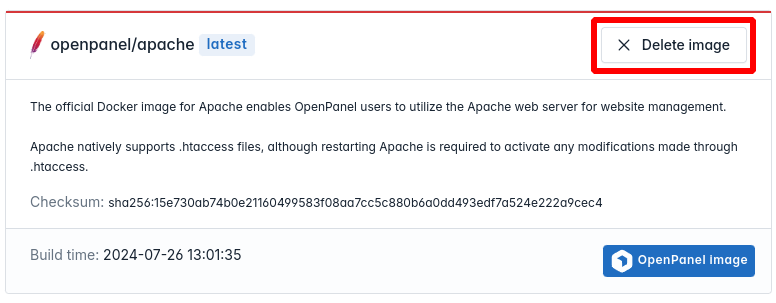 | 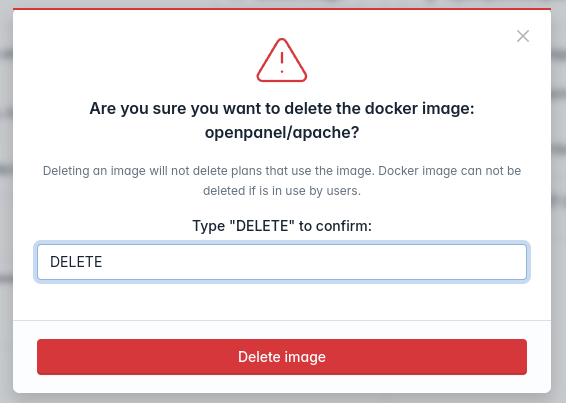 |
image can not be deleted if it is in use.
Add images
Currently images can only be added from terminal: docker pull
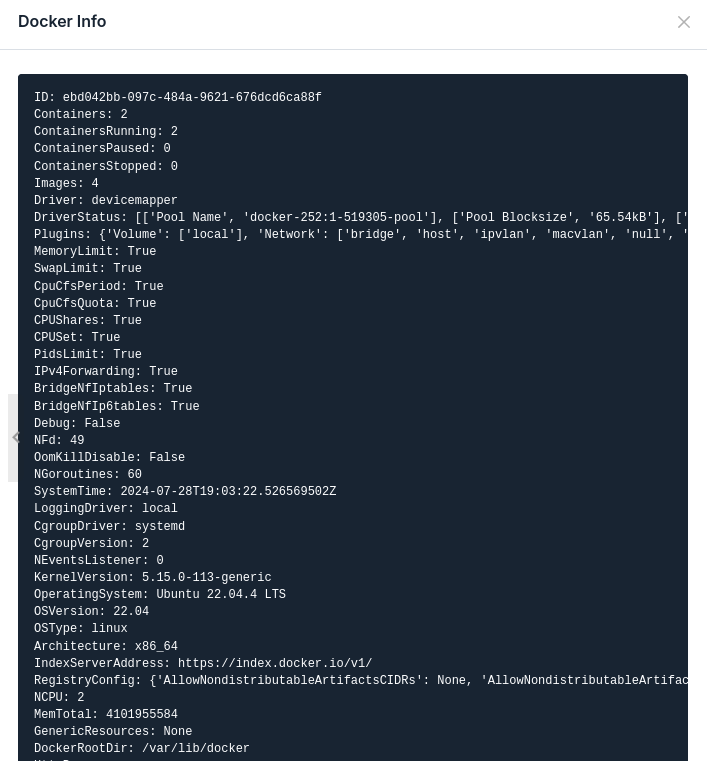
Docker info
To view current docker system info click on the  button:
Total Resource Usage
Under 'Docker Resource Usage Settings' you can configure the maximum memory and CPU percentages of server resources available for all users' Docker containers.
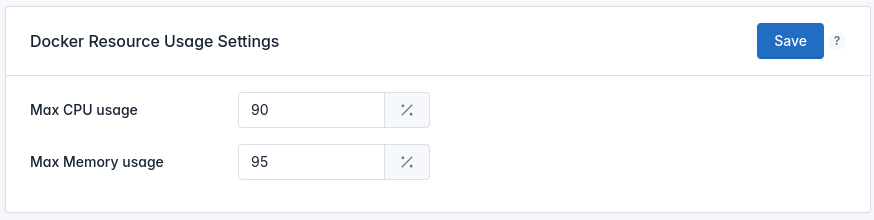
We advise against setting it above 90% (BUG#117:Slow TTFB caused by the docker_limit.slice ckgroup ).