0.2.1
Released on June 28, 2024
🚀 New features
- Spanish Translation 🇪🇸
- HiTechCloud Enterprise Edition
- HiTechAdmin > Templates
- HiTechAdmin > Services > View Log Files
- HiTechAdmin > Services > Nginx Configuration
- BETA support for CSF (ConfigServer Firewall) as drop-in replacement for UFW.
- Internal HiTechCloud blacklist
- BETA FOSSBilling Module
- HiTechAdmin > Firewall > Settings
- hitechcloudcli admin notifications check command
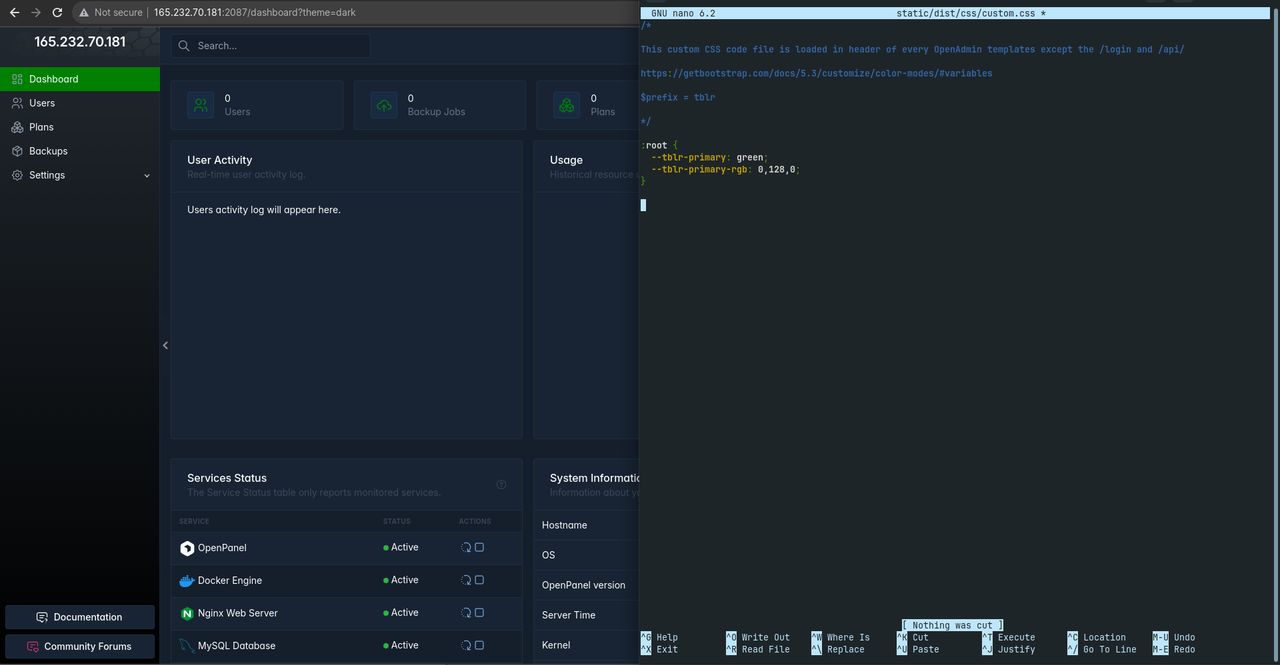
- Custom CSS code can now be added to the HiTechAdmin interface
/phpmyadminfor each user domain proxies to their PHPMyAdmin instance- Visualize docker container resource usage per user
💥 Breaking changes
- All HiTechCloud configuration files are now stored in
/etc/hitechcloud- this directory is not modified on updates. - HiTechCloud service is now run inside
hitechclouddocker container. - Translations are now stored in
/etc/hitechcloud/hitechcloud/translations/directory.
🐛 Bug fixes
- Fixed bug with IP Address not showing in spanish - reported by Luis Mendoza
- Fixed bug with
hitechcloudcli user-renamescript -reported by Matej Mohar - Excluded
/send_emailroute on HiTechAdmin from terms check. - Fixed bug with
server_config.ymlfile missing for new accounts. - Fixed bug with HiTechCloud > WPManager not displaying screenshots from remote api due to CSP setting.
- Fixed bug with mysql port exposed after reboot due to failed checks in bash script.
- Fixed bug with
jcparsing of docker stats. - Fixed bug with Sentinel checking SWAP usage when there is no swap file created.
- Fixed bug with custom css and js files causing 404 errors on HiTechCloud > Dashboard
💅 Polish
- 16x faster account creation
- Additional PHP extensions are now installed with every version
- Added an option to block incoming ping (ipmi) in UFW.
- HiTechAdmin cron logs
- Changed paths for HiTechCloud and HiTechAdmin log files
Log Viewer
The HiTechAdmin > Services > View Log Files feature enables users to access and monitor logs for both HiTechCloud and system services. This functionality supports modularity by allowing customization of the log files displayed in the viewer.
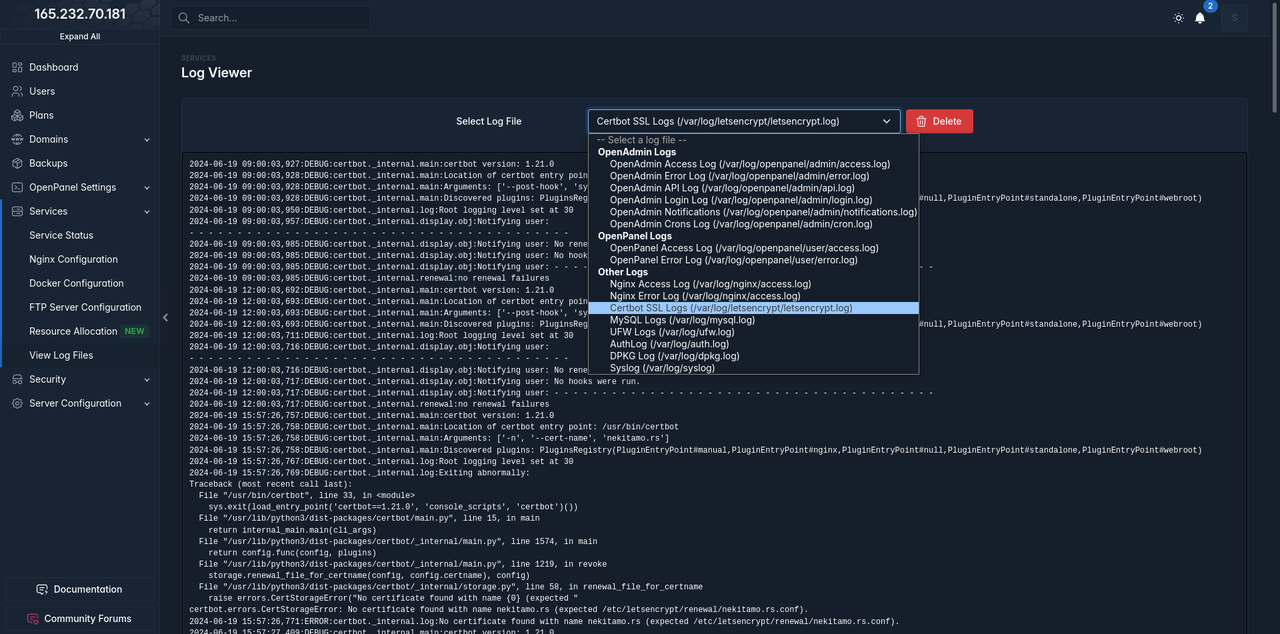
List of default log files: https://raw.githubusercontent.com/hitechcloud-vietnam/hitechcloud-configuration/main/hitechadmin/config/log_paths.json
To define custom log files for the viewer:
-
Edit Configuration File: Modify the file located at
/etc/hitechcloud/hitechadmin/config/log_paths.json. This file should contain entries in JSON format where each key-value pair represents a log file name and its corresponding path. Here is an example of what the log_paths.json file might look like: Simply edit the file/etc/hitechcloud/hitechadmin/config/log_paths.jsonand in it set the desired log files and names:{"Nginx Access Log": "/var/log/nginx/access.log","Nginx Error Log": "/var/log/nginx/access.log","HiTechAdmin Access Log": "/var/log/hitechcloud/admin/access.log","HiTechAdmin Error Log": "/var/log/hitechcloud/admin/error.log","HiTechAdmin API Log": "/var/log/hitechcloud/admin/api.log","Custom Service Log": "/path/to/custom/service.log""Syslog": "/var/log/syslog"}Replace
/path/to/custom/service.logwith actual path to your custom log files. -
Verify JSON Validity: Ensure that the log_paths.json file is formatted correctly as JSON. Any syntax errors in the JSON file will prevent the custom log files from appearing in the viewer. You can check the validity of your JSON file by using a command-line JSON processor like jq:
cat /etc/hitechcloud/hitechadmin/config/log_paths.json | jqIf the JSON is valid,
jqwill output the parsed JSON structure. If there are any errors,jqwill indicate where the problem lies. -
Verify Custom Logs in Viewer: After saving the changes, navigate to HiTechAdmin > Services > View Log Files in the interface. The custom log files you specified in log_paths.json should now appear alongside the default logs.
By following these steps, you can effectively customize the log files displayed in the HiTechAdmin log viewer according to your specific requirements. This flexibility allows you to monitor logs from both standard services and any custom applications or services you integrate with HiTechCloud.
Docker Usage
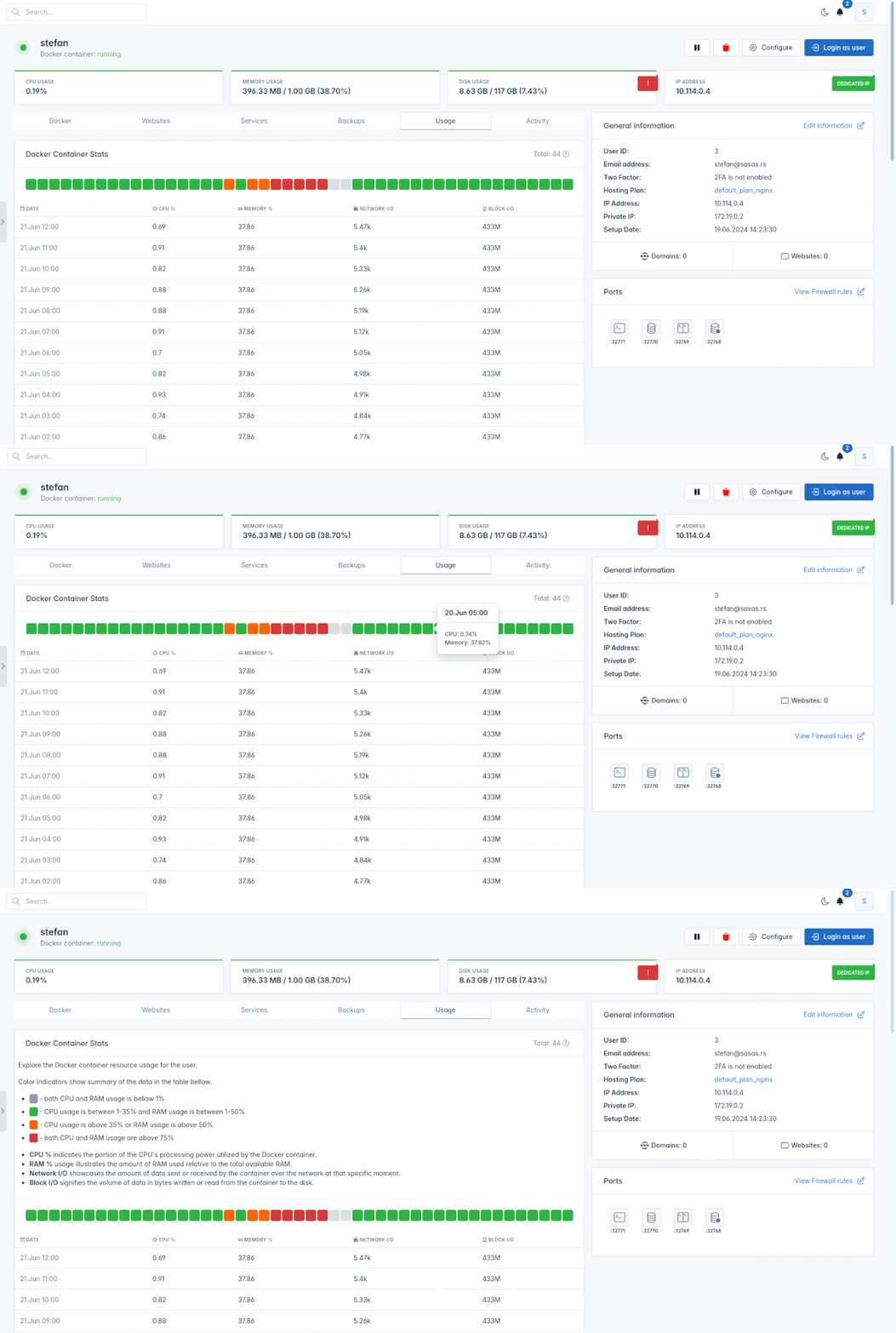
HiTechAdmin > Users > Profile > Usage page now shows a graph of users docker contianer resource usage from the table.
HiTechCloud Blacklist
HiTechCloud Blacklist shows top 10000 IP addresses that are currently involved *(in last 12hr) with attacks to HiTechCloud servers.
The list is auto-generated from the data collected by Sentinel service. Data is checked against other blacklists in order to avoid any false-positives and provide always up-to-date information.
URL: https://api.hitechcloud.co/blocklist.txt
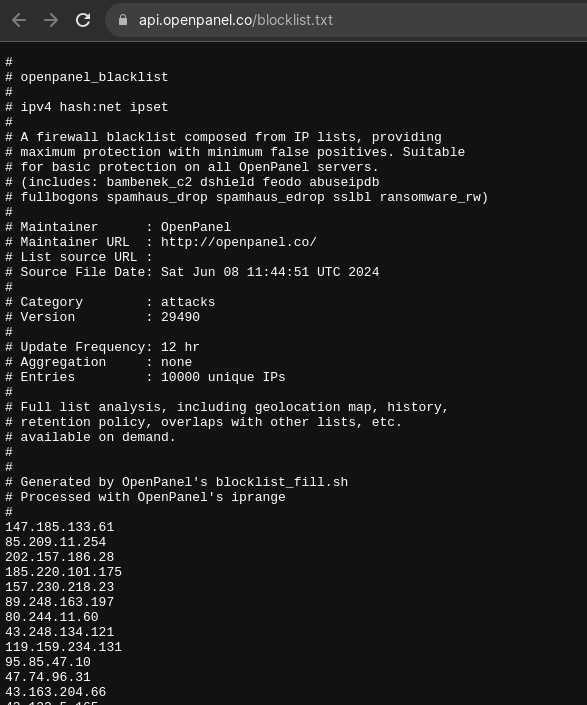
Starting HiTechCloud 0.2.1 this blacklist will be enabled by default in IPset Blacklists.
PHP extensions
Additional php extensions are now installed for every PHP version.
New extensions:
- xdebug
- apcu
- imap
- pgsql
- odbc
- dba
- enchant
- gmp
- snmp
- soap
- pspell
- recode
- gettext
- sybase
- shmop
- sysvmsg
- sysvsem
- sysvshm
- tokenizer
- wddx
- xsl
- interbase
- mcrypt
- mysqli
- pdo
- pdo_dblib
- pdo_firebird
- pdo_mysql
- pdo_odbc
- pdo_pgsql
- pdo_sqlite
- phalcon
- radius
- readline
- reflection
- session
- simplexml
- sodium
- solr
- sqlite3
- stomp
- sysvshm
- tcpdf
- tidy
- uploadprogress
- uuid
- wddx
- xcache
- xdebug
- xmlreader
- xmlwriter
- yaml
- zip
- zlib
Due to the higher number of extensions, we are also changing the install method to run in parallel. This may result in incosistent logs for php version install, but will speed up the install up to 4x.
PHPMyAdmin Proxy
HiTechCloud users can now access their PHPMyAdmin instances using https://their-domain/com`/phpmyadmin`. Auto-login from HiTechCloud is still available, but if accessed via https://their-domain/com/phpmyadmin/ then they can login as any mysql user and access the databases that user has access. This allows users to securely share limited phpmyadmin access with third parties.
Translations
Starting version 0.2.1 the path for HiTechCloud translations is changed from /usr/local/panel/translations/ to /etc/hitechcloud/hitechcloud/translations/. This will ensure that translation files are not modified during HiTechCloud updates, ensuring that you never lose your local changes.
Firewall Settings
HiTechAdmin > Frewall > Settings page displays current firewall status, allows you to enable/disable firewall, edit settings, export existing rules or reset rules for all users.
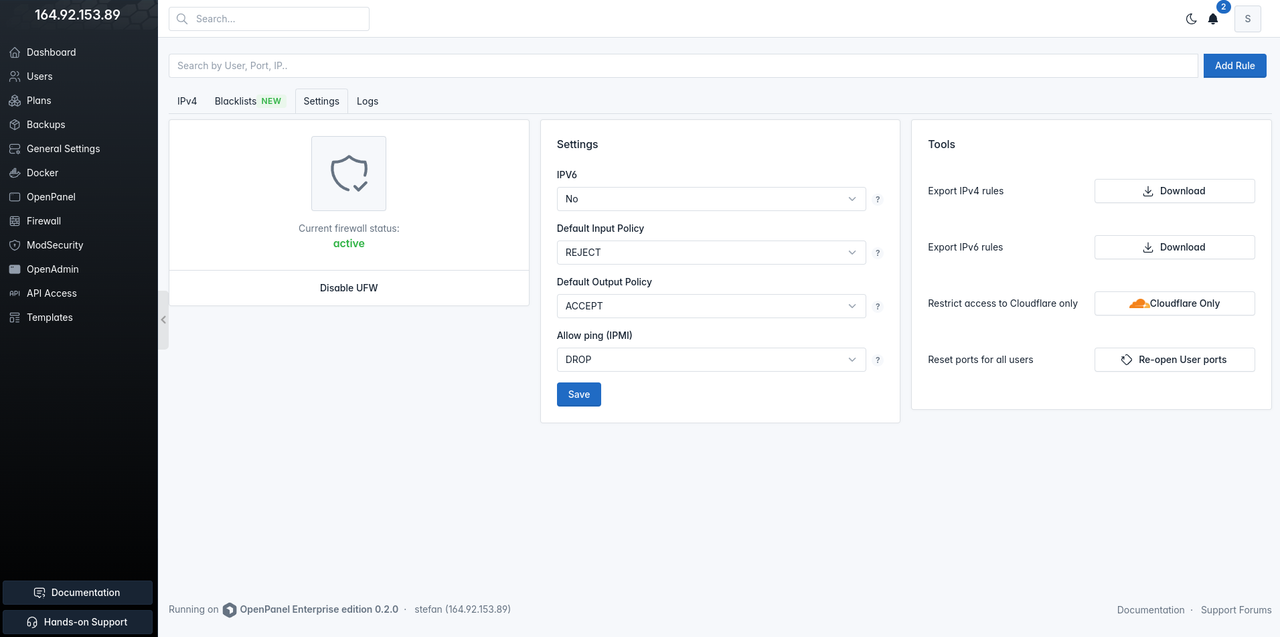
- IPv6 options allows you to enable or disable IPv6 rules. When disabled, the IPv6 ports tab is hidden.
- Default Input Policy allows you to set DROP or ACCEPT incoming connections to ports that are not specified in the rules.
- Default Output Policy allows you to set DROP or ACCEPT outgoing connections from ports that are not specified in the rules.
- Allow ping (IPMI) allows you to enable or disable ping.
- Export IPv4 rules will download in txt file all existing ipv4 rules.
- Export IPv6 rules will download in txt file all existing ipv6 rules.
- Reset ports for all users will delete opened ports for all users and open the current ports for all active users.
- Restrict access to Cloudflare only - will whitelist all Cloudfalre proxy IP addresses.
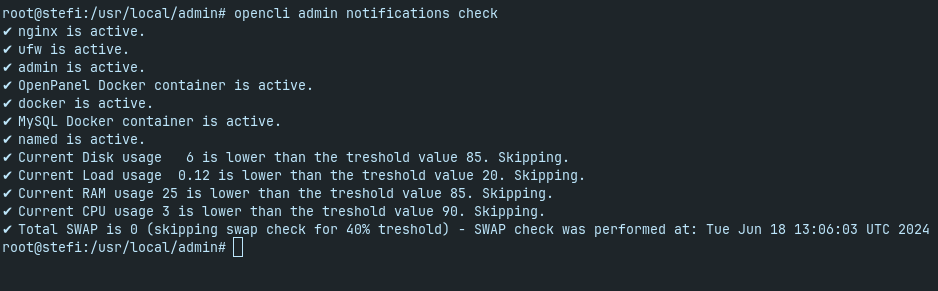
notifications check
hitechcloudcli admin notifications check command allows administrators to check notifications manually from the terminal.
Example output:
CSF
ConfigServer Firewall can now be used with HiTechCloud. To switch to CSF:
- Uninstall UFW
- Install CSF
- Run
hitechcloudcli firewall-reset
This will open needed ports and edit csf.conf to allow docker networks to communicate to the host.
Please note that currently there is no interface in HiTechAdmin to manage the CSF, so all changes need to be made from the terminal or by using CSF UI.
Custom CSS
Administrators can add custom CSS code in /usr/local/admin/static/custom/custom.css file.
Bootstrap5 documentation on setting variables: https://getbootstrap.com/docs/5.3/customize/color-modes/#variables