Branding & White-Label
Everything in HiTechCloud is modular and can easily be modified or disabled without breaking the rest of the functionalities.
To customize HiTechCloud, you have the following options:
- Display personalized message per user
- Enable/disable features and pages from the HiTechCloud interface
- Add custom icons in Dashboard page
- Customize Default, Suspended User and Suspended Domain pages
- Localize the interface
- Set custom branding
- Set a custom color scheme
- Replace How-to articles with your knowledge base
- Customize any page
- Customize login page
- Add custom CSS or JS code to the interface
- Create a custom module for HiTechCloud
- Self-hosted temporary links for SiteManager
- Self-hosted screenshots for SiteManager
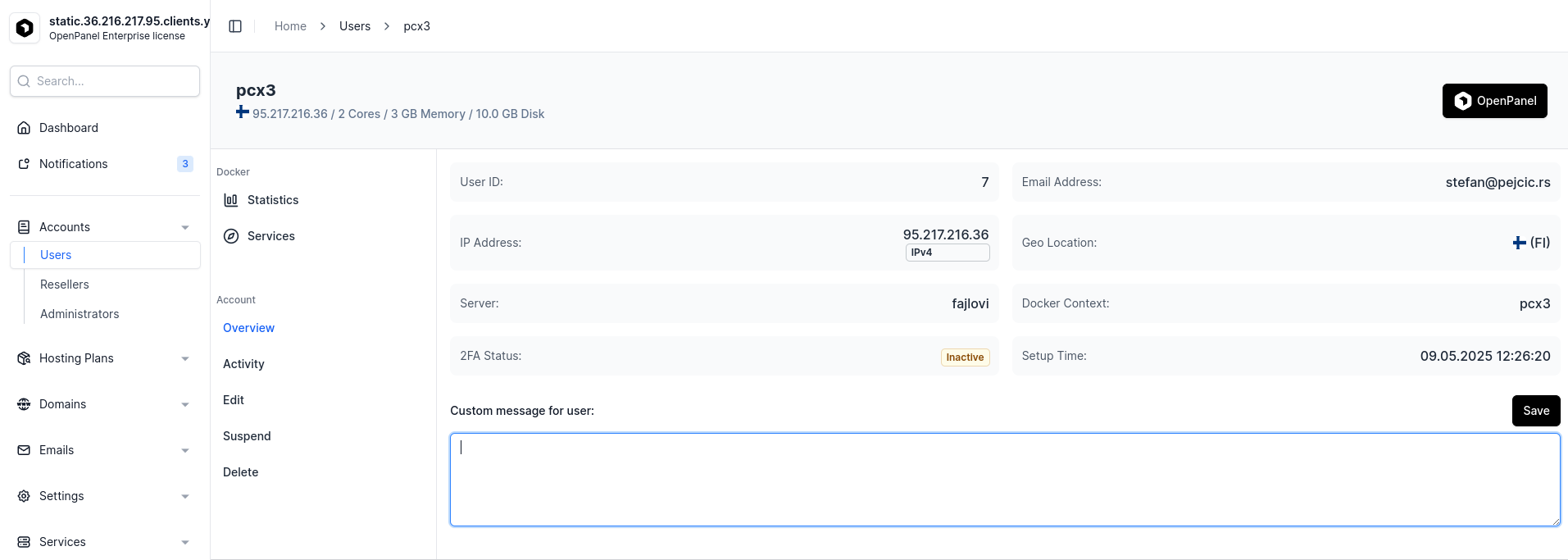
Personalized messages
Administrators can set a custom message to be displayed for any HiTechCloud uer from their HiTechAdmin > Users page.
Enable/disable features
Administrators have the ability to enable or disable each feature (page) in the HiTechCloud interface per plan or per-user base.
Once enabled, the feature becomes instantly available to all users, appearing in the HiTechCloud interface sidebar, search results, and dashboard icons.
Set pre-installed services
HiTechCloud uses docker compose files as the base for each user. Based on the docker images in that compose files, different services can be set per plan/user.
Localize the interface
HiTechCloud is localization ready and can easily be translated into any language.
HiTechCloud is shipped with the EN locale, additional locales can be installed by the Administrator.
Set custom branding
Custom brand name and logo can be set from HiTechAdmin > Settings > HiTechCloud page.
To set a custom name visible in the HiTechCloud sidebar and on login pages, enter the desired name in the "Brand name" option. Alternatively, to display a logo instead, provide the URL in the "Logo image" field and save the changes.
Customize Templates
You can customize all templates that are displayed to users:
- Domain VHost Template
- Default Landing Page
- Suspended User Template
- Suspended Domain Template
- Error Pages
Create HiTechCloud Module
To create a custom module (plugin) for HiTechCloud follow this guide: Example Module
Set a custom color scheme
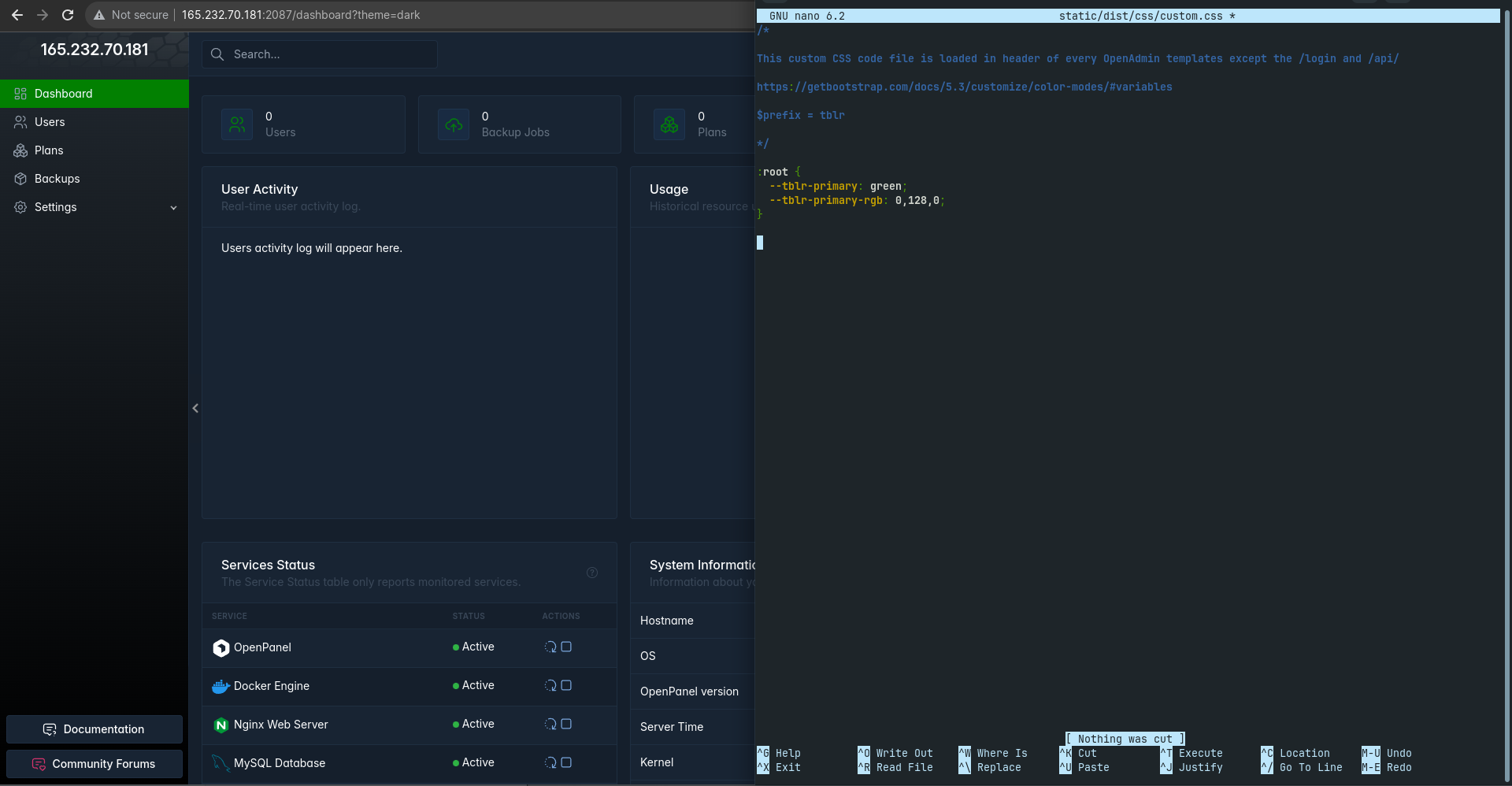
To set a custom color-scheme for HiTechCloud interface, edit the /etc/hitechcloud/hitechcloud/custom_code/custom.css file and in it set your preferred color scheme.
nano /etc/hitechcloud/hitechcloud/custom_code/custom.css
Set the custom css code, save and restart hitechcloud to apply changes:
cd /root && docker compose up -d hitechcloud
Example:
Replace How-to articles with your knowledge base
HiTechCloud Dashboard page displays How-to articles from the HiTechCloud Docs, however these can be changed to display your knowledgebase articles instead.
Edit the file /etc/hitechcloud/hitechcloud/conf/knowledge_base_articles.json and in it set your links:
{
    "how_to_topics": [
        {"title": "How to install WordPress", "link": "https://hitechcloud.org/docs/panel/applications/wordpress#install-wordpress"},
        {"title": "Publishing a Python Application", "link": "https://hitechcloud.org/docs/panel/applications/pm2#python-applications"},
        {"title": "How to edit Nginx / Apache configuration", "link": "https://hitechcloud.org/docs/panel/advanced/server_settings#nginx--apache-settings"},
        {"title": "How to create a new MySQL database", "link": "https://hitechcloud.org/docs/panel/databases/#create-a-mysql-database"},
        {"title": "How to add a Cronjob", "link": "https://hitechcloud.org/docs/panel/advanced/cronjobs#add-a-cronjob"},
        {"title": "How to change server TimeZone", "link": "https://hitechcloud.org/docs/panel/advanced/server_settings#server-time"}
    ],
    "knowledge_base_link": "https://hitechcloud.org/docs/panel/intro/?source=hitechcloud_server"
}
Edit any page template
Each HiTechCloud template code is open and can easily be edited by just editing the HTML code.
Templates are located inside a Docker container named hitechcloud, so you first need to find the template that has the code that you want to edit.
For example, to edit the sidebar and hide the HiTechCloud logo, follow these steps:
-
Create a new folder/file locally for your modified code.
mkdir /root/custom_template/ -
Copy the existing template code.
docker cp hitechcloud:/usr/local/panel/templates/partials/sidebar.html /root/custom_template/sidebar.html -
Edit the code.
-
Configure HiTechCloud to use your template. Edit the
/root/docker-compose.ymlfile and in it set your file to overwrite the original template:nano /root/docker-compose.ymland in the file under hitechcloud > volumes set local path and original:
- /root/custom_theme/sidebar.html:/usr/local/panel/templates/partials/sidebar.html -
Restart HiTechCloud to apply the new template.
cd /root && docker compose up -d hitechcloud
Customize login page
HiTechCloud login page template code is located at /usr/local/panel/templates/user/login.html inside the docker container.
To edit the login page:
-
Create a new folder/file locally for your modified code.
mkdir /root/custom_template/ -
Copy the existing template code.
docker cp hitechcloud:/usr/local/panel/templates/user/login.html /root/custom_template/login.html -
Edit the code.
-
Configure HiTechCloud to use your template. Edit the
/root/docker-compose.ymlfile and in it set your file to overwrite the original template:nano /root/docker-compose.ymland in the file under hitechcloud > volumes set local path and original:
- /root/custom_theme/login.html:/usr/local/panel/templates/user/login.html -
Restart HiTechCloud to apply the new login template.
cd /root && docker compose up -d hitechcloud
Add custom CSS or JS code
To add custom CSS code to the HiTechCloud interface, edit the file /etc/hitechcloud/hitechcloud/custom_code/custom.css:
nano /etc/hitechcloud/hitechcloud/custom_code/custom.css
To add custom JavaScript code to the HiTechCloud interface, edit the file /etc/hitechcloud/hitechcloud/custom_code/custom.js:
nano /etc/hitechcloud/hitechcloud/custom_code/custom.js
To insert custom code within the <head> tag of the HiTechCloud interface, modify the content of the file located at /etc/hitechcloud/hitechcloud/custom_code/in_header.html and include your custom code within it:
nano /etc/hitechcloud/hitechcloud/custom_code/in_header.html
To insert custom code within the <footer> tag of the HiTechCloud interface, modify the content of the file located at /etc/hitechcloud/hitechcloud/custom_code/in_footer.html and include your custom code within it:
nano /etc/hitechcloud/hitechcloud/custom_code/in_footer.html
Customize Email templates
How to modify the email template used for user notifications: https://community.hitechcloud.org/d/189-customizing-the-email-template-used-for-user-notifications
- Personalized messages
- Enable/disable features
- Set pre-installed services
- Localize the interface
- Set custom branding
- Customize Templates
- Create HiTechCloud Module
- Set a custom color scheme
- Replace How-to articles with your knowledge base
- Edit any page template
- Customize login page
- Add custom CSS or JS code
- Customize Email templates