Setup Email
HiTechCloud Enterprise supports Emails. Once enabled, a shared Email server becomes available for all users.
Follow these steps to enable Emails in HiTechCloud:
1. Activate the Enterprise License
Ensure that you're running the Enterprise Edition of HiTechCloud. Email support is only available in this version.
Upgrading to HiTechCloud Enterprise and activating License
2. Enable the Email Module
HiTechCloud uses a modular system where features can be individually enabled or disabled.
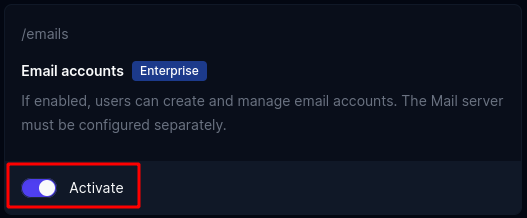
To enable the Email module:
- Go to HiTechAdmin > Settings > Modules
- Find the Emails module and click Activate
3. Install the Email Service
The Email feature uses the docker-mailserver stack.
To start it:
- Navigate to HiTechAdmin > Emails > Email Accounts
- Copy the command displayed on the page
hitechcloudcli email-server install - Paste it on Terminal and wait for the process to finish.

4. Enable the Emails Feature in Hosting Plans
Emails access must be explicitly enabled in the hosting plan's feature set.
To do this:
- Go to HiTechAdmin > Hosting Plans > Feature Manager
- Select the feature set you want to modify
- Enable the emails feature

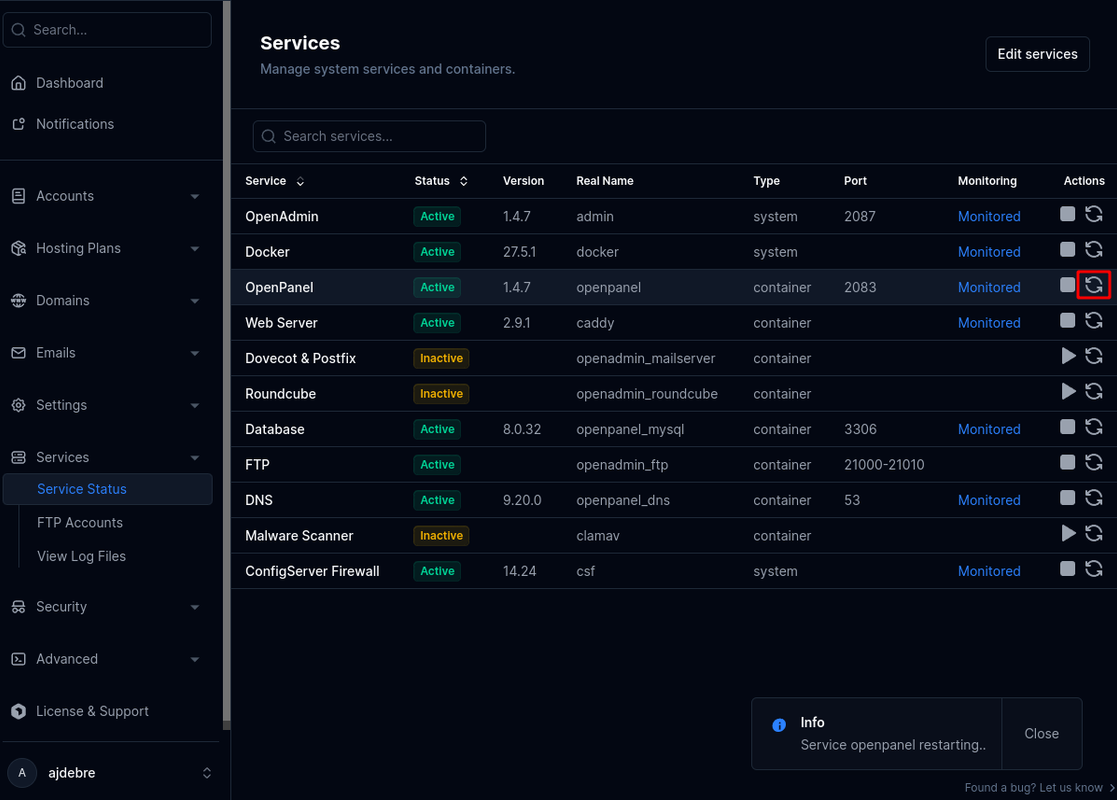
5. Restart HiTechCloud
Restarting HiTechCloud ensures that the newly enabled module and feature sets take effect immediately for all users.
To restart:
- Go to HiTechAdmin > Services > Status
- Click Restart next to HiTechCloud
Done
Email is now enabled for all hosting plans that include the emails feature. Affected users can access Webmail an Email accounts form access it under HiTechCloud > Emails.

Troubleshooting
If the mail server fails to start, try launching it manually from the terminal:
cd /usr/local/mail/hitechmail && docker compose up mailserver
Review the startup logs for any errors, resolve them, and once the service is running correctly, stop it and restart it in detached mode using the -d flag.
The most common reasons the mail server fails to start include:
-
Another service already using port 25—for example, Exim. Solution: Disable or stop the conflicting service.
-
Firewall or iptables error that block docker starting. Solution: Restart the Docker service to reset network rules.
-
Invalid Configuration for mailserver. Solution: Revert the default mailserver .env file.