Setup TLS for FTP
This guide explains how to enable Explicit FTP over TLS (FTPS) in HiTechCloud using VSFTPD.
HiTechCloud Enterprise supports FTP access. Once enabled, a shared FTP server becomes available for all users. First follow this guide on how to enable FTP in HiTechCloud: How to configure FTP server
Step 1: Add a Domain
To use TLS, you must have an SSL certificate available on the server. Start by adding a domain in one of the following ways:
-
As an HiTechAdmin user (for HiTechCloud/HiTechAdmin access): https://hitechcloud.org/docs/admin/settings/general/#domain
-
As an HiTechCloud user: https://hitechcloud.org/docs/panel/domains/new/
Once added, HiTechCloud will automatically generate an SSL certificate for the domain (if supported).
Step 2: Verify SSL Certificate Files
Make sure the SSL certificate and private key files exist on the server. If the certificate was auto-generated, the paths should look like this:
/etc/hitechcloud/caddy/ssl/acme-v02.api.letsencrypt.org-directory/DOMAIN_NAME/DOMAIN_NAME.crt
/etc/hitechcloud/caddy/ssl/acme-v02.api.letsencrypt.org-directory/DOMAIN_NAME/DOMAIN_NAME.key
Replace DOMAIN_NAME with your actual domain name.
Step 3: Enable TLS in VSFTPD
-
Go to HiTechAdmin → Services → FTP → Configuration
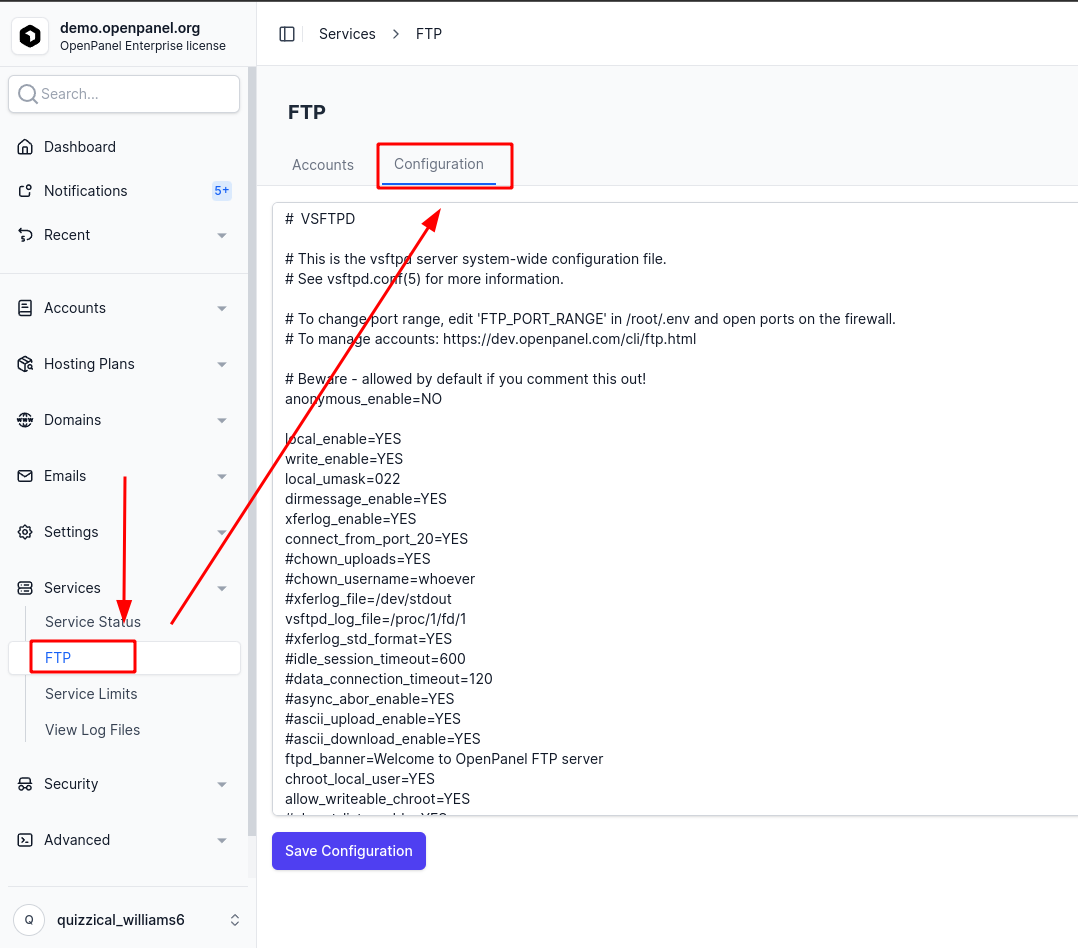
-
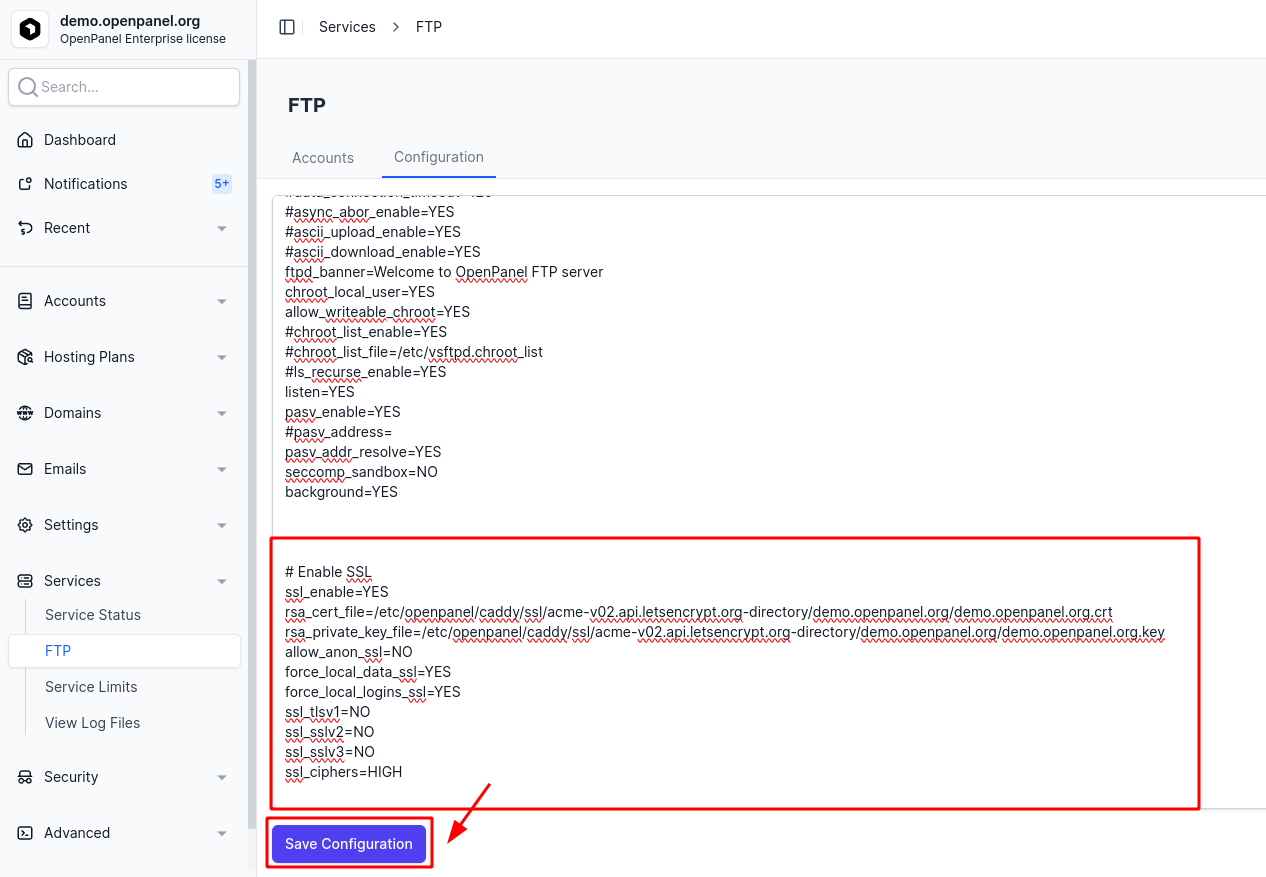
Paste the following configuration options to enable TLS:
⚠️ Important: Replace
DOMAIN_NAMEwith your domain name in both file paths.# Enable SSLssl_enable=YESrsa_cert_file=/etc/hitechcloud/caddy/ssl/acme-v02.api.letsencrypt.org-directory/DOMAIN_NAME/DOMAIN_NAME.crtrsa_private_key_file=/etc/hitechcloud/caddy/ssl/acme-v02.api.letsencrypt.org-directory/DOMAIN_NAME/DOMAIN_NAME.keyallow_anon_ssl=NOforce_local_data_ssl=YESforce_local_logins_ssl=YESssl_tlsv1=NOssl_sslv2=NOssl_sslv3=NOssl_ciphers=HIGH -
Click Save to apply the changes.
Step 4: Restart the FTP Service
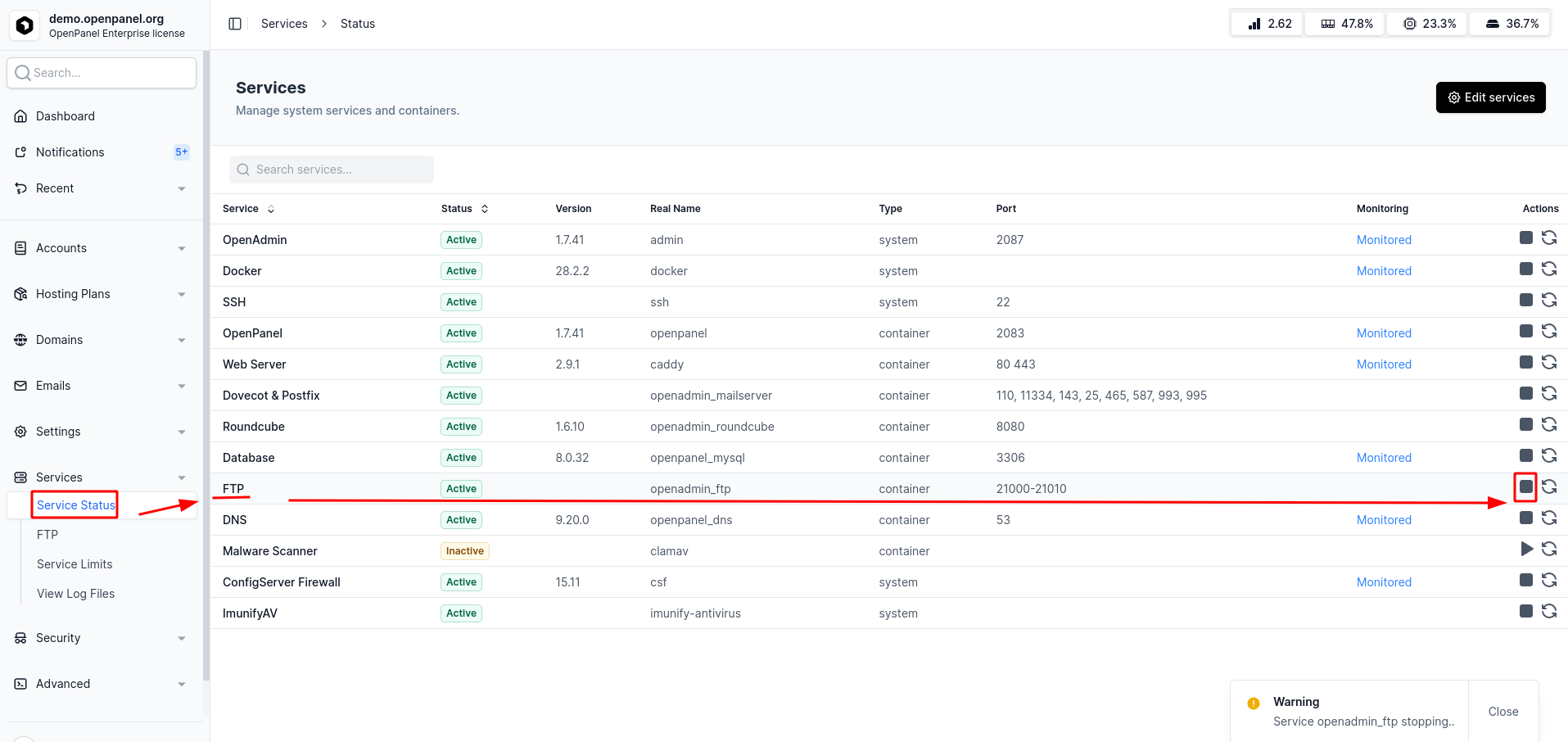
- Navigate to HiTechAdmin → Services → Services Status.
- Locate the FTP service.
- Click Stop, then Start to restart the service.