Transfer License to a New Server
Follow these steps to transfer your HiTechCloud Enterprise Edition license to another server:
- Disable the license on your current server.
- Reissue the license from your my.hitechcloud.org account.
- Add the license to your new server.
1. Remove License from the Old Server
On the server where your license is currently activated, remove the license using one of the following methods:
-
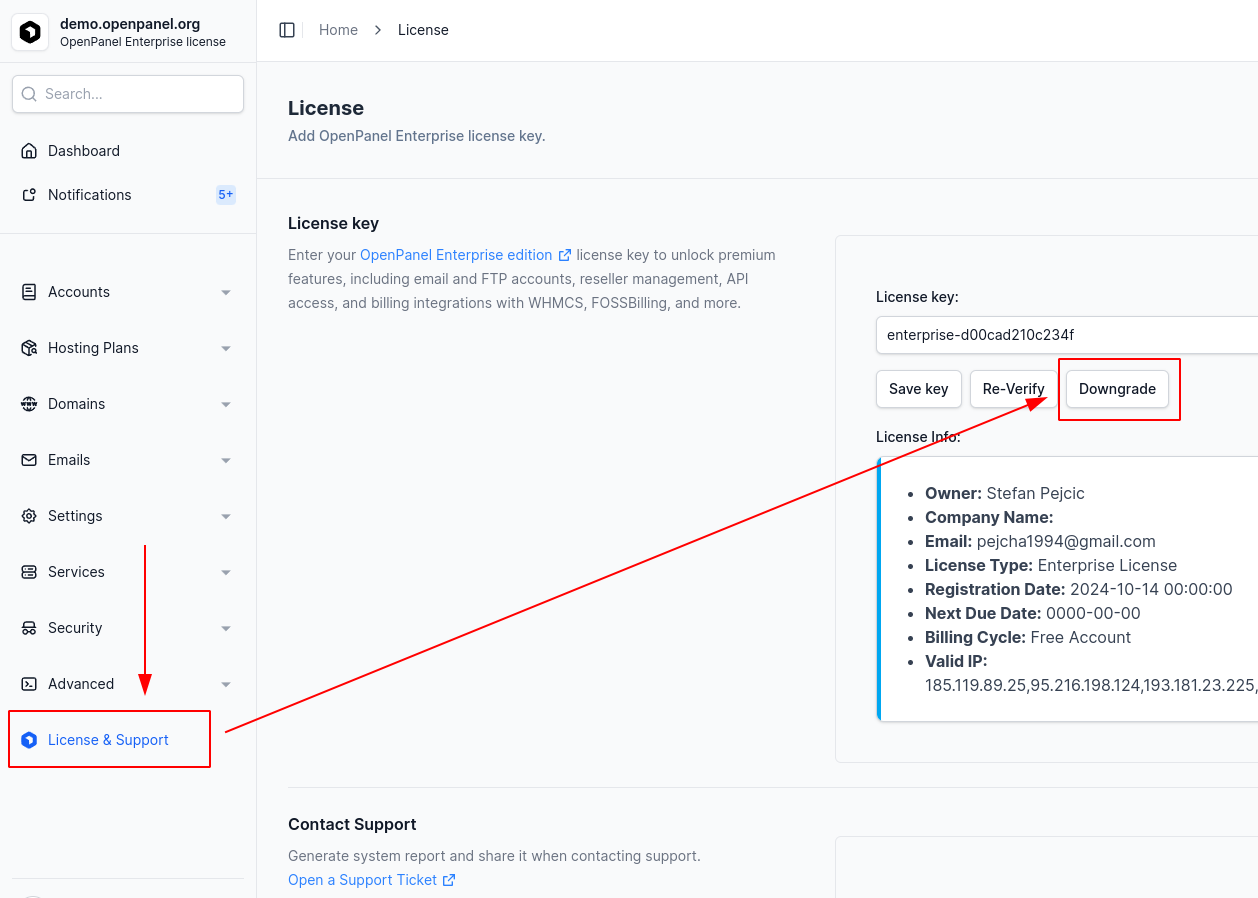
From HiTechAdmin: Go to HiTechAdmin > License and click the Downgrade button.
-
From the Terminal:
hitechcloudcli license delete
Once the license has been removed from the old server, continue to the next step.
2. Reissue the License
Each license is automatically bound to the IP address of the server where it’s first activated. To transfer it to a new server, you need to reissue the license:
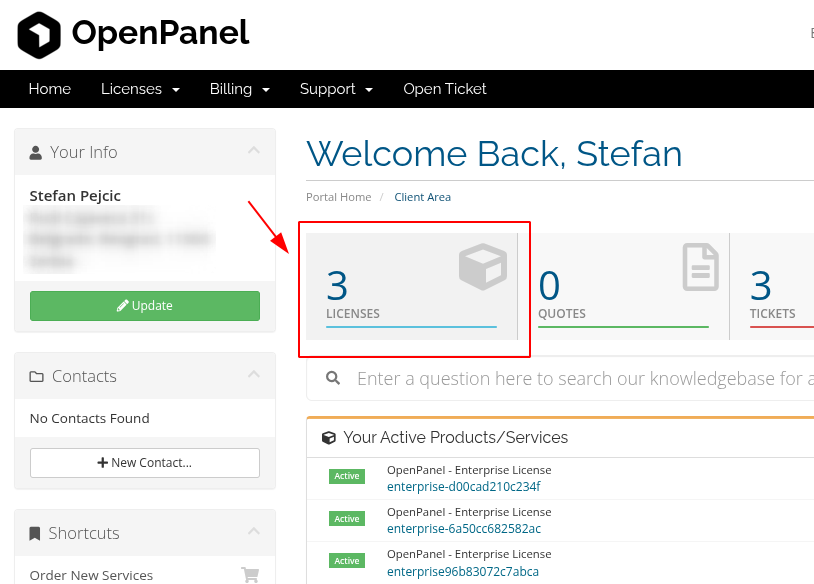
- Log in to your my.hitechcloud.org account.
- Go to the Licenses section.
- Find the license you want to move and click on it.
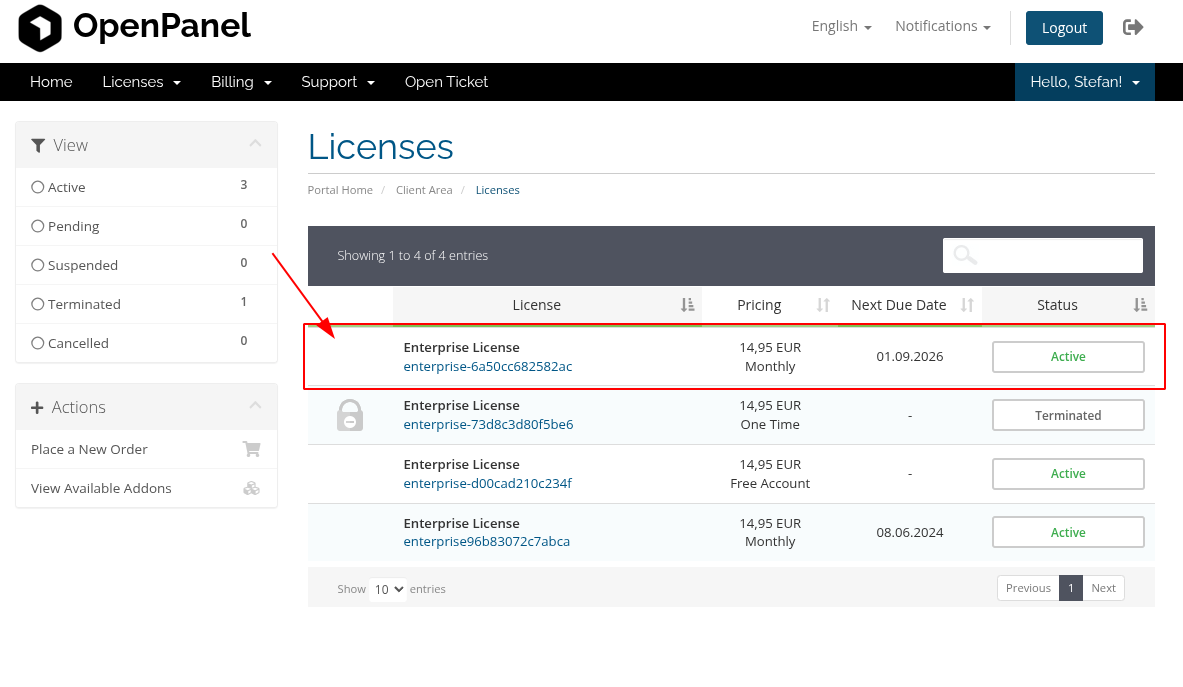
- Click the Reissue button.
After reissuing, the license is no longer tied to any IP address. It will automatically bind to the next server where you activate it.
3. Add License to the New Server
Now, activate the license on your new server. You can do this in one of two ways:
-
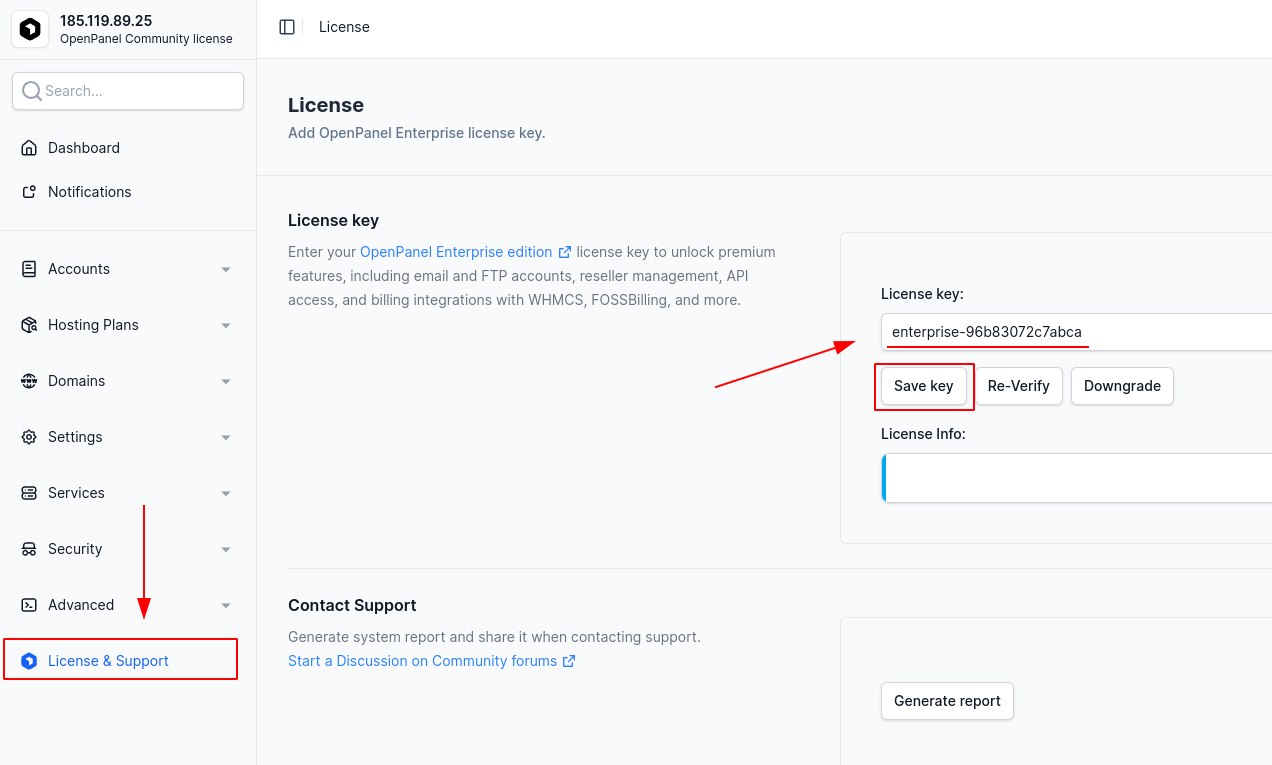
From HiTechAdmin: Go to HiTechAdmin > License, enter your license key, and click Save key.
-
From the Terminal:
hitechcloudcli license add YOUR-KEY-HERE
That’s it! Your HiTechCloud Enterprise license is now successfully transferred to the new server.