WAF
The Web Application Firewall (WAF) interface allows HiTechCloud users to toggle Coraza WAF on or off for each domain individually.
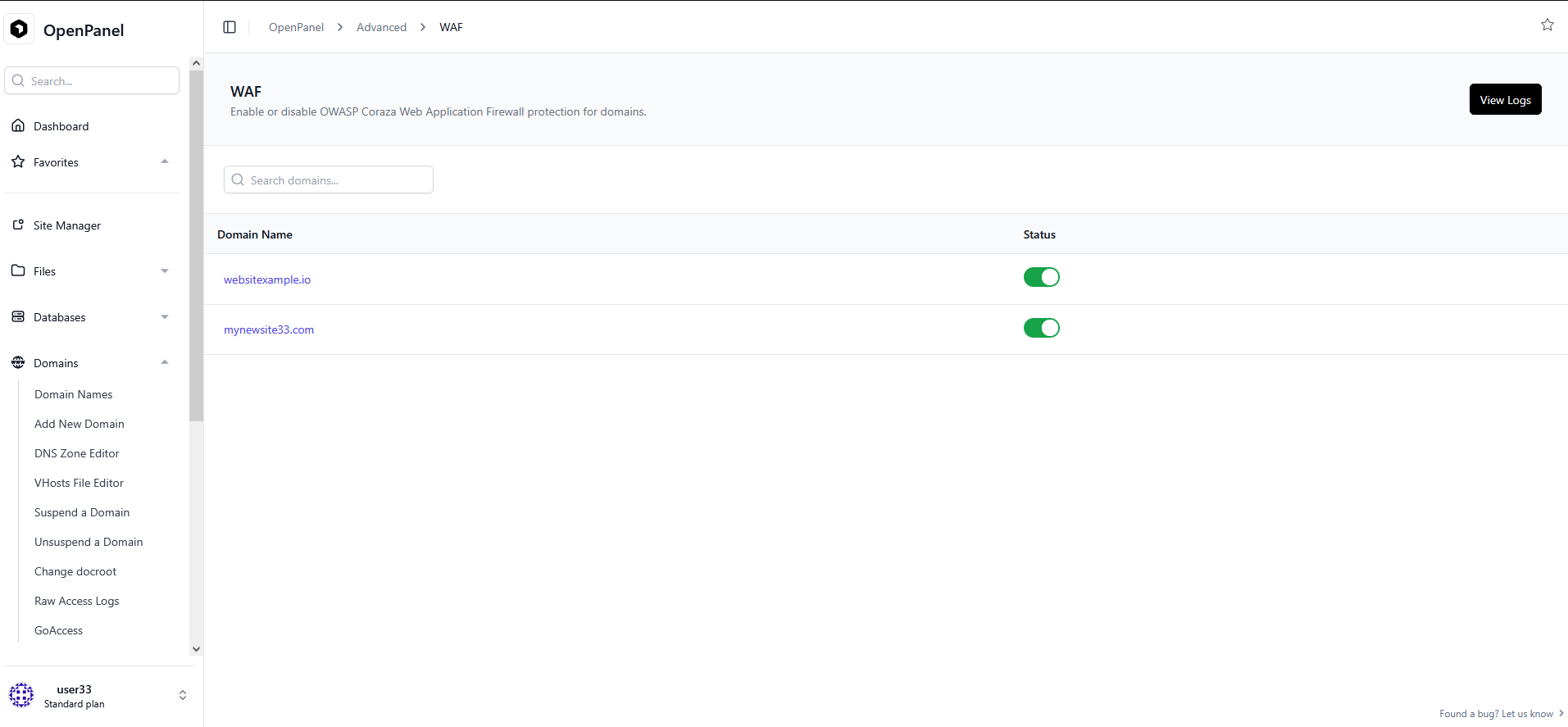
Manage domain
Clicking the Manage Rules button next to a domain opens the rule management page where you can disable individual rules for that domain.
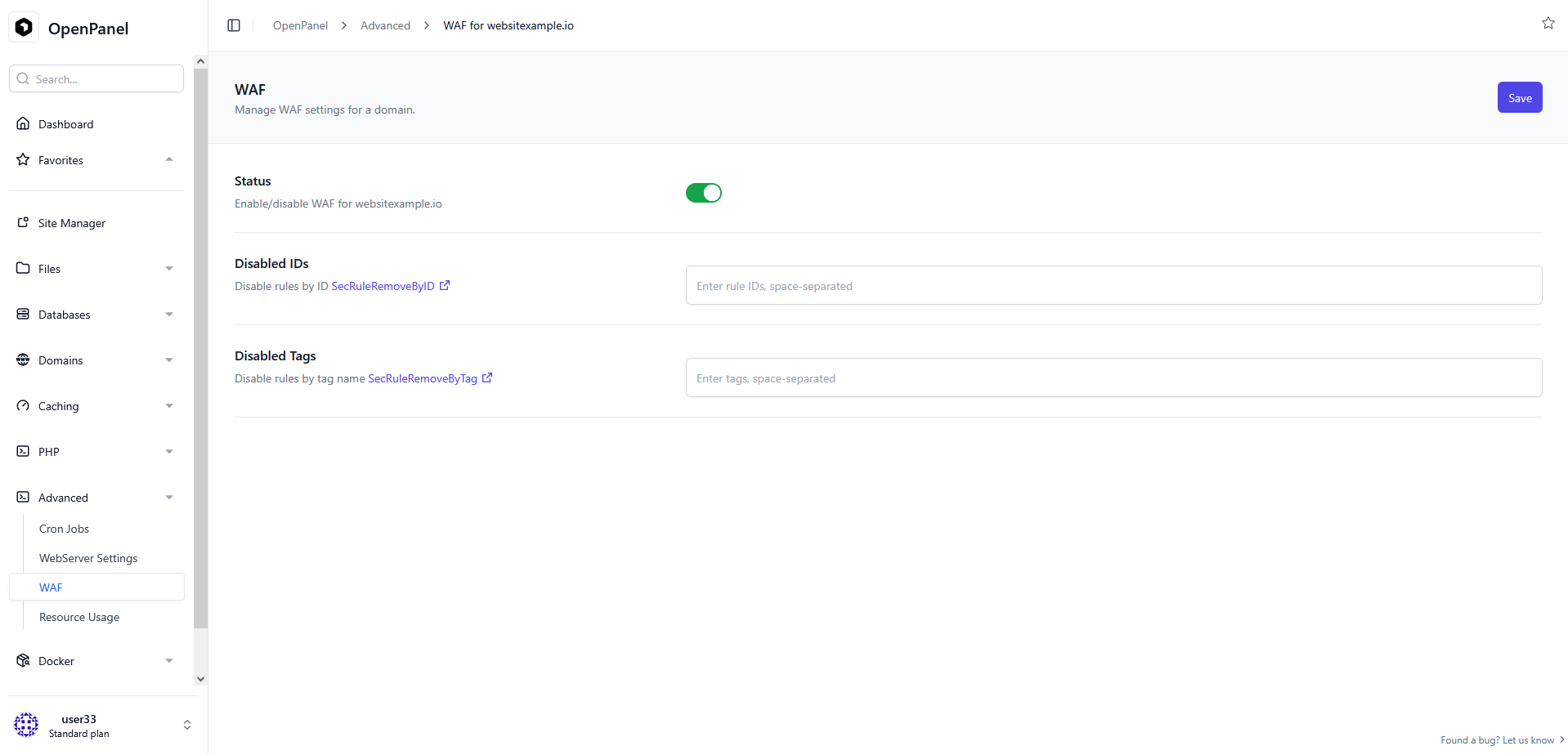
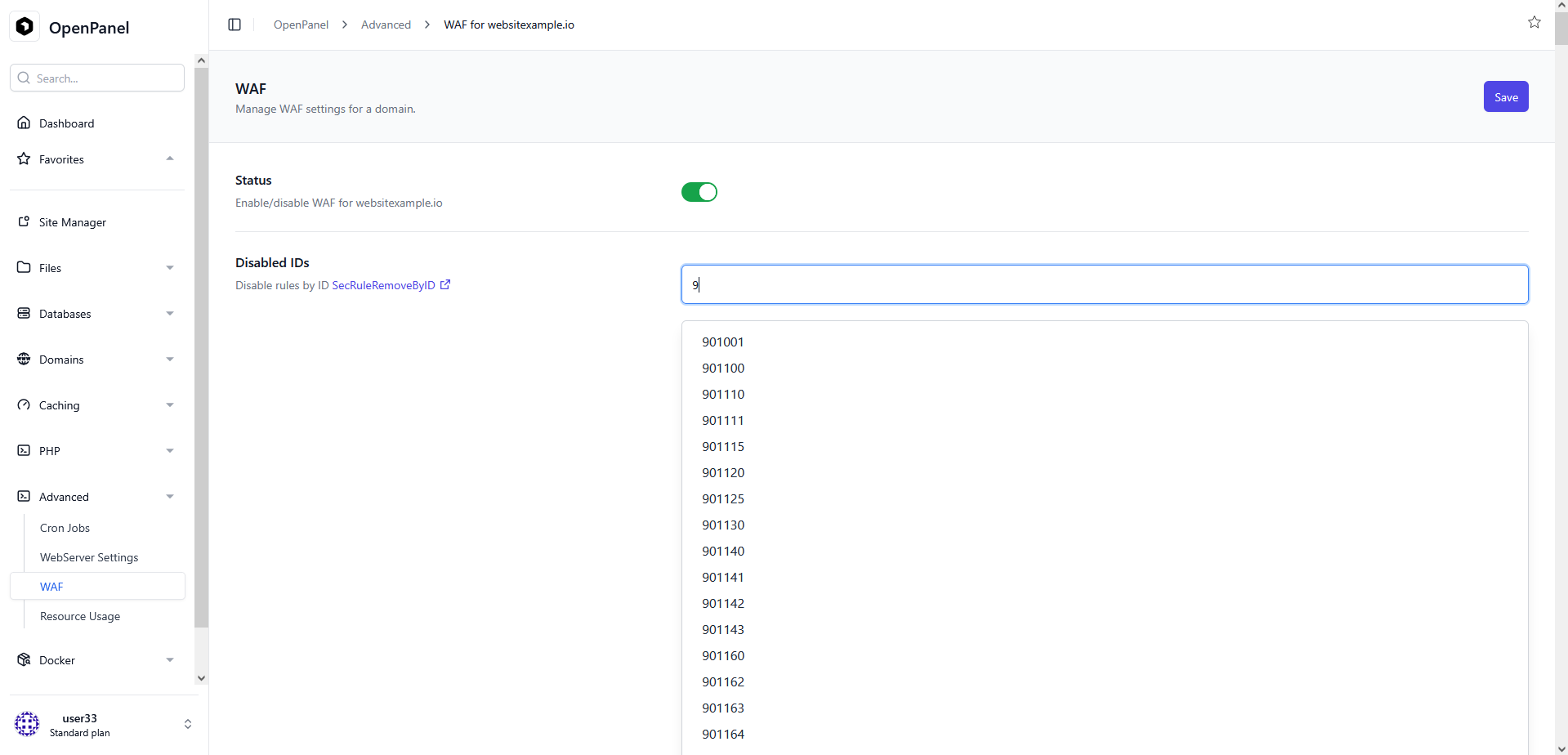
Rules can be disabled by ID, in the Disabled IDs field (SecRuleRemoveById):
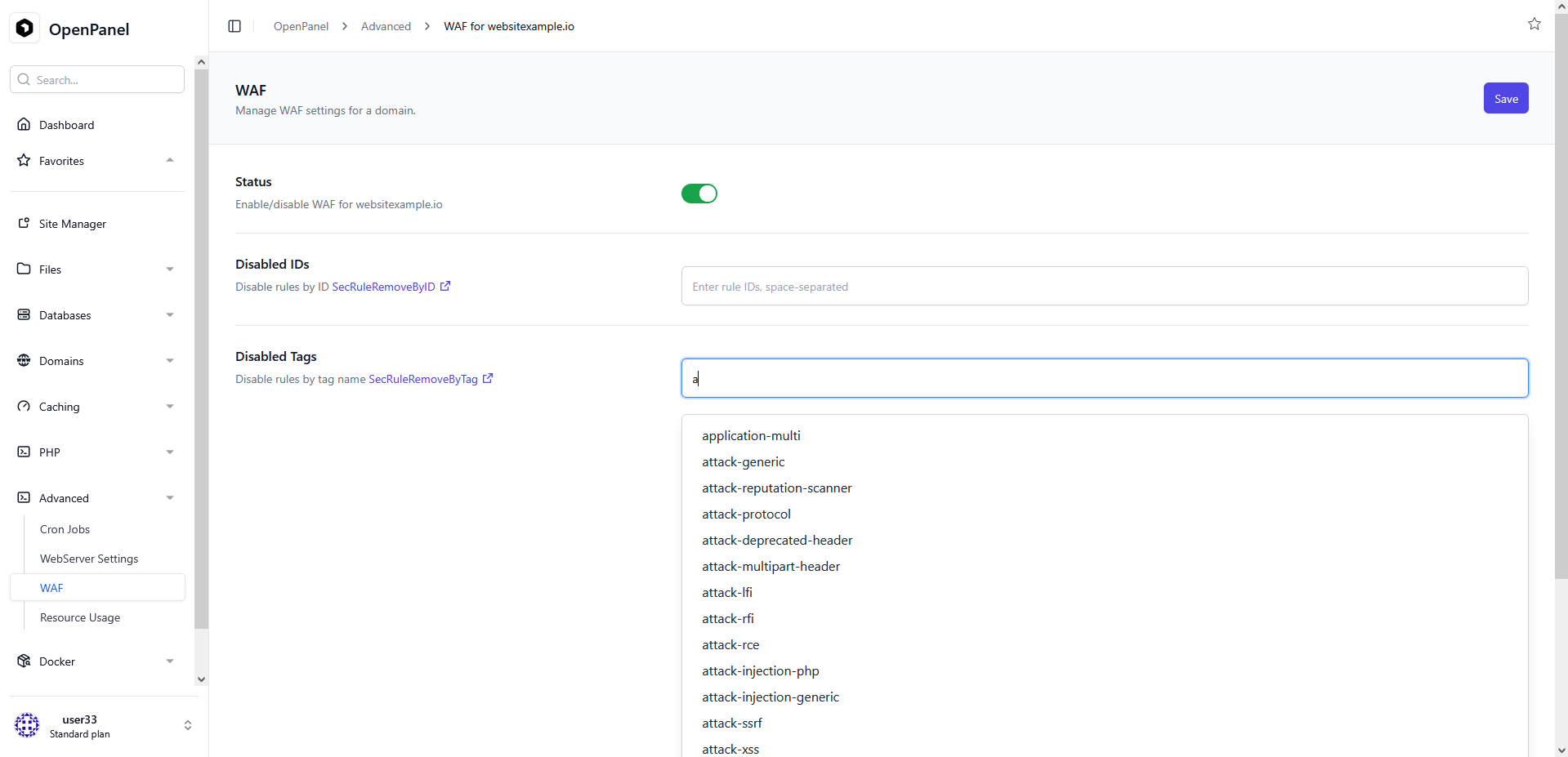
Or by tag name, in the Disabled Tags field (SecRuleRemoveByTag):
The OWASP Core Rule Set is what the firewall inspects with once a domain is
behind it. A newly added domain is not behind it by default: it starts
off, which means it is not inspected and not even routed through the
firewall. Turn it on per domain here, or set a default for the whole account
so the domains it adds later start protected too — see below.
A default for the whole account
Turning the firewall on for a domain covers that domain. It does not cover a
domain the account adds next week: that one starts off, sits in the list
beside the protected ones, and looks like a choice somebody made.
An administrator can give the account a default instead:
hitechcloudcli webfirewall account <account> enforce
That sets every domain the account has now and makes every domain it adds
later start in the same mode. detect is the safer first step — every
decision is logged and nothing is ever blocked. To see where an account
stands:
hitechcloudcli webfirewall account <account>
To stop seeding new domains without changing any domain that already exists:
hitechcloudcli webfirewall account <account> clear
The default is read only when a domain is created. A domain an administrator has switched by hand keeps that switch, so an exception made on purpose is never undone by the account default.
WAF Logs
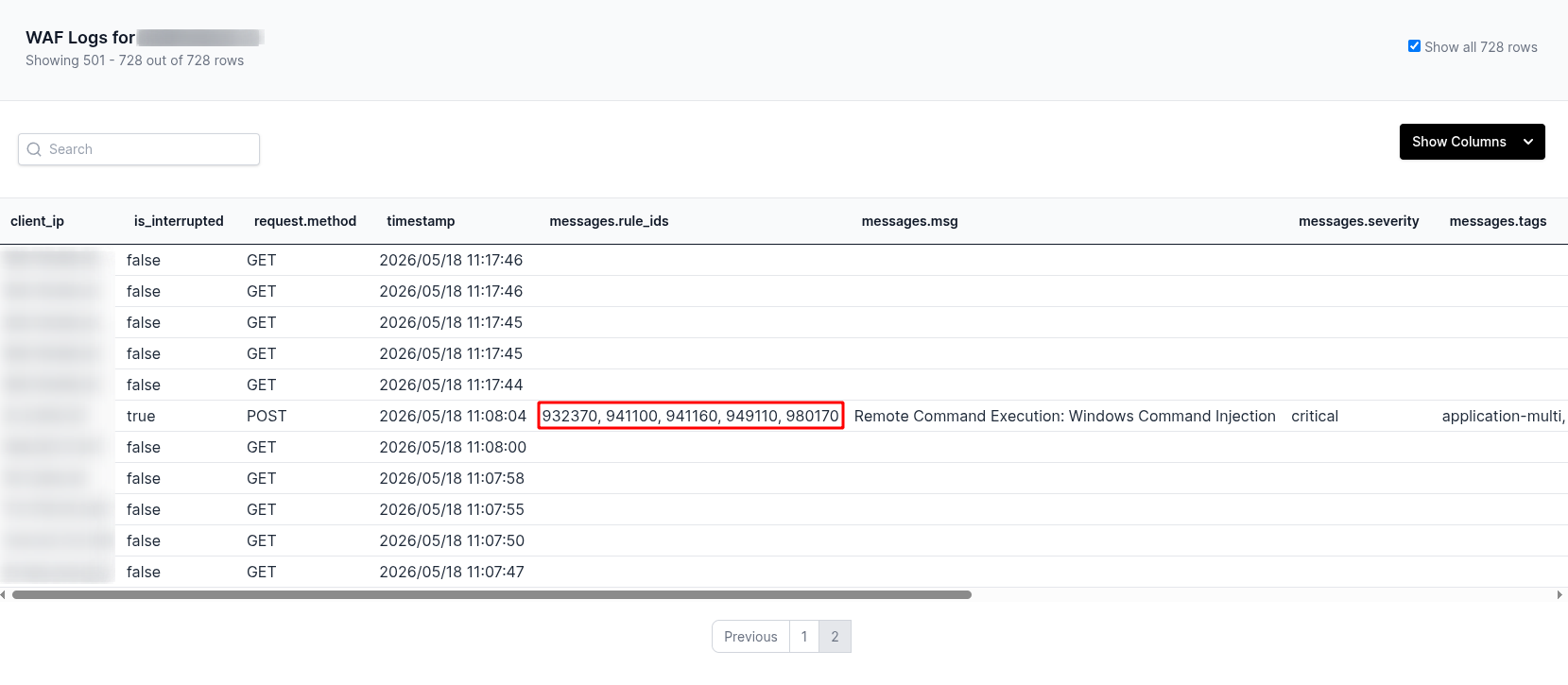
WAF logs can be viewed by clicking the View Logs button for domain.
Reading the Logs
Coraza logs all checked requests, not just blocked ones. The key columns are:
is_interrupted: whether the request was blocked. true means blocked.
messages.rule_ids: the IDs of rules that fired, for example:
932370, 941100, 941160, 949110, 980170
These are the IDs you can paste into the Disabled IDs field for that domain.
messages.tags — the tags associated with triggered rules, for example:
application-multi, language-shell, platform-windows, attack-rce, paranoia-level/1, OWASP_CRS, OWASP_CRS/ATTACK-RCE, capec/1000/152/248/88
When disabling by tag, use the attack category tags such as attack-rce or attack-xss. Avoid broad tags like OWASP_CRS or paranoia-level/1 as they would disable large portions of the ruleset.
Disabling rules by tag removes them globally for the entire domain. For false positives on specific pages (e.g. /wp-admin), disabling by ID is the safer approach as it can be scoped more precisely.
messages.msg — the human-readable reason the rule fired, for example:
Remote Command Execution: Windows Command Injection