WordPress Manager
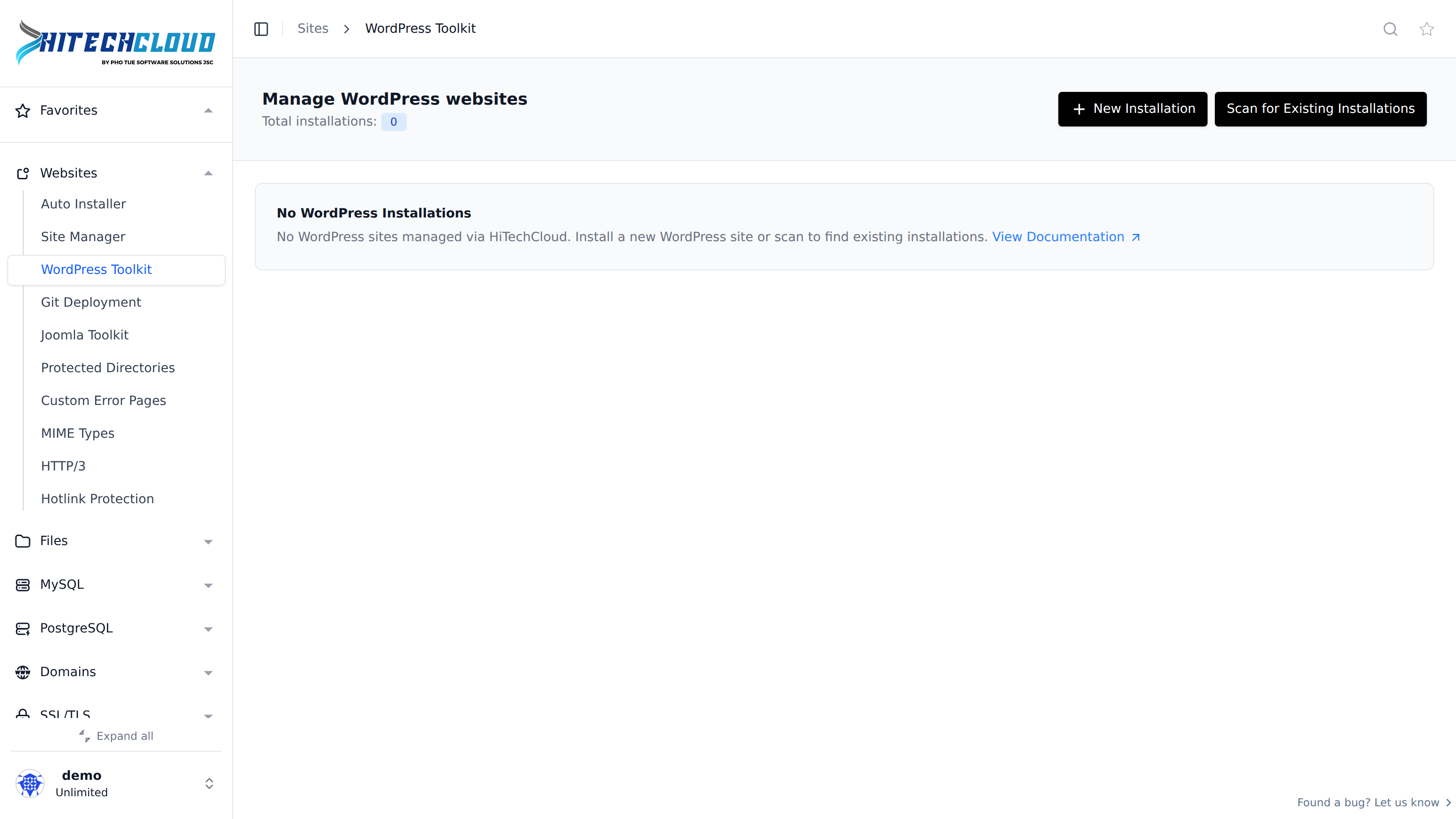
The WordPress Manager is your all-in-one tool inside HiTechCloud for installing and managing WordPress websites — without ever needing to log in to wp-admin. It makes handling multiple sites fast, simple, and efficient.
Manage WordPress sites
The WordPress Manager lets you adjust settings, create backups, update plugins, toggle debugging, and more — all directly from HiTechCloud. No need to open multiple dashboards or remember dozens of logins. Perfect for agencies, developers, and anyone managing several WordPress sites at once.
WP Manager
On the main WP Manager page you can:
- View installations: see the domain, WordPress version, install date, admin email.
- Refresh website data: if you’ve changed a domain, updated WordPress manually, or modified the admin email.
- Manage themes and plugins sets: define which themes and plugins are auto-installed on every new site.
- Install WordPress: set up a fresh WordPress installation in a few clicks.
- Scan for existing installations: detect and import manually installed WordPress sites.
- Change to Table/Grid view: display sites in either Grid (default) or Table mode.
Install WordPress
Installing WordPress is quick and automatic. HiTechCloud takes care of everything — downloading WordPress from WordPress.org, creating the database, linking it to your domain, and configuring your new site.
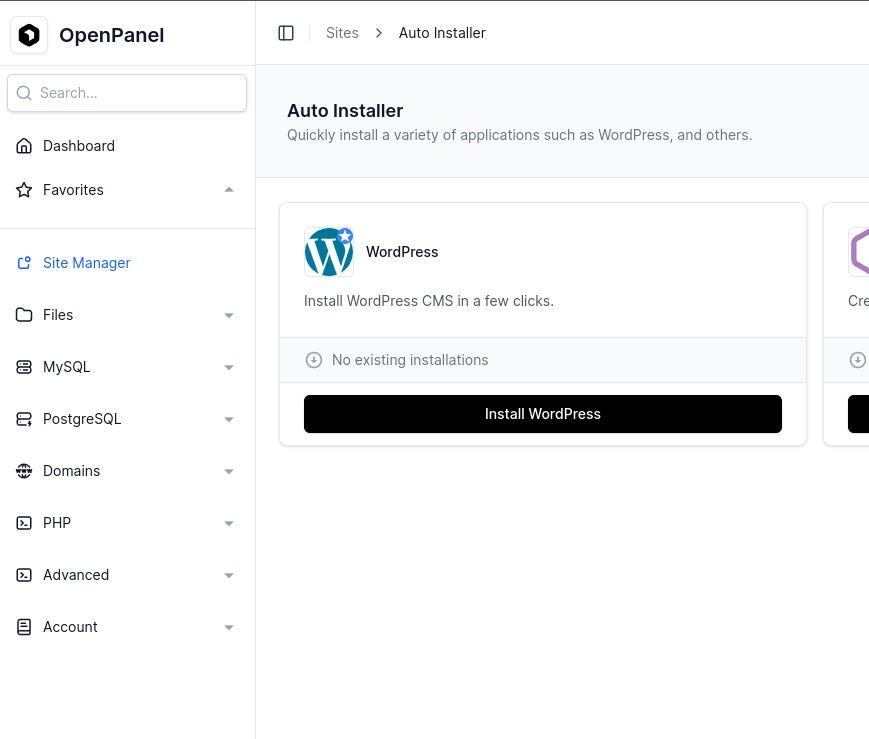
- Add your domain name first.
- Open Site Manager from the sidebar and click + New Website.
- Choose Install WordPress.
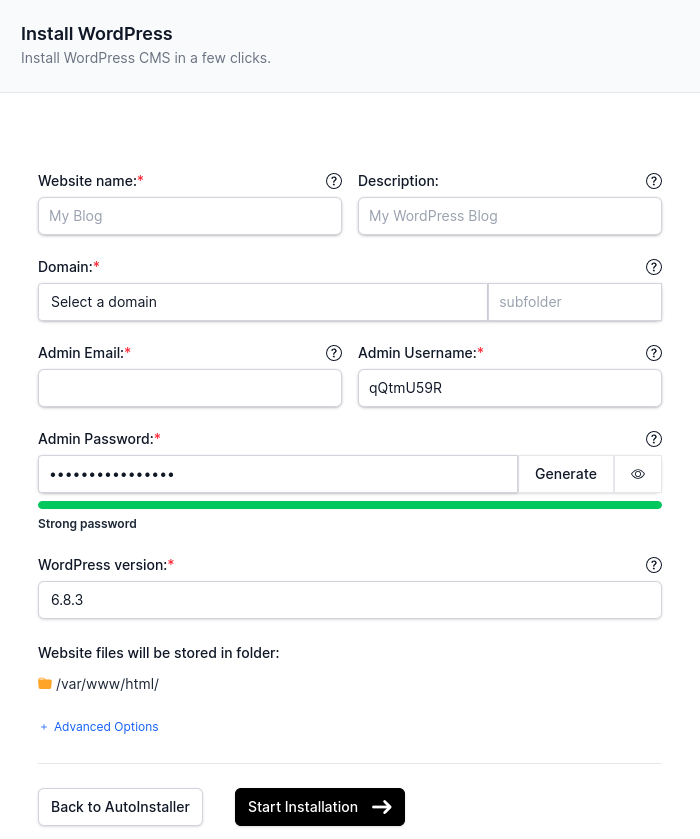
Then fill in the form:
- Website name
- Site description (optional)
- Domain name (optionally a subfolder)
- Admin username
- Admin password
- WordPress version
Click Start Installation and you’re done.
📘 Read the full guide: How to Install WordPress® With HiTechCloud
Scanning (Importing) Installations
If you already have WordPress installed manually, you can import it into the WP Manager.
The system scans your hosting files for wp-config.php and automatically adds the found websites.
📘 Read the full guide: How to Migrate a WordPress® Installation to HiTechCloud
Themes and Plugins Sets
Tired of installing the same setup every time? Create Theme Set and Plugin Set that automatically apply to new WordPress installs.
For example, you might set up a default combo like:
- Elementor theme + child theme
- Elementor plugin
- Classic Editor plugin
Every time you install a new site — boom, it’s ready with your preferred setup.
📘 Read the full guide: WordPress Plugin & Theme Sets in HiTechCloud
Refresh Website Data
If you’ve made manual changes to your site (like updating WordPress core or changing the admin email), click Refresh Data to sync everything with WP Manager.
Grid vs. Table View
You can view your sites in a grid with screenshots or a simple table view. Switch views anytime using a button.
Site Manager
Auto Login to wp-admin
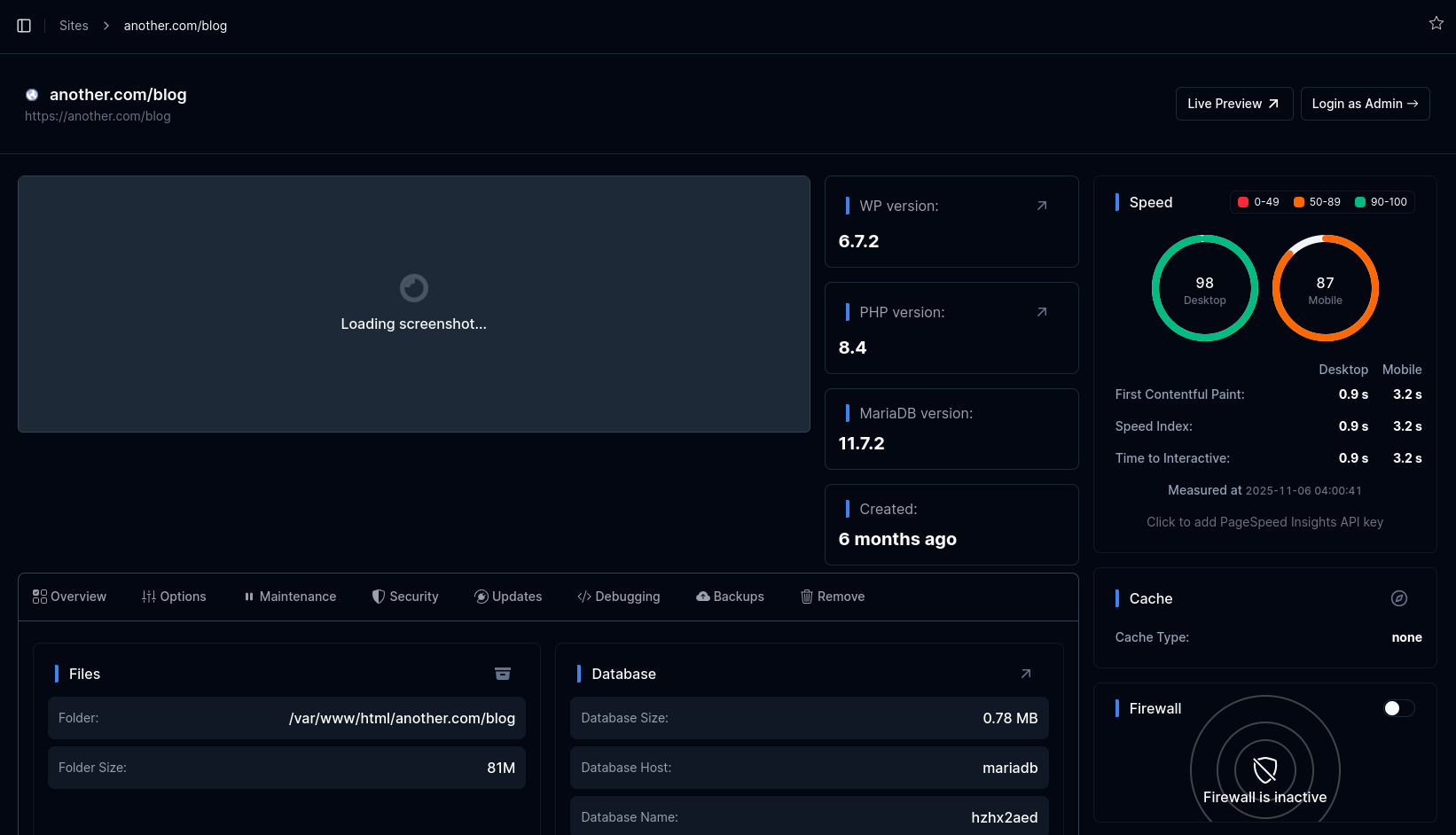
Use Login as Admin for one-click secure access to your WordPress dashboard — no password needed.

Temporary Link
Preview your site even before your domain is connected or SSL is ready. Temporary links last 15 minutes.
Click Live Preview to generate one:

Screenshot
Website screenshots refresh automatically every 24 hours, and the capture time is shown in the corner of the preview.
Need it sooner? Click the refresh icon over the screenshot (POST /api/sites/{domain}/screenshot does the same).
Screenshots are rendered by a screenshot service, set with the screenshots config key:
| Value | Meaning |
|---|---|
| (unset) | HiTechCloud's hosted service. |
http://127.0.0.1:3200/api/screenshot | The panel's own screenshot-v2 service, which the installer sets up on servers whose services run on the host (bash /opt/hitechcloud/deploy/install-services.sh screenshots installs it later). A local service renders the site as served by this server, so a preview works even before the domain's DNS points here. |
local | The local service when it is running, the hosted one otherwise. |
off | No site name leaves the server; every site shows a placeholder. |
When the service cannot render a page the placeholder says why and offers a Retry button.
Versions
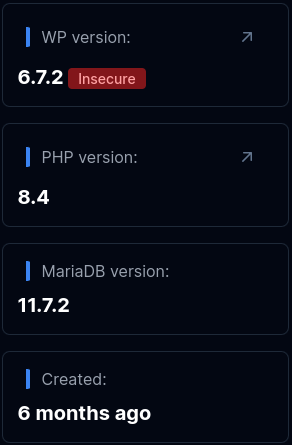
- WordPress Version – The WordPress version is retrieved from the database and verified via an AJAX request to the website itself, ensuring the displayed version is accurate. If an update is available, a badge will appear next to the version number.
- PHP Version – The PHP version is read from the domain’s VirtualHost configuration file, guaranteeing that the version shown matches the one actually configured for the domain.
- MySQL/MariaDB Version – Displays whether the site uses MySQL or MariaDB, along with the version number obtained directly from the terminal.
- Created – Indicates the date and time when the website was first added to WP Manager.
Speed
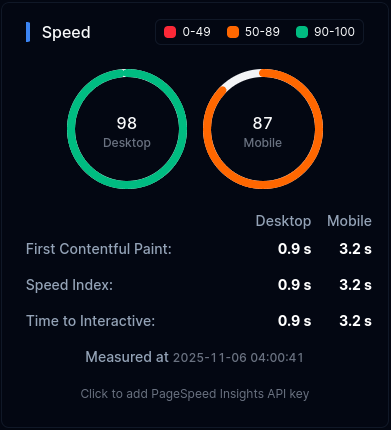
Website performance is measured with Google PageSpeed Insights. For both mobile and desktop devices, you can view the check time along with key metrics such as First Contentful Paint, Speed Index, and Time to Interactive. Results are cached for six hours per site, and the panel shows which source and which API key produced them.
API keys are looked for in this order:
- Your own key, in
pagespeed_api_key.txtin your account (how to get one). - A server-wide key the administrator sets:
hitechcloudcli config update pagespeed_api_key KEY. A comma-separated list of keys is rotated through, and a key that is out of quota is skipped for the next one. With a server key set, users are not asked to add their own. - No key - Google allows a little anonymous use.
Basic speed test - below the PageSpeed scores the panel runs its own test, which needs no key and has no quota: one timed request from the server to the site's front page, reporting DNS, connect and TLS time, time to first byte, total time, page size, compression (gzip/brotli), HTTP version, cache headers and how many requests the HTML makes (scripts, stylesheets, images, frames, fonts) and from how many other domains. It grades how fast the page is delivered, not how fast it renders - the number to look at when asking whether the server or the page is slow. Click Run again for a fresh measurement; results are kept for an hour. Also at GET/POST /api/sites/{domain}/speed-test.
Safe Browsing
Checks your domain against the Google Safe Browsing API for malware, social engineering, unwanted software, and other flagged threats. Results are cached for 12 hours.
Vulnerability Scan
Scans the site's WordPress core, plugin, and theme versions for known vulnerabilities. A fresh scan runs automatically if no cached report exists yet, or can be triggered manually.
Cache
Cache widget displays the current wp cache type on your website and an option to purge the cache.

Firewall
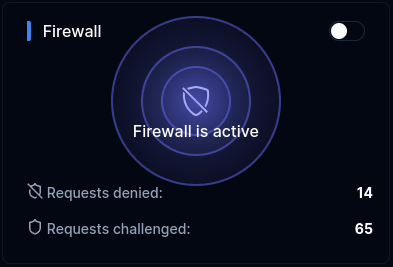
If CorazaWAF is enabled on the server, and your account has access to the WAF feature, you will see a Firewall widget displaying current status for the domain, an option to change it and number of denied/challenged requests in the last hour.
Overview
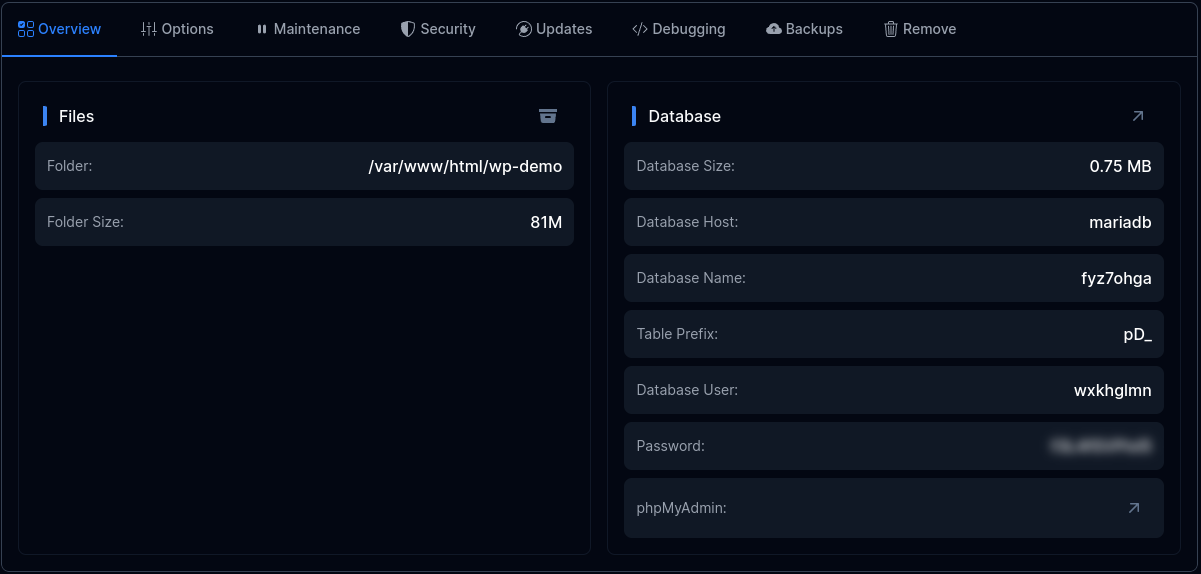
Under Overview tab you can view:
- Files: Folder path and Folder Size
- Database: Size, Host, Name, Table Prefix, User, Password and link to open phpMyAdmin
Options
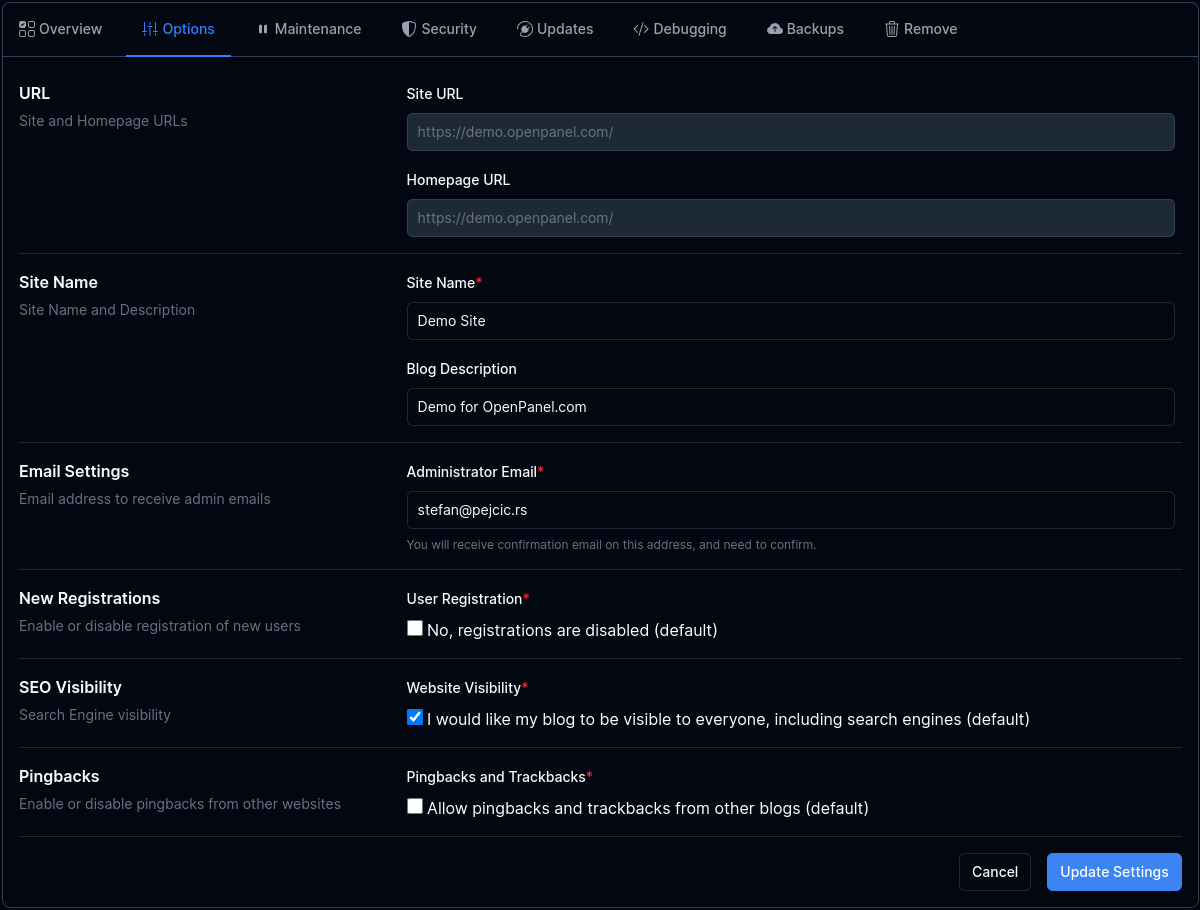
Options tab displays current WordPress settings and allows you to change them.
Available options:
- Site URl
- Homepage URL
- Site Name
- Blog Description
- Administrator Email
- Enable New User Registration
- Enable SEO Visibility
- Enable Pingbacks
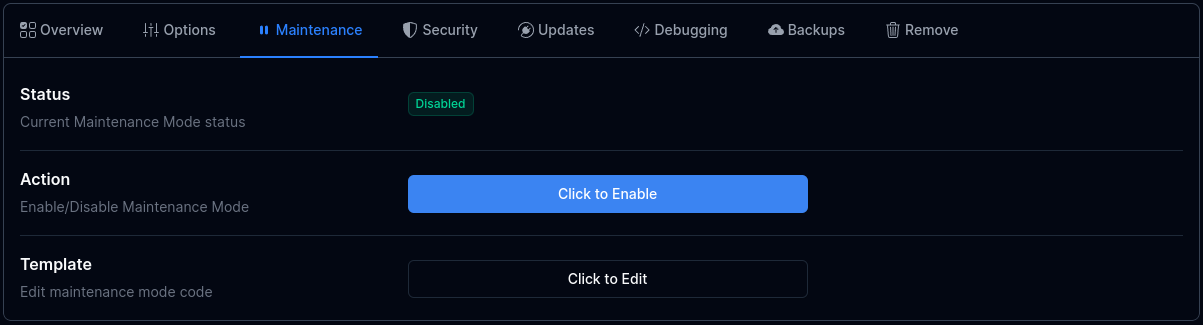
Maintenance mode
Enable or disable maintenance mode directly from WP Manager. You can even edit the maintenance.php file right from the panel.
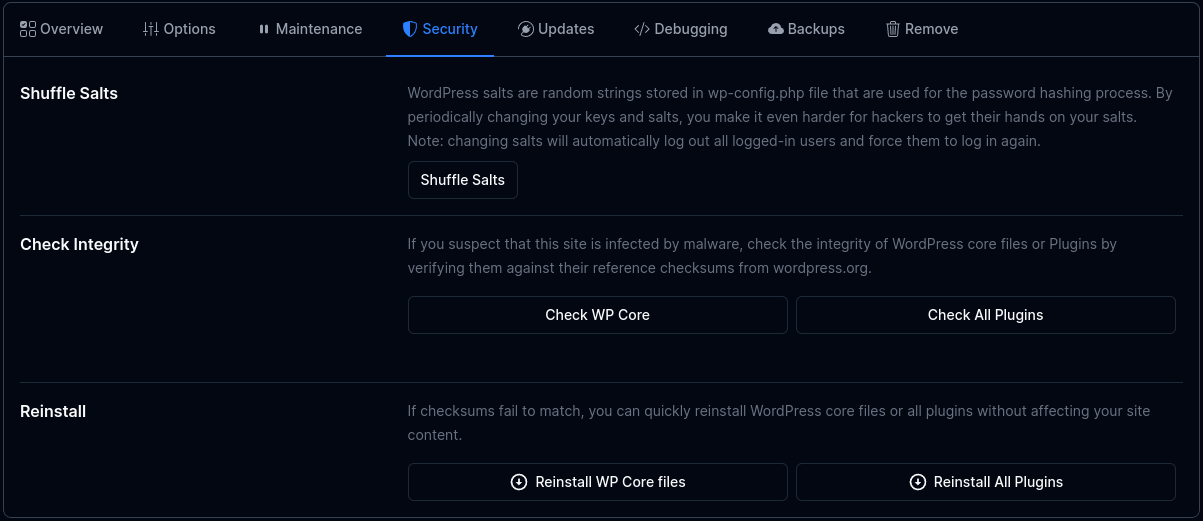
Security & Debug
Keep your site safe with built-in security tools.
From here, you can:
- Shuffle WordPress salts
- Check core file integrity
- Reinstall WordPress core if needed
The Debugging switches are on the same tab, below the security tools (see Debugging).
Updates
Control how WordPress handles updates for the core, plugins, and themes. By default, only minor core updates are auto-enabled.
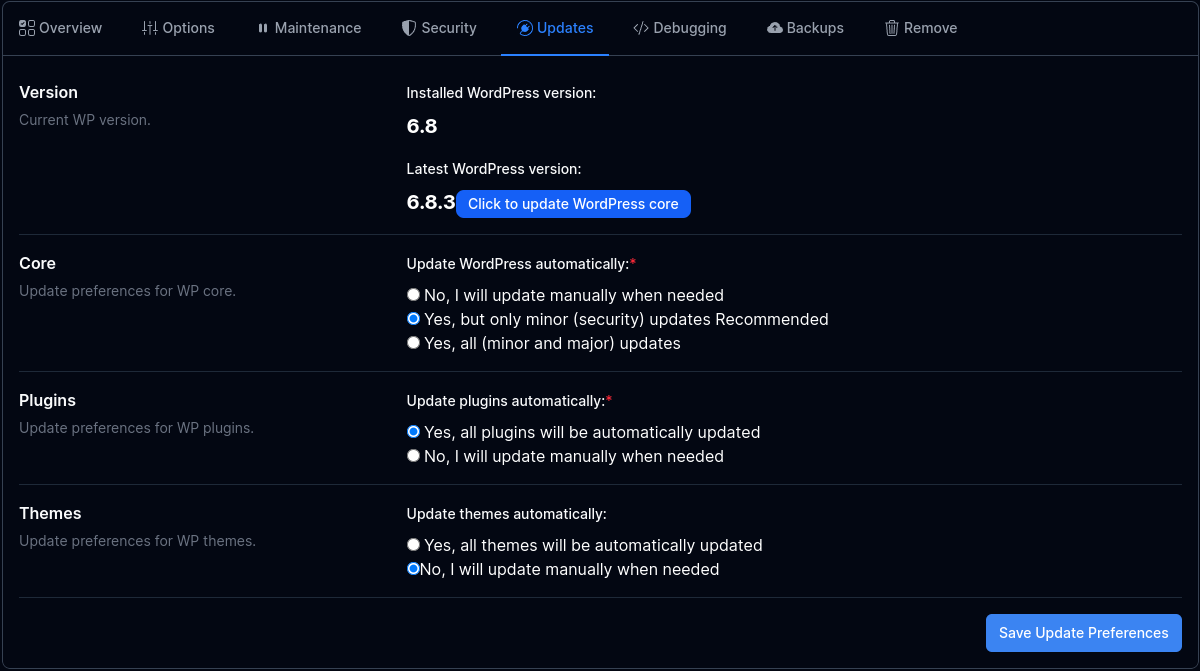
If a newer WordPress core version is available, you will see 'Click to update WordPress core' button which when clicked will perform WordPress update to the newest version available.
Automatic updates, item by item. Below the preferences the tab lists every plugin and theme with its version, whether an update is waiting, and a switch for its own automatic updates - the same setting as Enable auto-updates in wp-admin (wp plugin auto-updates enable). From here you can:
- Turn auto-updates on or off for one plugin or theme, or for all of them at once (Enable all / Disable all).
- Update now one plugin, one theme, or the WordPress core (with its database), and Update all of a kind when several are waiting.
- Set the core policy - Disabled, Minor only or All updates (
WP_AUTO_UPDATE_CORE). - Disable all WordPress updates - one switch that sets
AUTOMATIC_UPDATER_DISABLEDand turns every other automatic update off. Nothing updates itself until it is switched back; updating by hand from here still works.
Every change is read back from the site after it is applied, so what the list shows is what WordPress will do. The API has the same controls at GET/POST /api/wordpress/{domain}/auto-updates and POST /api/wordpress/{domain}/update.
Debugging
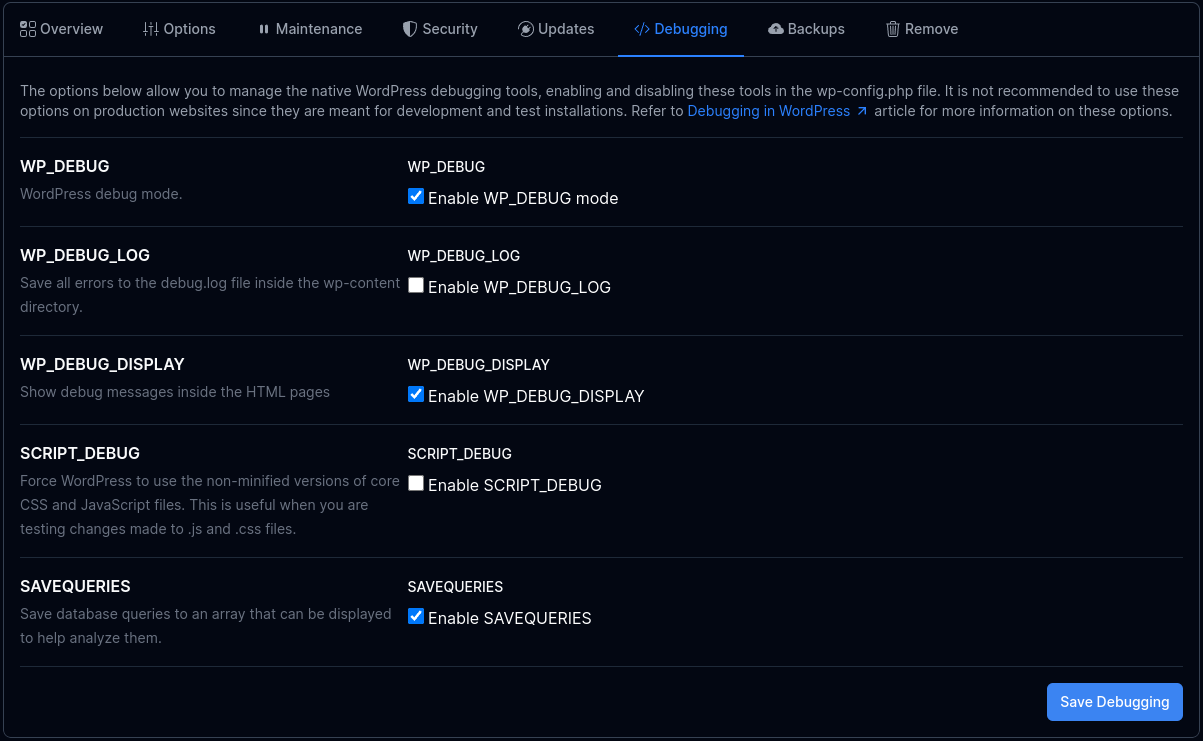
Toggle WordPress’s built-in debugging tools (WP_DEBUG, WP_DEBUG_LOG, etc.) directly from WP Manager - on the Security & Debug tab.
These are great for testing or development sites — not recommended for production. For details, check Debugging in WordPress for more information on these options.
Backups
Create and restore backups anytime — files, database, or both.
Create a Backup:
- Choose what to back up (files, database, or both).
- Click Generate Backup.
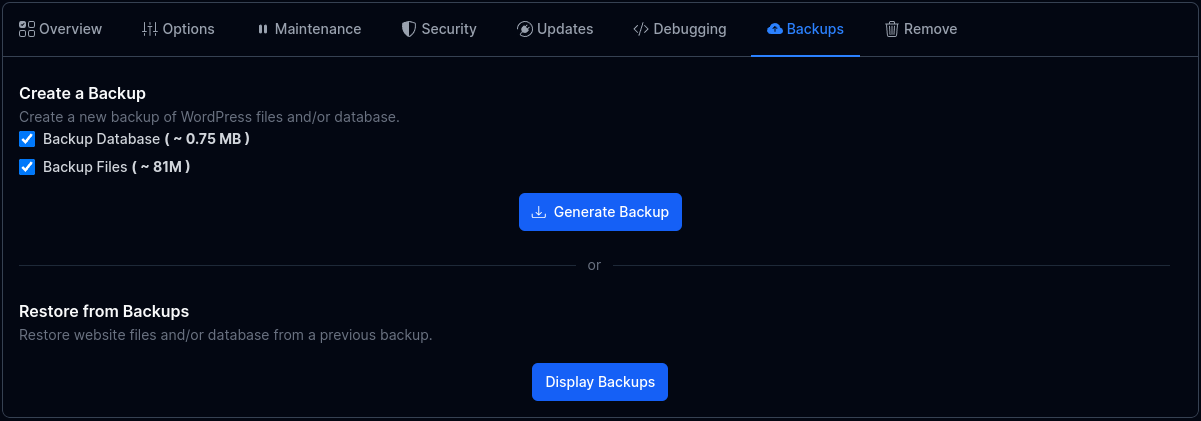
Restore a Backup: To restore, click Restore, pick a backup date, and confirm.
Clone
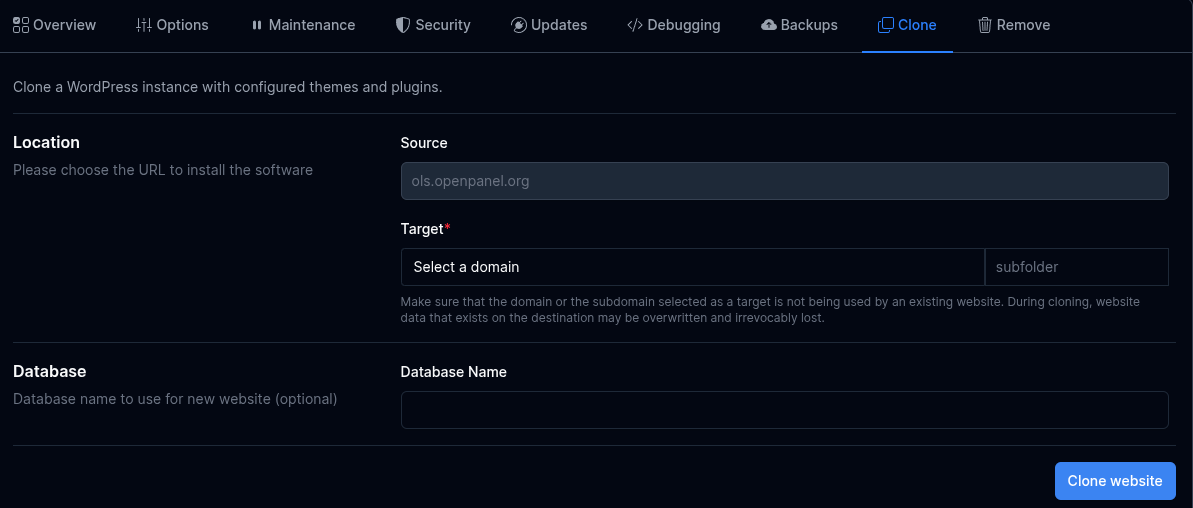
Create a clone (copy files and database tables, replace links in database, flush wp cache and rewrite rules).
Create a clone:
- Under 'Target' select the desired domain and optionally 'Database' to be used.
- Click Clone Website.
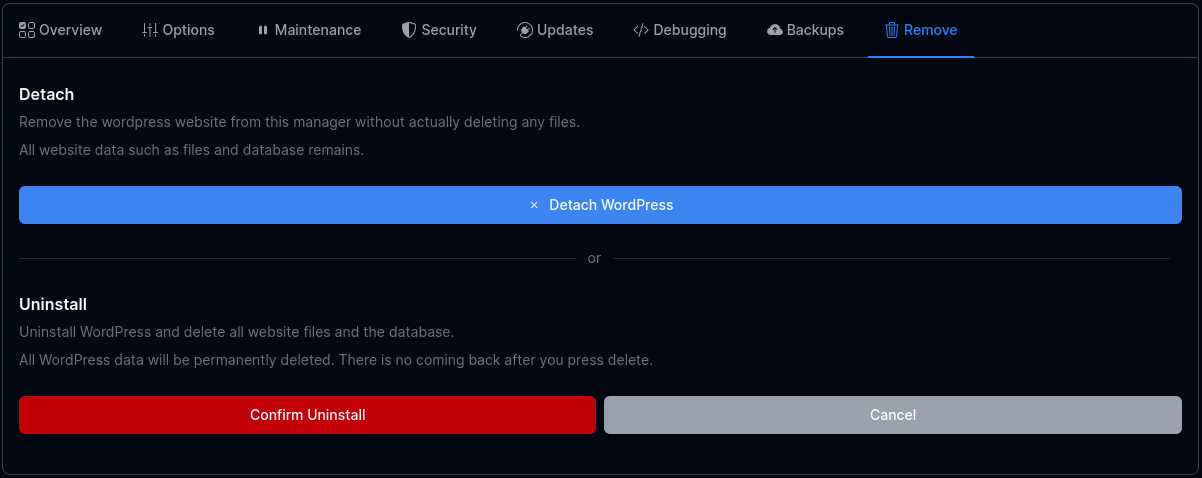
Remove
Want to stop managing a site in WP Manager (without deleting it)?
Use Detach — your files and database remain untouched.
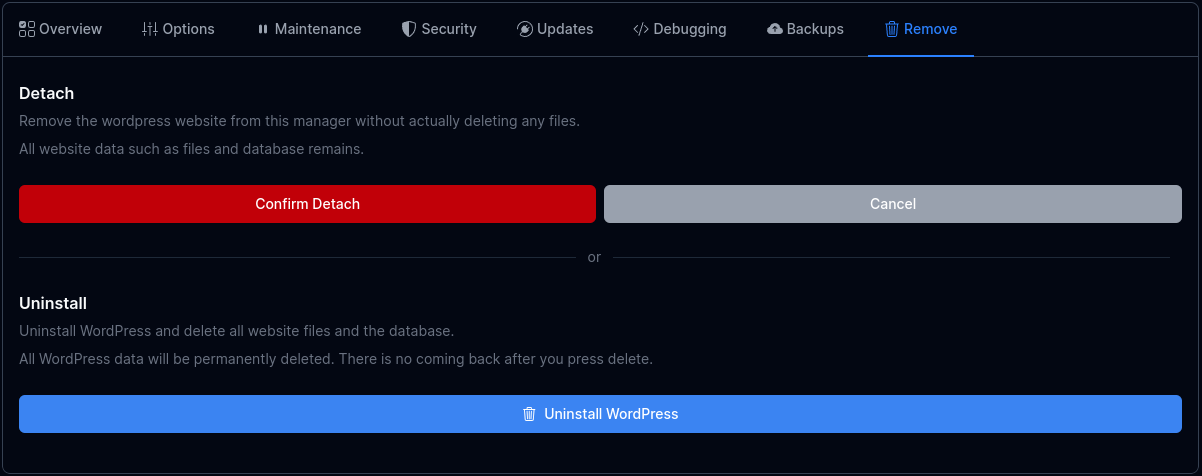
To completely remove a website — files, database, and all — click Uninstall, then confirm.
- Manage WordPress sites
- WP Manager
- Install WordPress
- Scanning (Importing) Installations
- Themes and Plugins Sets
- Refresh Website Data
- Grid vs. Table View
- Site Manager
- Auto Login to wp-admin
- Temporary Link
- Screenshot
- Versions
- Speed
- Safe Browsing
- Vulnerability Scan
- Cache
- Firewall
- Overview
- Options
- Maintenance mode
- Security & Debug
- Updates
- Debugging
- Backups
- Clone
- Remove