Setup FTP
HiTechCloud Enterprise supports FTP access. Once enabled, a shared FTP server becomes available for all users.
Follow these steps to enable FTP in HiTechCloud:
1. Activate the Enterprise License
Ensure that you're running the Enterprise Edition of HiTechCloud. FTP support is only available in this version.
Upgrading to HiTechCloud Enterprise and activating License
2. Enable the FTP Module
HiTechCloud uses a modular system where features can be individually enabled or disabled.
To enable the FTP module:
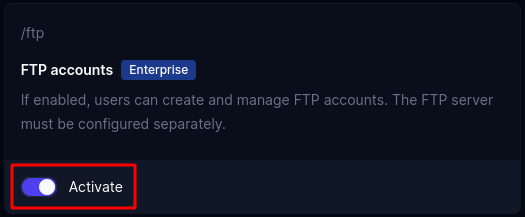
- Go to HiTechAdmin > Settings > Modules
- Find the FTP module and click Activate
3. Start the FTP Service
The FTP feature uses the pure-ftpd server (the container stack's FTP container runs vsftpd).
To start it:
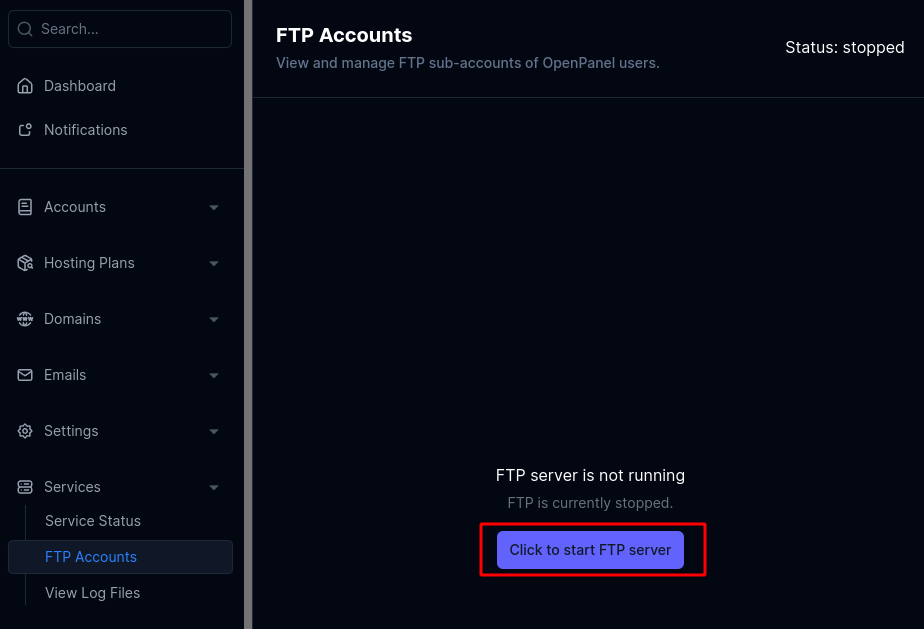
- Navigate to HiTechAdmin > Services > FTP Accounts
- Click Start FTP Server
4. Enable the FTP Feature in Hosting Plans
FTP access must be explicitly enabled in the hosting plan's feature set.
To do this:
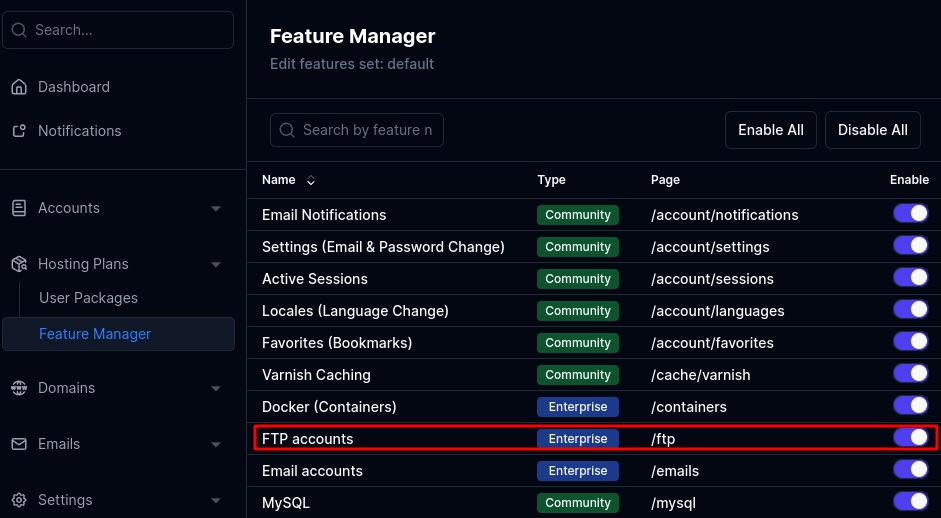
- Go to HiTechAdmin > Hosting Plans > Feature Manager
- Select the feature set you want to modify
- Enable the ftp feature
5. Restart HiTechCloud
Restarting HiTechCloud ensures that the newly enabled module and feature sets take effect immediately for all users.
To restart:
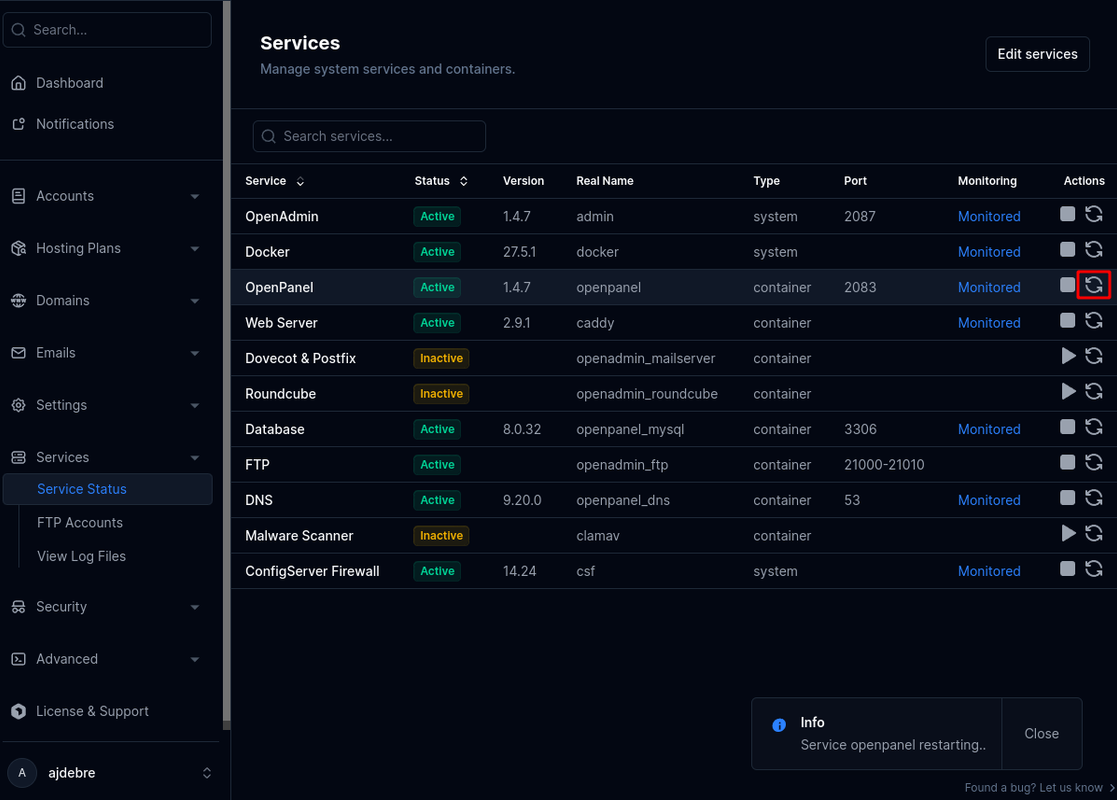
- Go to HiTechAdmin > Services > Status
- Click Restart next to HiTechCloud
FTP Setup Complete
FTP is now enabled for all hosting plans that include the ftp feature. Affected users can access it under HiTechCloud > Files > FTP Accounts.

Troubleshooting
If a user sees the following error:
FTP service is not yet started, please contact Administrator to enable it.
It means the FTP service is not running. Revisit Step 3: Start the FTP Service to resolve this.
How the FTP server is built
When the services run on the host, the panel drives the host's own pure-ftpd service (installed from HiTechAdmin > Services > Packages & Apps > FTP server (pure-ftpd), or hitechcloudcli enterprise ftp install). Since 4.0.4 FTP sub-accounts are pure-ftpd virtual users kept in its own database (PureDB): each one runs as its hosting account and is jailed to the folder you pick, so uploads belong to the account and count toward its quota. Logins created by earlier releases were Linux users of their own; the 4.0.4 update converts them, keeping their passwords (run hitechcloudcli ftp-migrate-virtual to convert by hand). A login whose password could not be kept is listed by the update and needs a new one from ftp-password or the panel.
Once the server has a TLS certificate for its hostname, pure-ftpd requires explicit TLS (FTPS): clients must connect with explicit FTP over TLS (AUTH TLS) on port 21, and plain FTP logins are refused. The certificate is picked up when the FTP component is configured (by the update, or by hitechcloudcli install --extras-only --with ftp).
On the container stack the FTP service is a small container built from the integrations/ftp image (vsftpd on Alpine): it mounts /home and /etc/hitechcloud/ftp/users, reads every account's users.list on start and recreates the FTP users from it. The image can also run standalone:
docker run -d \
    -p "21:21" -p 21000-21010:21000-21010 \
    --restart=always --name=hitechadmin_ftp \
    -v /home:/home \
    -v /etc/hitechcloud/ftp/users:/etc/hitechcloud/ftp/users \
    --memory="1g" --cpus="1" \
    hitechcloud/ftp
Either way the CLI commands are the same:
hitechcloudcli ftp-add <NEW_USERNAME> <NEW_PASSWORD> <FOLDER> <HITECHCLOUD_USERNAME>
hitechcloudcli ftp-list <HITECHCLOUD_USERNAME>
hitechcloudcli ftp-delete <FTP_USERNAME> <HITECHCLOUD_USERNAME>