Setup TLS for FTP
This guide explains how to enable Explicit FTP over TLS (FTPS) in HiTechCloud using VSFTPD.
When the services run on the host, FTP is served by pure-ftpd and FTPS needs no manual setup: once the server has a TLS certificate for its hostname, pure-ftpd is configured with it and requires explicit TLS - plain FTP logins are refused. If the certificate was issued after FTP was installed, apply it with hitechcloudcli install --extras-only --with ftp. The VSFTPD steps below apply to the container stack's FTP service only.
HiTechCloud Enterprise supports FTP access. Once enabled, a shared FTP server becomes available for all users. First follow this guide on how to enable FTP in HiTechCloud: How to configure FTP server
Step 1: Add a Domain
To use TLS, you must have an SSL certificate available on the server. Start by adding a domain in one of the following ways:
-
As an HiTechAdmin user (for HiTechCloud/HiTechAdmin access): https://hitechcloud.org/docs/admin/settings/general/#domain
-
As an HiTechCloud user: https://hitechcloud.org/docs/panel/domains/new/
Once added, HiTechCloud will automatically generate an SSL certificate for the domain (if supported).
Step 2: Verify SSL Certificate Files
Make sure the SSL certificate and private key files exist on the server. If the certificate was auto-generated, the paths should look like this:
/etc/hitechcloud/caddy/ssl/acme-v02.api.letsencrypt.org-directory/DOMAIN_NAME/DOMAIN_NAME.crt
/etc/hitechcloud/caddy/ssl/acme-v02.api.letsencrypt.org-directory/DOMAIN_NAME/DOMAIN_NAME.key
Replace DOMAIN_NAME with your actual domain name.
Step 3: Enable TLS in VSFTPD
-
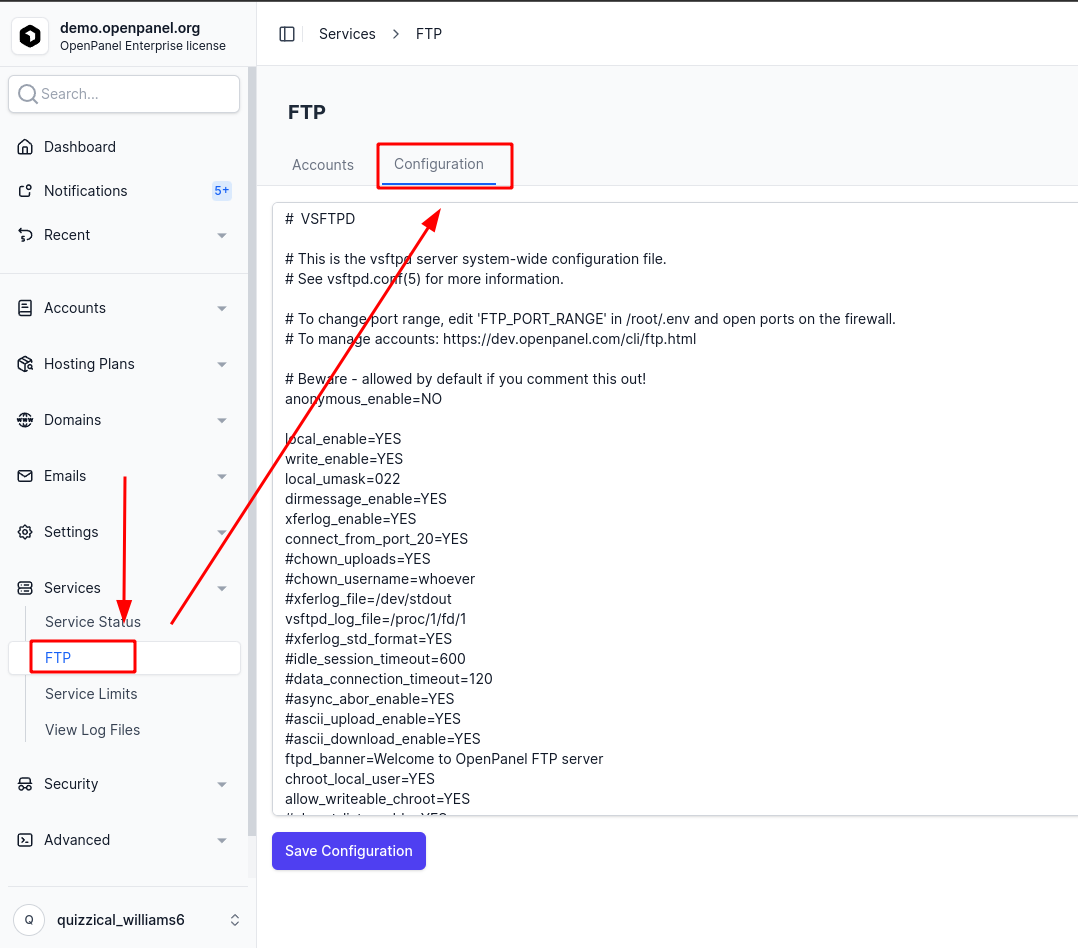
Go to HiTechAdmin → Services → FTP → Configuration
-
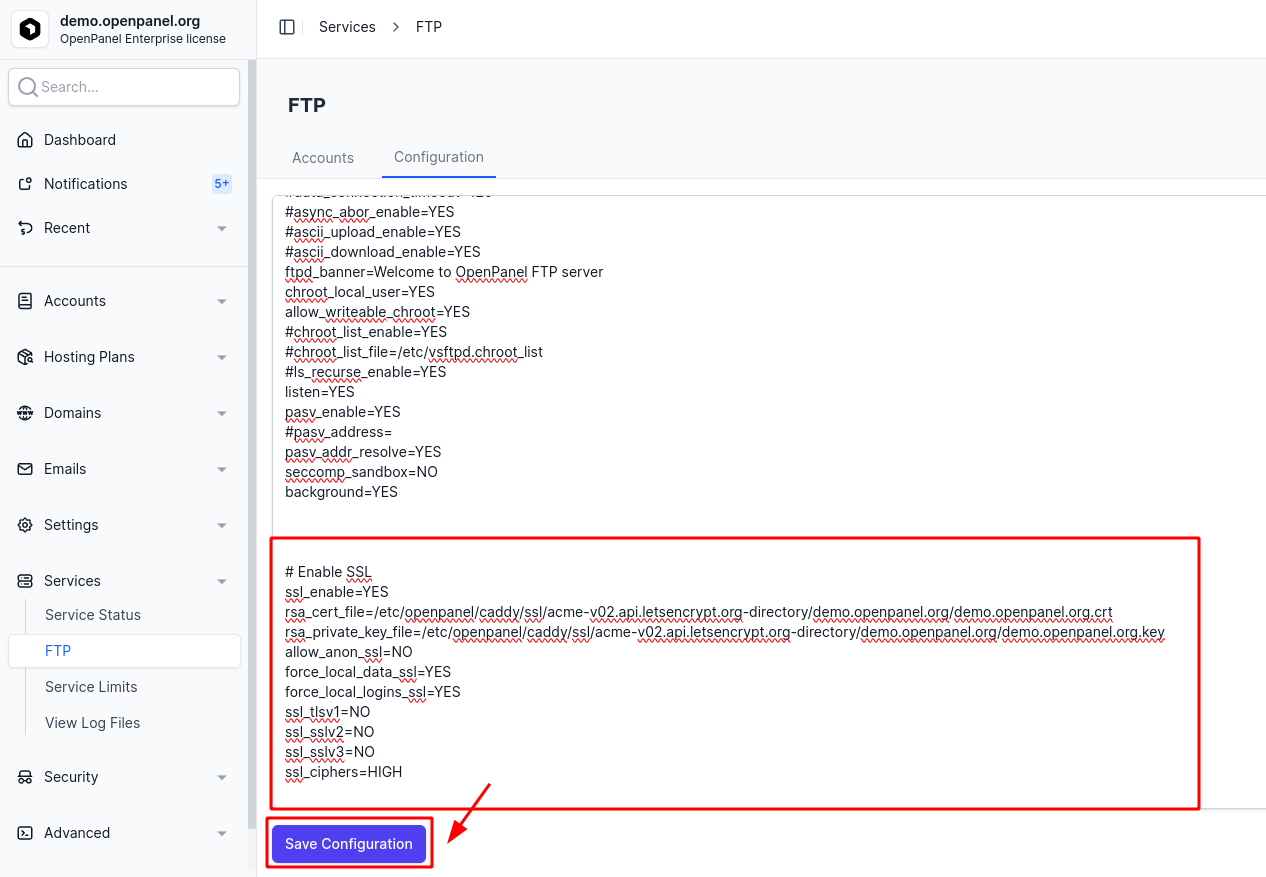
Paste the following configuration options to enable TLS:
⚠️ Important: Replace
DOMAIN_NAMEwith your domain name in both file paths.# Enable SSLssl_enable=YESrsa_cert_file=/etc/hitechcloud/caddy/ssl/acme-v02.api.letsencrypt.org-directory/DOMAIN_NAME/DOMAIN_NAME.crtrsa_private_key_file=/etc/hitechcloud/caddy/ssl/acme-v02.api.letsencrypt.org-directory/DOMAIN_NAME/DOMAIN_NAME.keyallow_anon_ssl=NOforce_local_data_ssl=YESforce_local_logins_ssl=YESssl_tlsv1=NOssl_sslv2=NOssl_sslv3=NOssl_ciphers=HIGH -
Click Save to apply the changes.
Step 4: Restart the FTP Service
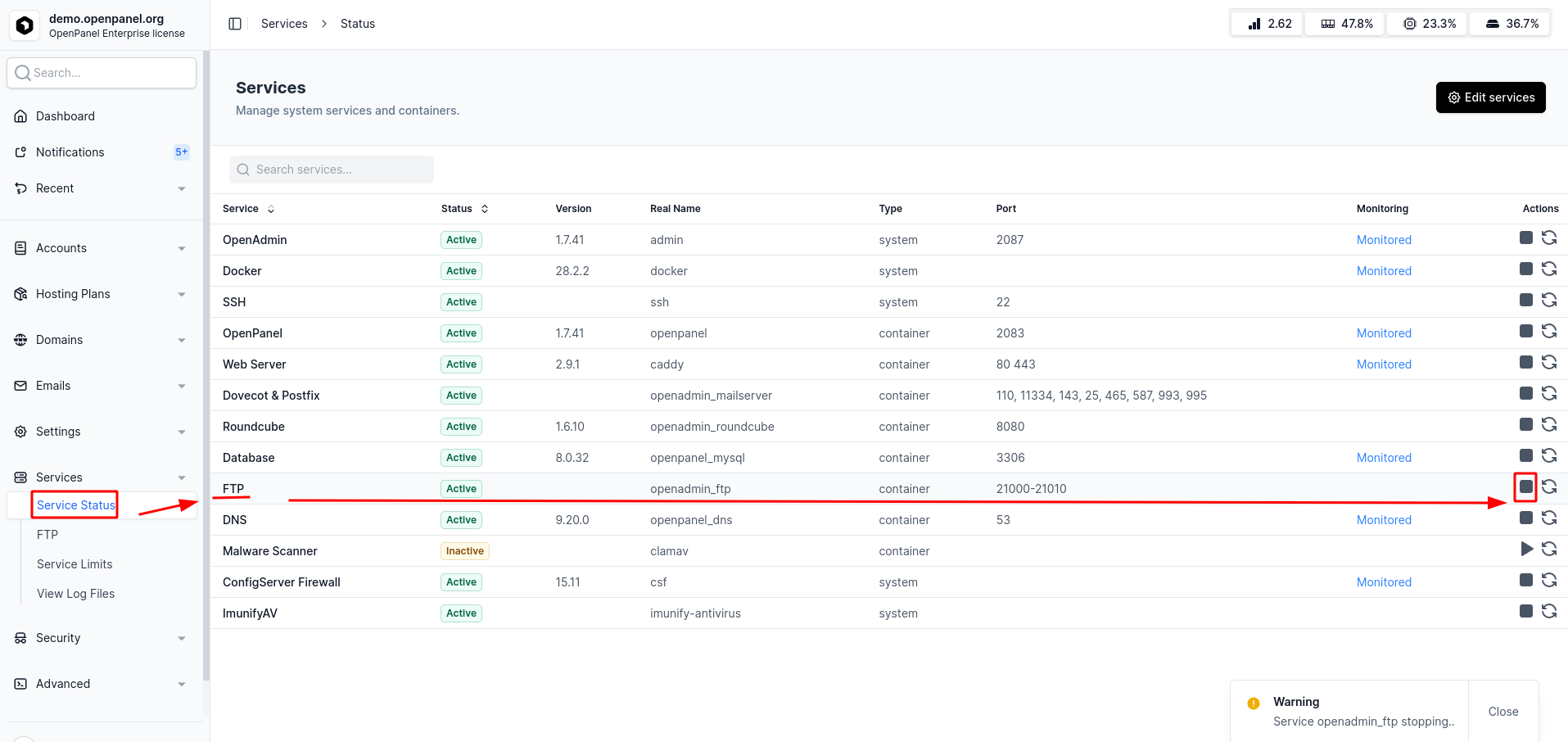
- Navigate to HiTechAdmin → Services → Services Status.
- Locate the FTP service.
- Click Stop, then Start to restart the service.