Administrators
The admin panel has three user roles:
| Role | Description |
|---|---|
| Super Admin | Has unrestricted privileges, created on HiTechCloud installation. |
| Admin | Has restricted privileges, can not access all HiTechAdmin UI pages and can not edit the SuperAdmin user. |
| Reseller | Has restricted privileges, manages only the users assigned to them. Reseller users are managed from the separate Resellers page and are not listed on the Administrators page. |
Manage Admin users
- With HiTechAdmin
- With HiTechCloudCLI
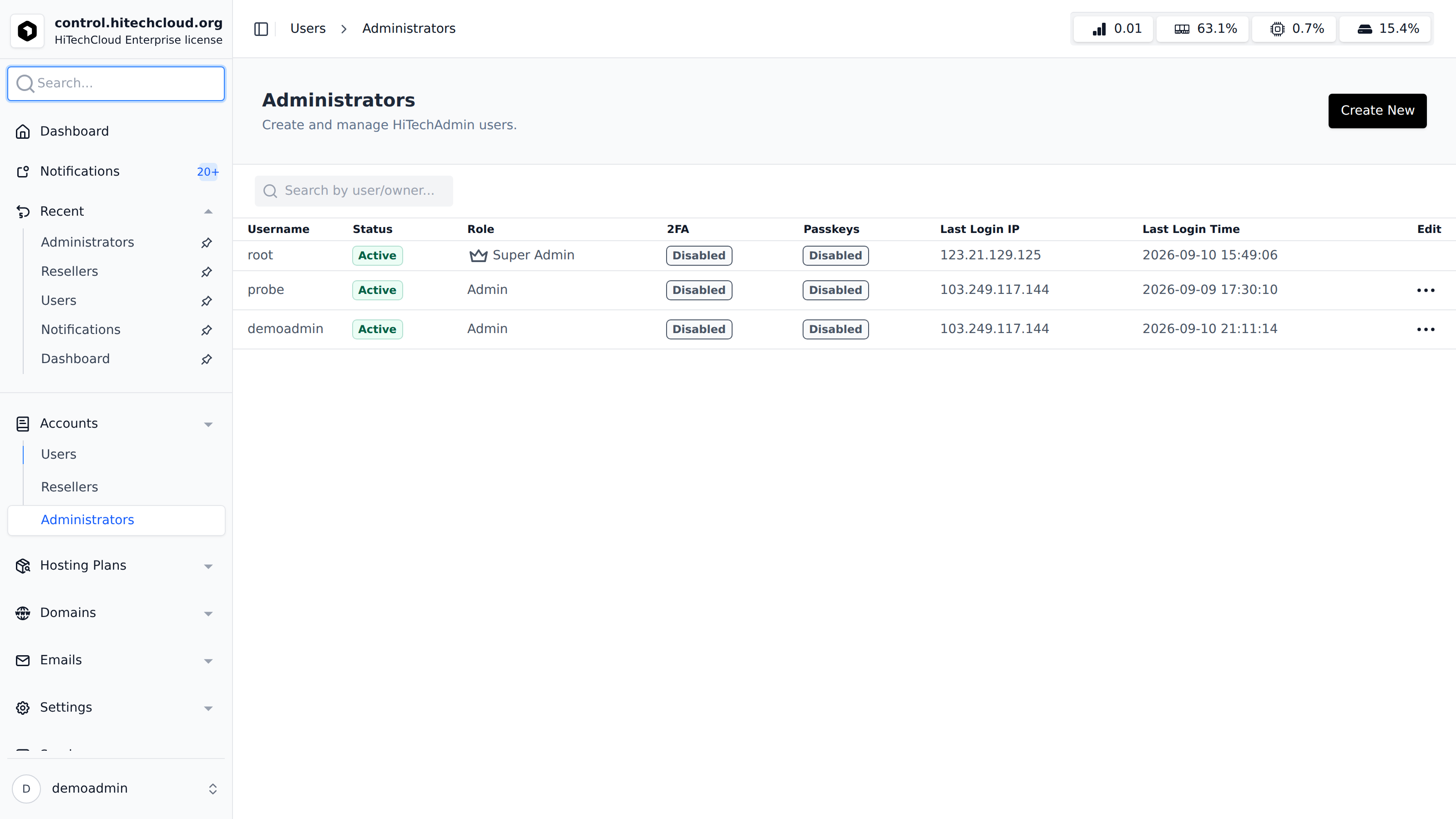
Manage administrative users with access to the HiTechAdmin interface via Accounts > Administrators.
For each admin user, the table shows: Username, Status, Role, 2FA (whether two-factor authentication is enabled), Passkeys (whether a passkey is registered), Last Login IP, Last Login Time, and an Edit menu with the available actions for that user.
Reseller users are not listed on this page - they are managed separately under Accounts > Resellers.
To list admin users use command:
hitechcloudcli admin list
Reset Admin Password
- With HiTechAdmin
- With HiTechCloudCLI
To reset an admin's password, open the Edit menu for that user on the Accounts > Administrators page, select Change Password, then set the new password and click Change Password.
To reset the password for an admin user:
hitechcloudcli admin password <username> <new_password>
Example, reset password for and Admin user:
hitechcloudcli admin password admin Pyl7_L2M1
Create new Admin
- With HiTechAdmin
- With HiTechCloudCLI
To create a new admin user, click on the Create New button on the Accounts > Administrators page, set the username and password and click on Create.
Additional Administrator accounts are available on every edition. Only the Super Admin can create them (the Create New button is shown to the Super Admin only; the REST API and hitechcloudcli admin new apply the same rule). New admin users created this way are always assigned the Admin role; the Super Admin role can only be assigned during HiTechCloud installation. Reseller accounts remain an Enterprise feature.
To create new admin accounts:
hitechcloudcli admin new <username> <password>
Example:
hitechcloudcli admin new filip Pyl7_L2M1
Rename Admin user
- With HiTechAdmin
- With HiTechCloudCLI
To rename an Admin user, open the Edit menu for that user on the Accounts > Administrators page, select Rename, set the new username and click Change Username.
To rename admin user:
hitechcloudcli admin rename <username> <new_username>
Example:
hitechcloudcli admin rename filip filip2
Suspend Admin user
- With HiTechAdmin
- With HiTechCloudCLI
To suspend an Admin user, open the Edit menu for that user on the Accounts > Administrators page and click Suspend. To unsuspend the user, open the Edit menu again and click Unsuspend.
Only users with the Admin role can be suspended from this page. The Super Admin user cannot be suspended, and an admin cannot suspend their own account.
hitechcloudcli admin suspend <username>
Example:
hitechcloudcli admin suspend filip
To unsuspend admin user:
hitechcloudcli admin unsuspend <username>
Example:
hitechcloudcli admin unsuspend filip
Delete Admin user
- With HiTechAdmin
- With HiTechCloudCLI
Open the Edit menu for the user on the Accounts > Administrators page and click Delete, then confirm.
From the terminal:
To delete admin user:
hitechcloudcli admin delete <username>
Example:
hitechcloudcli admin delete filip
The Super Admin user can not be deleted.
Disable Two-Factor Authentication or Passkeys
- With HiTechAdmin
If an admin user has Two-Factor Authentication or a Passkey enabled (shown in the 2FA and Passkeys columns on the Accounts > Administrators page), the Super Admin can open that user's Edit menu and select Disable 2FA or Disable Passkeys to remove it, for example if the user is locked out of their authenticator or security key. Only the Super Admin can perform this action, and it cannot be used on the Super Admin's own account.