Users
HiTechCloud has a single user role named User that can only manage their docker container and inherits settings specified by the Admin user.
List Users
- HiTechAdmin
- HiTechCloudCLI
- API
To access all HiTechCloud users, navigate to Accounts > Users.
The Users page displays a table with user information and buttons to manage it.
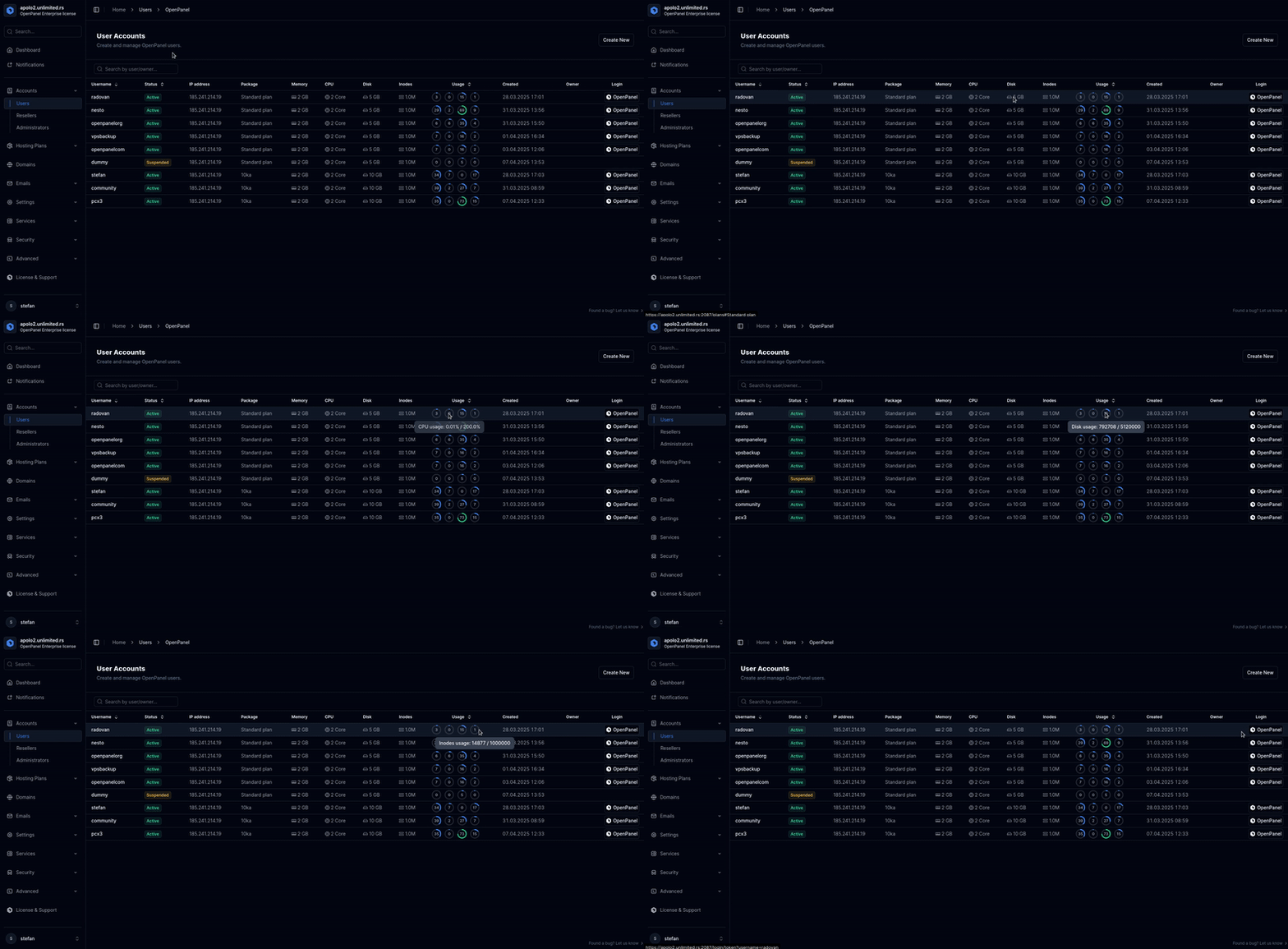
Additional columns can be displayed using the 'Show Columns' button.
Suspended users are highlighted in red.
To list all users, use the following command:
hitechcloudcli user-list
Example output:
hitechcloudcli user-list
+----+----------------------------------+----------------------+----------------+------------------+-------+---------------------+
| id | username                         | email                | plan_name      | server           | owner | registered_date     |
+----+----------------------------------+----------------------+----------------+------------------+-------+---------------------+
|  3 | forums                           | stefan@hitechcloud.org | Standard plan  | forums           | NULL  | 2025-05-08 19:25:47 |
|  7 | pcx3                             | stefan@example.com     | Developer Plus | pcx3             | NULL  | 2025-05-09 12:26:20 |
|  9 | hitechcloudwebsite                 | info@hitechcloud.org   | Standard plan  | hitechcloudwebsite | NULL  | 2025-05-09 14:47:27 |
| 19 | SUSPENDED_20250529173435_radovan | radovan@jecmenica.rs | Standard plan  | radovan          | NULL  | 2025-05-29 07:47:15 |
+----+----------------------------------+----------------------+----------------+------------------+-------+---------------------+
You can also format the data as JSON:
hitechcloudcli user-list --json
To list all users, use the following api endpoint:
curl -X GET http://PANEL:2087/api/users -H "Authorization: Bearer JWT_TOKEN_HERE"
Create Users
- HiTechAdmin
- HiTechCloudCLI
- API
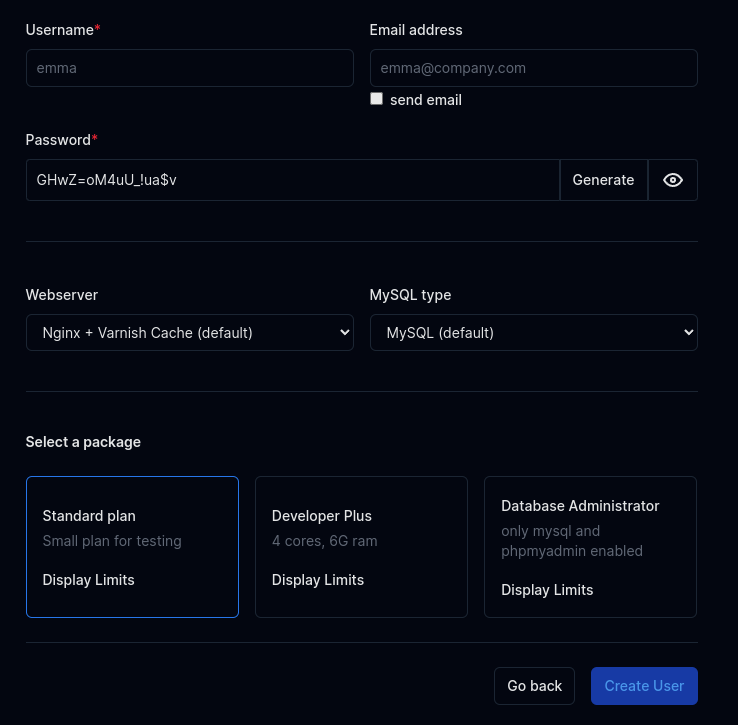
To create a new user, click on the Create New button on the Users page. A form is displayed where you can set the username, email address (optionally sending the user a welcome email with their login credentials), and generate a strong password.
You can also choose the webserver for the account (and optionally enable Varnish Cache), the database type (MySQL or MariaDB), assign a reseller as the account's owner (Enterprise license only, and only when creating the user as a Super Admin/Admin), and select a hosting plan to assign to the user.
To create a new user run the following command:
hitechcloudcli user-add <USERNAME> <PASSWORD> <EMAIL> <PLAN_NAME>
Example:
hitechcloudcli user-add filip password1234 filip@hitechadmin.com default_plan_apache
Provide generate as password to generate a strong random password.
To create a new user use the following api call:
curl -X POST -H "Content-Type: application/json" -H "Authorization: Bearer JWT_TOKEN_HERE" -d '{"email": "EMAIL_HERE", "username": "USERNAME_HERE", "password": "PASSWORD_HERE", "plan_name": "PLAN_NAME_HERE"}' http://PANEL:2087/api/users
Example:
curl -X POST "http://PANEL:2087/api/users" -H "Authorization: Bearer eyJ0eXAiOiJKV1QiLCJhbGcBns" -H "Content-Type: application/json" -d '{"username":"stefan","password":"strongishpassword1234","email":"stefan@example.com","plan_name":"default_plan_nginx"}'
Example response:
{
  "response": {
    "message": "Successfully added user stefan password: strongishpassword1234"
  },
  "success": true
}
- The HiTechCloud username must be 3 to 20 characters long and can only contain letters and numbers.
- The HiTechCloud password must be 6 to 30 characters long and cannot contain an apostrophe (
').
Single User
To view detailed information about a user, and edit their settings, click on their username in the users table. The user page is organized into tabs: Statistics, Services, Storage, Overview, Permissions, Activity, Login Log, Edit, Transfer (Enterprise license only), Suspend (replaced by a single Unsuspend action if the account is already suspended), and Delete.
Statistics
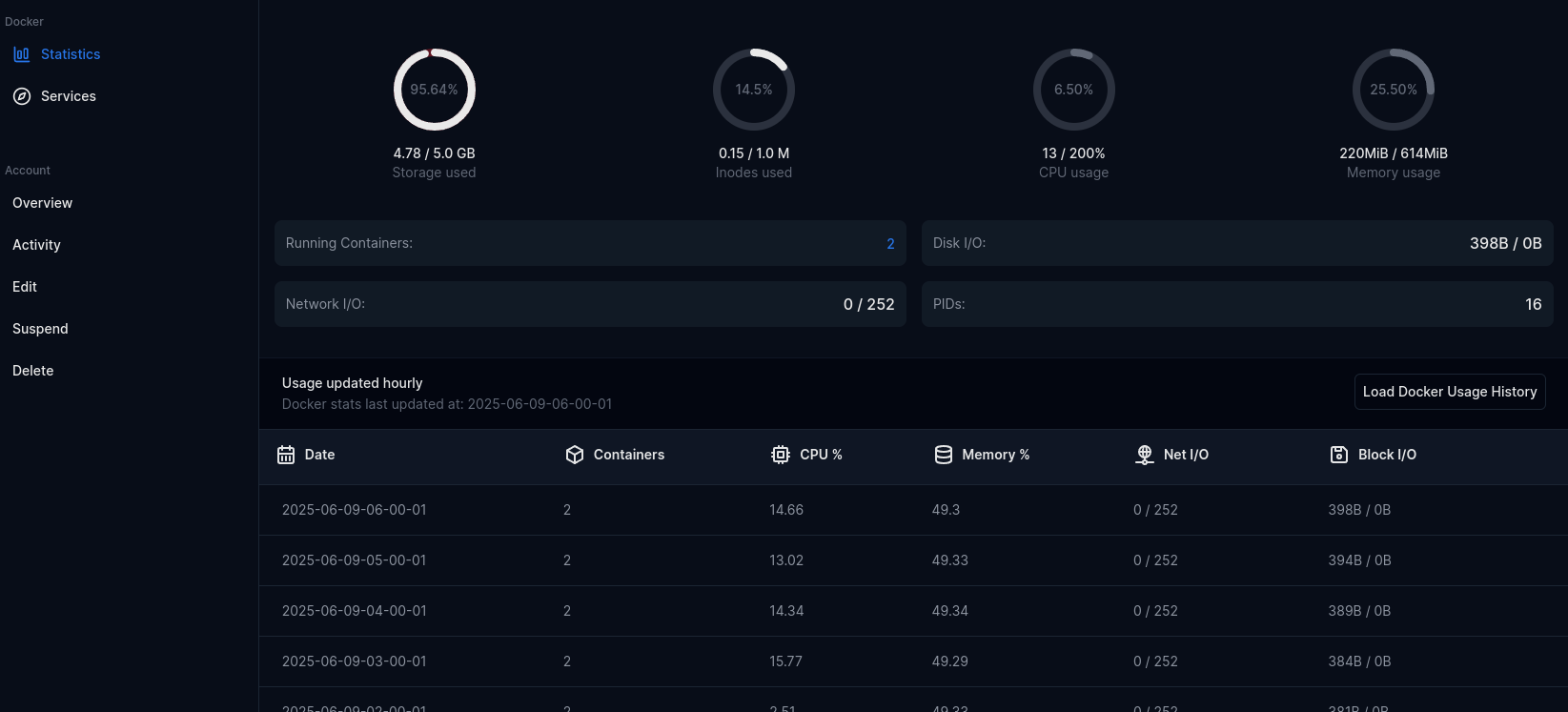
Statistics is the default tab, displays current usage statistics:
- Storage used
- Inodes used
- CPU usage
- Memory usage
- Number of running containers
- Disk I/O
- Network I/O
- Number of PIDs
- Time statistics usage was last update
- Historical usage
Clicking on 'Load Docker Usage History' will display a table with past resource usage for the user: Date, number of running containers, CPU% and Memory%, Net I/O and Block I/O.
Services
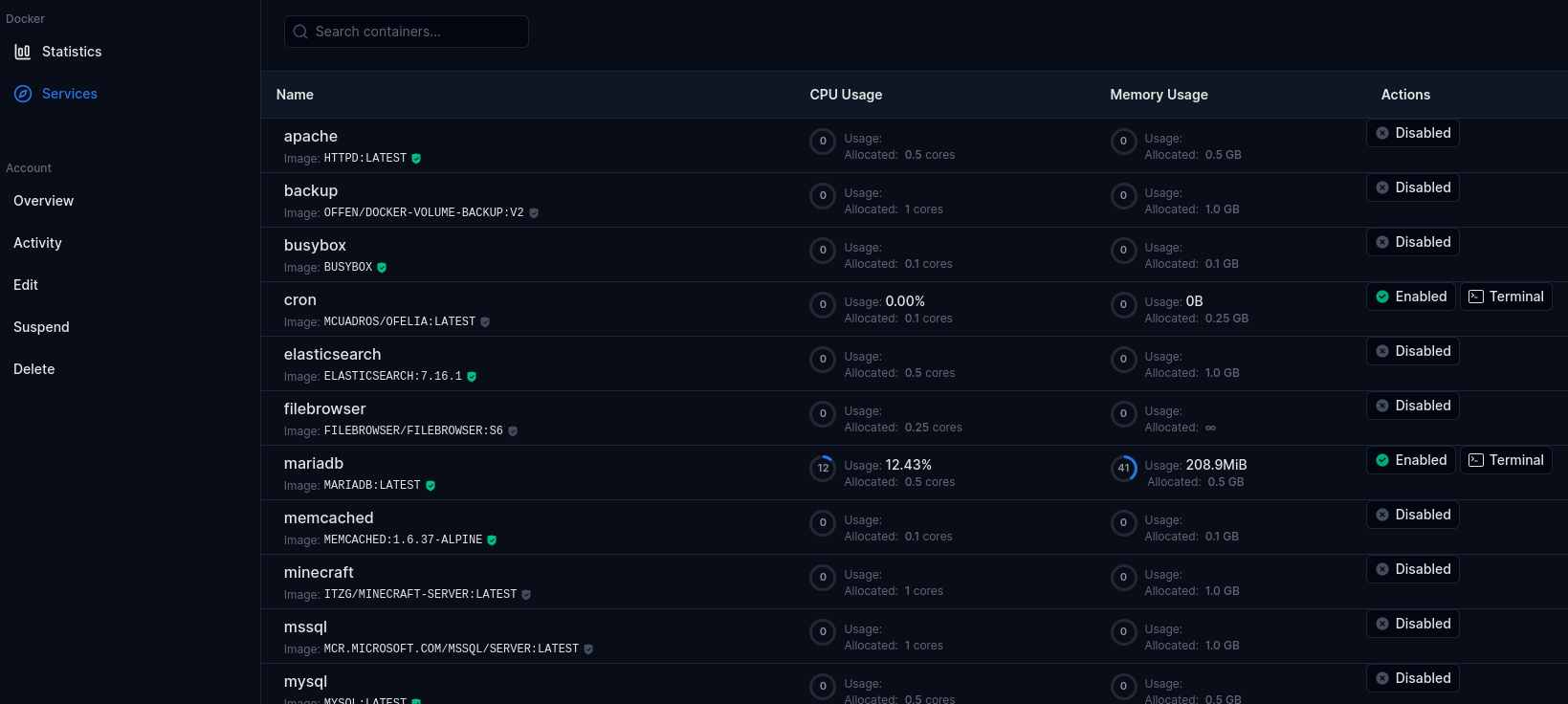
Services tab displays all user services (docker containers). Columns can be toggled with the 'Show Columns' button and include:
- Service name
- Docker Image name and tag
- Published ports
- Environment variables (sensitive values such as passwords are masked and can be revealed on click)
- Current CPU usage
- Current Memory usage
- Actions, including a terminal link to run docker exec commands in that service.
An 'Edit Services' button also lets Administrators edit the raw service configuration.
Storage
Storage tab displays data from the docker system df command.
- Volumes
- Containers
- Images
Overview
Overview page displays detailed user information and allows Administrator to set a custom message specifically for this user.
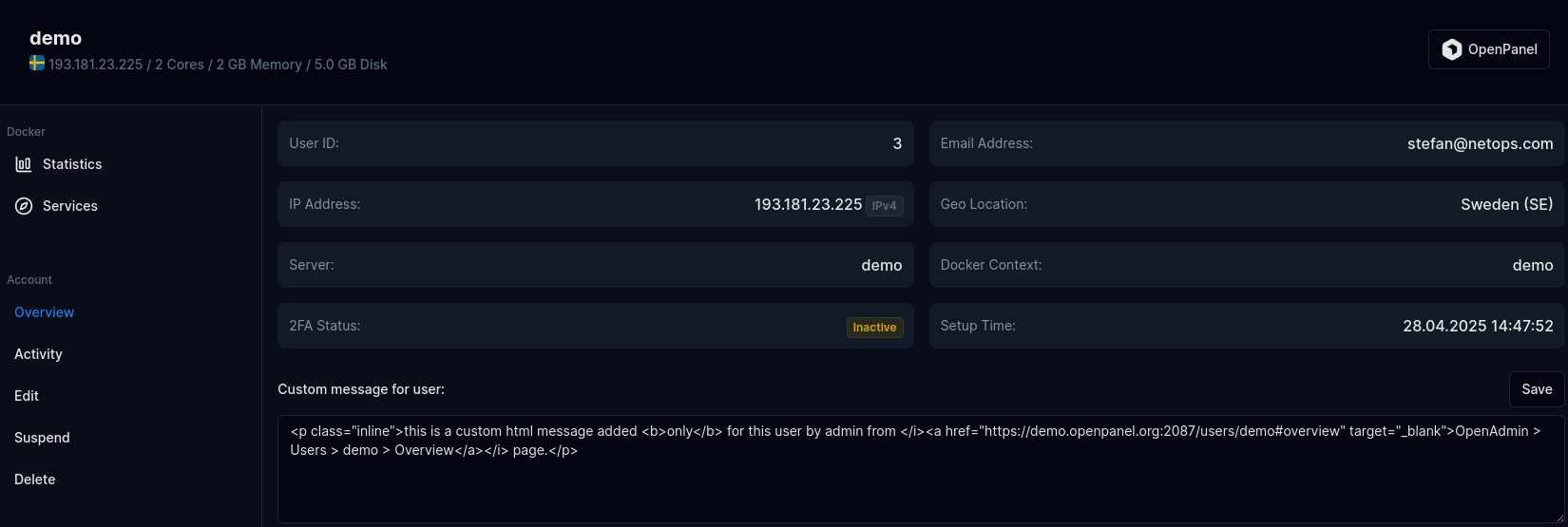
Displayed information:
- Username
- Email Address
- User ID
- IP Address
- Geo Location for the IP
- Server Name
- Docker Context
- 2FA status
- Reseller (if the user is owned by a reseller)
- Setup Time
- Custom Message for user
Permissions
The Permissions tab lets Administrators view and, for individual users, override which HiTechCloud features/pages are enabled. By default a user's permissions follow their hosting plan's defaults; switching to Custom mode allows enabling or disabling individual features for that user only, independent of the plan. Plan-wide feature defaults are managed separately in Feature Manager.
Activity
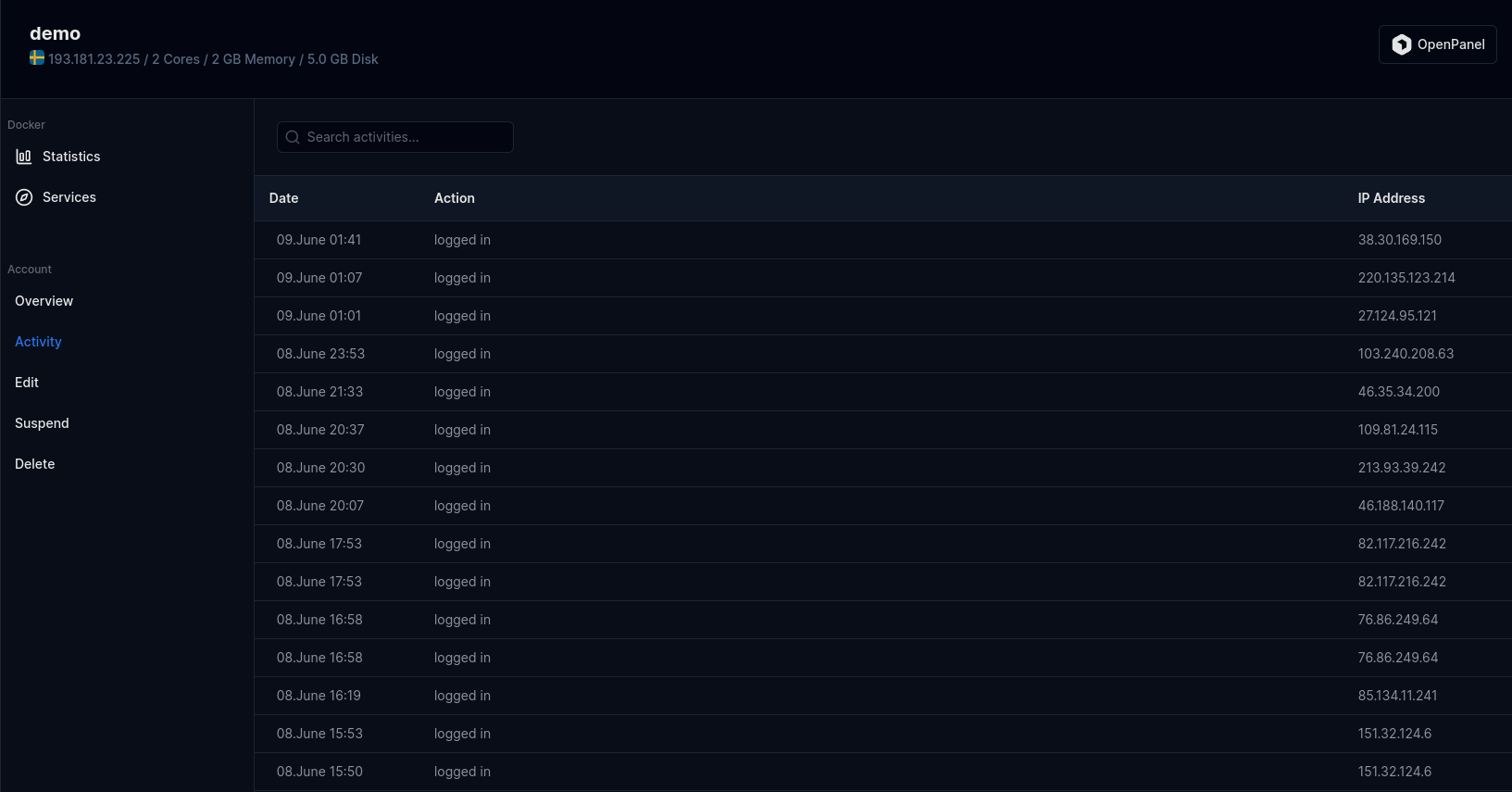
Displays users activity log.
- Date
- Action performed
- IP Address
Login Log
Displays a log of successful logins for the user, separate from the general Activity log:
- Date
- Country
- IP Address
Edit
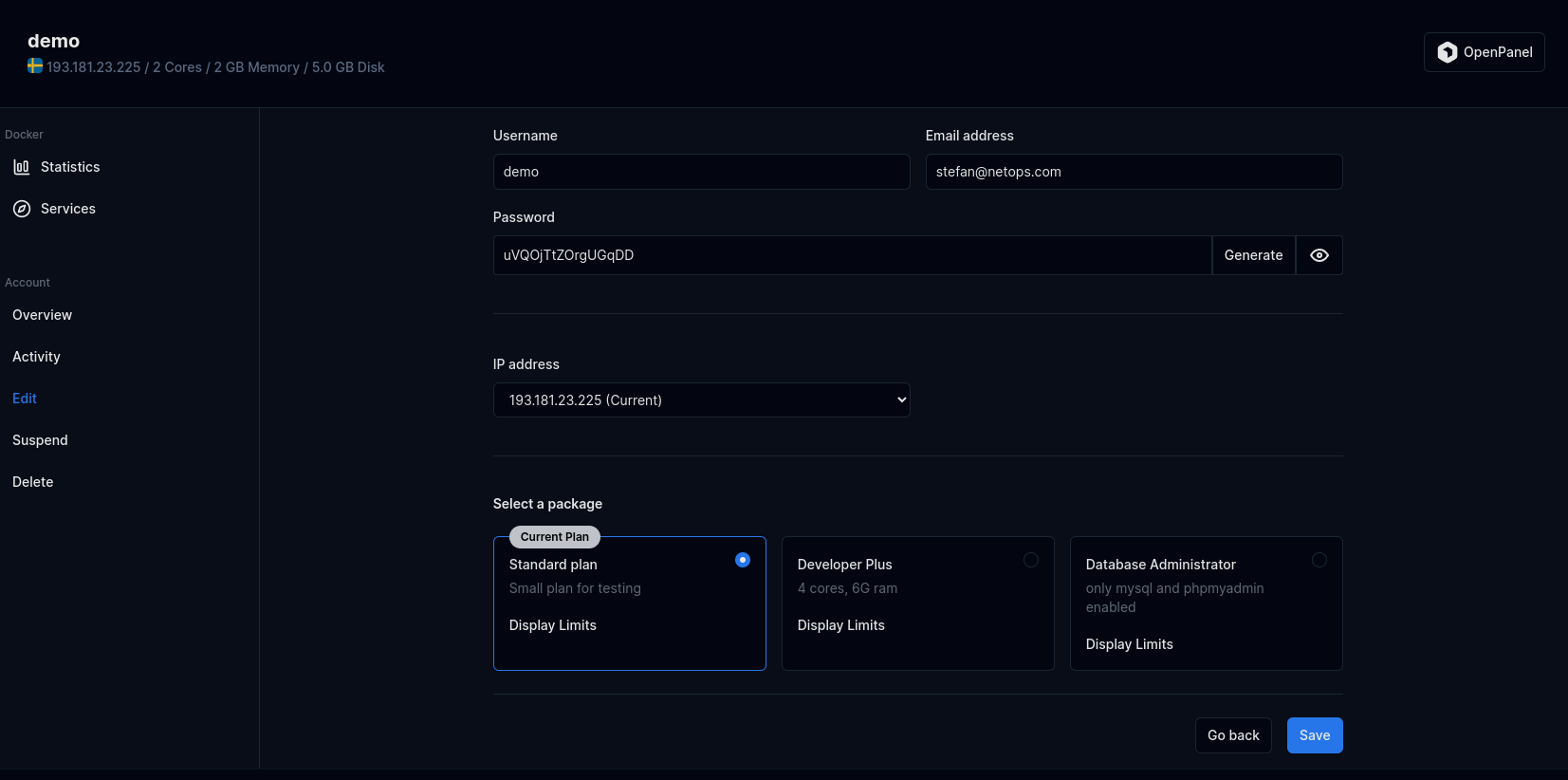
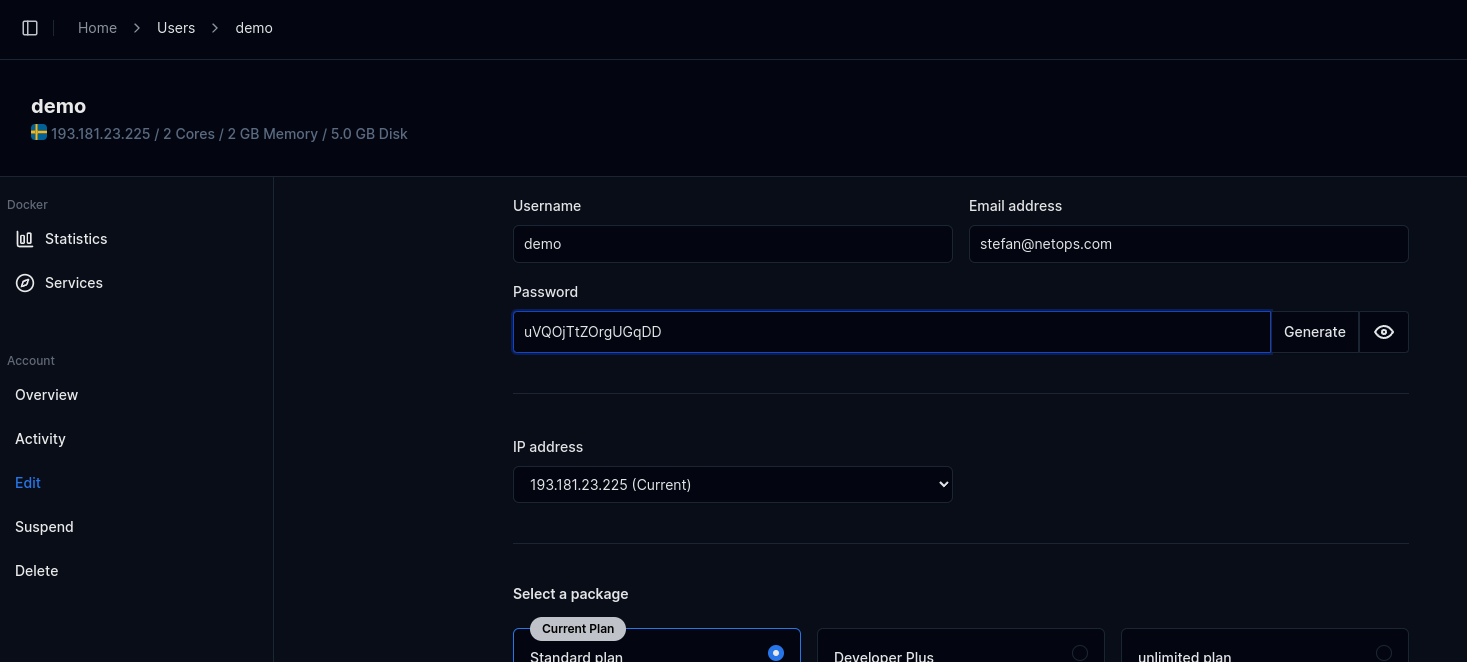
From the Edit tab, Administrators can edit user information:
- Username
- Email address
- Password (leave empty to keep the current password)
- IP address
- Reseller (change the account's owner/reseller)
- Hosting Package
Click Save to apply the changes.
Transfer
Transfer is an Enterprise-only feature.
The Transfer tab lets Administrators migrate the user account, along with all its containers and data, to another HiTechCloud server over SSH. You provide the remote server's address/port and root SSH credentials, and can optionally enable "Live Transfer" so that once the migration completes, the account is automatically suspended on the current server and its domains' DNS is updated to point to the new server.
Suspend
- With HiTechAdmin
- With HiTechCloudCLI
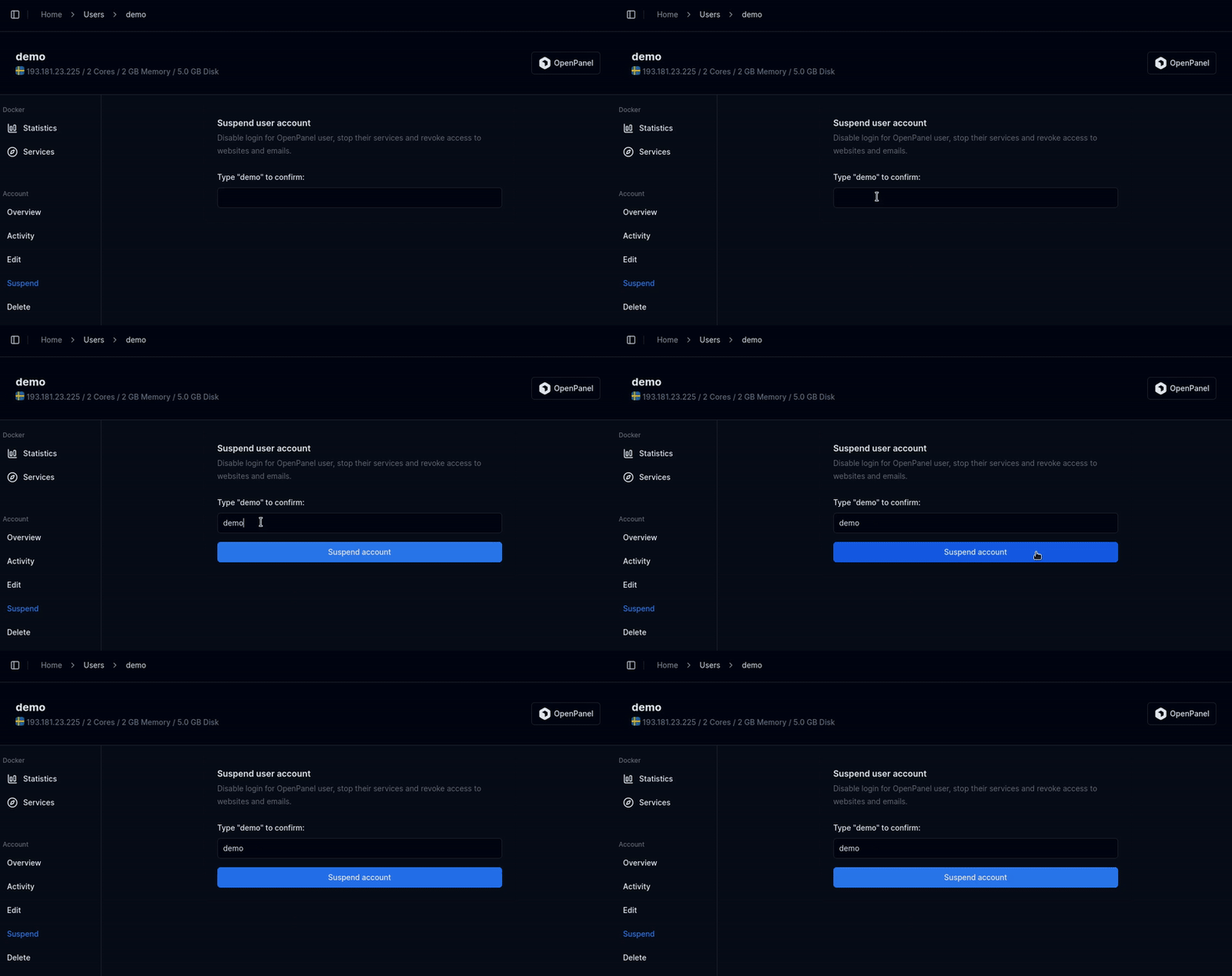
Suspending an account will immediately disable the user's access to the HiTechCloud. This action involves pausing the user's Docker container and revoking access to their email, website, and other associated services. Please be aware of the immediate impact before proceeding.
To suspend a user, open the "Suspend" tab on that user's page and type the username to confirm, then click the Suspend account button.
To suspend (temporary disable access) to user, run the following command:
hitechcloudcli user-suspend <USERNAME>
Example:
hitechcloudcli user-suspend filip
Unsuspend
- With HiTechAdmin
- With HiTechCloudCLI
For a suspended user, the row of tabs on the user's page is replaced with a single Unsuspend button. Click it to restore access for the user.
To unsuspend (enable access) to user, run the following command:
hitechcloudcli user-unsuspend <USERNAME>
Example:
hitechcloudcli user-unsuspend filip
Reset Password
- HiTechAdmin
- HiTechCloudCLI
- API
To reset password for a user, click on the "Edit" tab and set the new password in the Password field (leave it empty to keep the current password) then click Save.
To reset the password for a HiTechCloud user, you can use the user-password command:
hitechcloudcli user-password <USERNAME> <NEW_PASSWORD>
Use the --ssh flag to also change the password for the SSH user in the container.
Example:
hitechcloudcli user-password filip Ty7_K8_M2 --ssh
To reset password for an HiTechCloud user, use the following api call:
curl -X PATCH http://PANEL:2087/api/users/USERNAME_HERE -H "Content-Type: application/json" -H "Authorization: Bearer JWT_TOKEN_HERE" -d '{"password": "NEW_PASSWORD_HERE"}'
Rename
- With HiTechAdmin
- With HiTechCloudCLI
To rename a user, click on the "Edit" tab for the user, then change the 'Username' field and click Save.
To change username for a user run the following command:
hitechcloudcli user-rename <old_username> <new_username>
Example:
#hitechcloudcli user-rename stefan jane
User 'stefan' successfully renamed to 'jane'.
Change Package
- With HiTechAdmin
- With HiTechCloudCLI
To change a package for a user, click on the "Edit" tab for the user, then select the new hosting plan and click Save.
To change a package for a user run the following command:
hitechcloudcli user-change_plan <USERNAME> '<NEW_PLAN_NAME>'
Change Email
- With HiTechAdmin
- With HiTechCloudCLI
To change email address for a user, click on the "Edit" tab for the user, then change the 'Email' field and click Save.
To change email address for a user run the following command:
hitechcloudcli user-email <USERNAME> <NEW_EMAIL>
Example:
#hitechcloudcli user-email stefan stefan@example.com
Email for user stefan updated to stefan@example.com.
Login to HiTechCloud
To auto-login to a user's HiTechCloud account, click on the Impersonate button in the top-right corner of the user's page.
Delete User
- With HiTechAdmin
- With HiTechCloudCLI
To delete a user, open the "Delete" tab for that user, type the username to confirm, then click Delete account permanently.
To delete a user and all his data run the following command:
hitechcloudcli user-delete <USERNAME>
add -y flag to disable prompt.
Example:
hitechcloudcli user-delete filip -y
This action is irreversible and will permanently delete all user data.