FOSSBilling
HiTechCloud Enterprise edition has billing integrations with WHMCS and FOSSBilling.
HiTechCloud
Whitelist FOSSBilling
Before you can setup the HiTechCloud server manager in FOSSBilling, you need to first whitelist your FOSSBilling server's IP address inside of HiTechAdmin interface, and enable API access.
To enable access to the FOSSBilling server's IP, first check the ip address on that server, from terminal you can run:
curl ip.hitechcloud.org
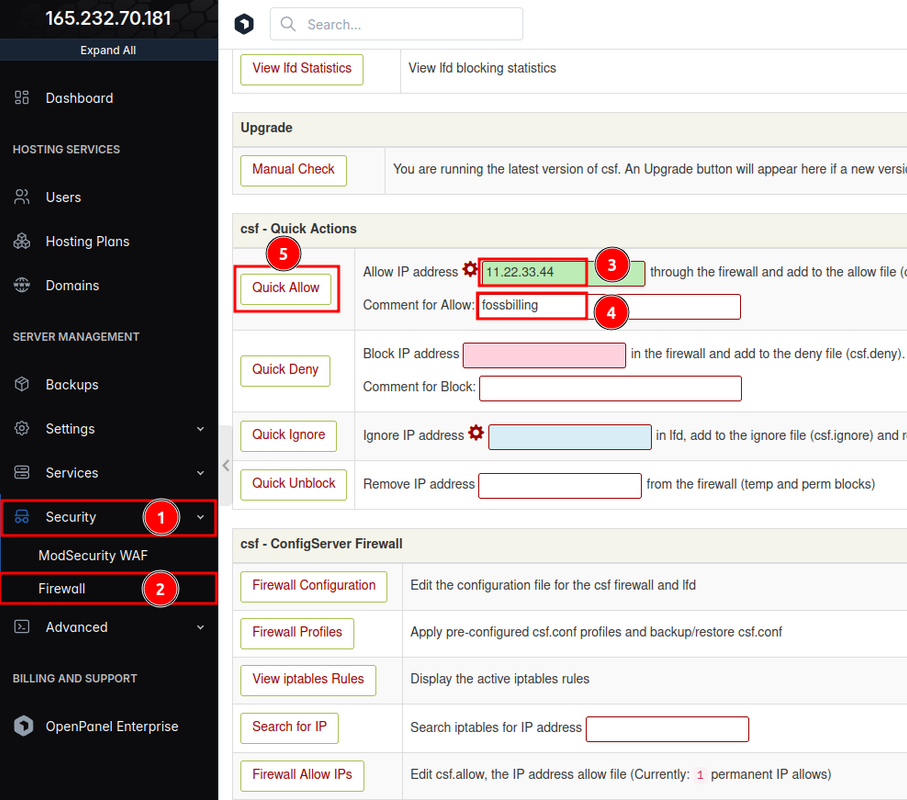
Login to HiTechAdmin and under Settings > Firewall add the FOSSBilling server's IP under Allow IP address:
Enable API access
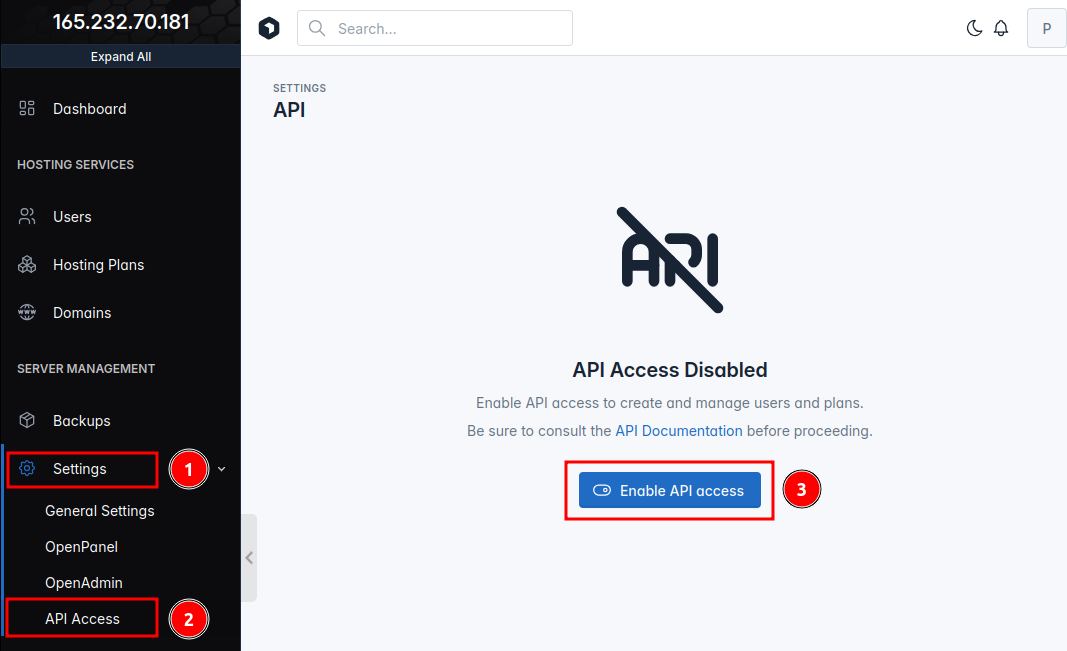
To enable API access on HiTechCloud, navigate to Settings > API Access from the HiTechAdmin interface and click on 'Enable API access' button:
FOSSBilling
Download HiTechCloud Server Manager
On the FOSSBilling server navigate to the directory where FOSSBilling is installed and run this command to download the latest HiTechCloud Server Manager:
wget -O library/Server/Manager/HiTechCloud.php https://mirrors.hitechcloud.org
Add HiTechCloud Server
Login to your FOSSBilling admin panel and go to System -> Hosting plans and servers from within the navigation bar, then click on 'New server':
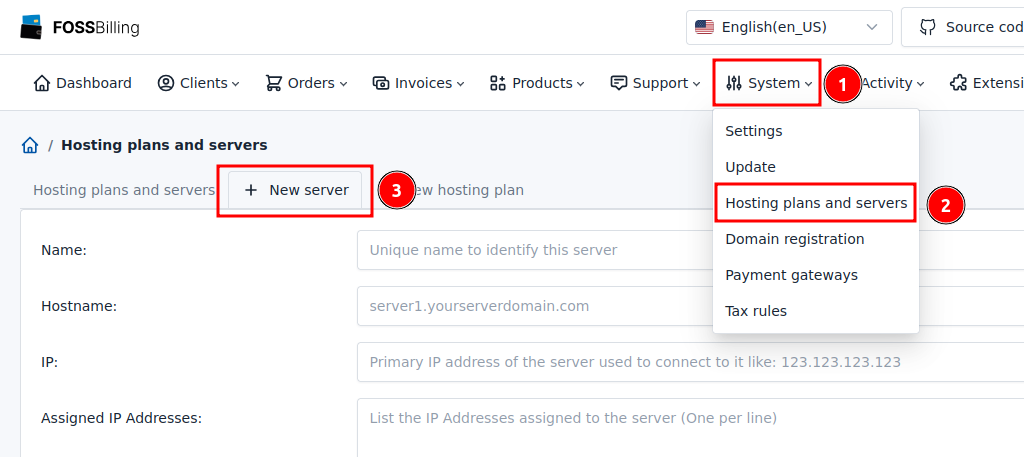
in the new form we need to set:
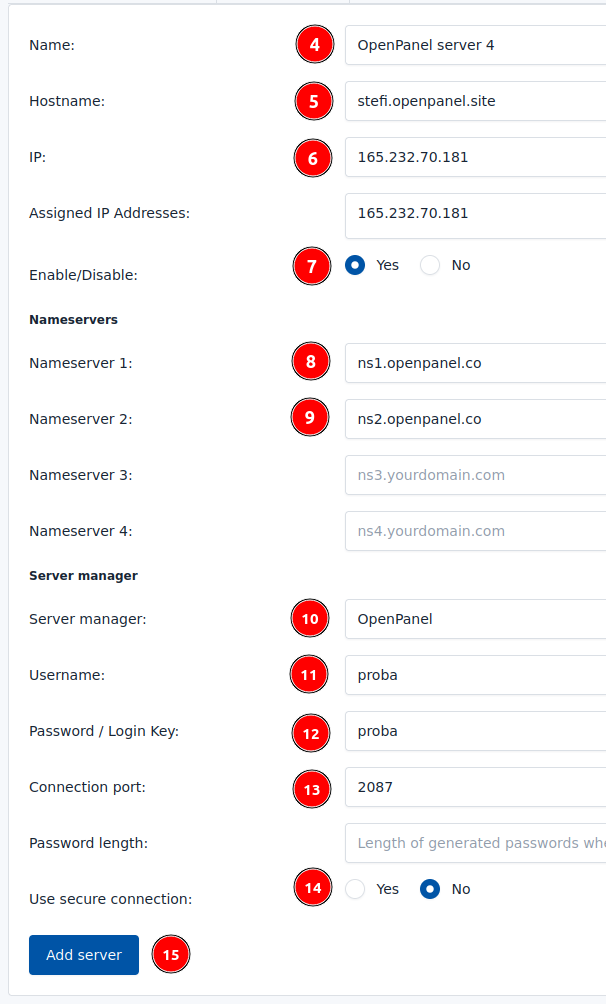
- Name: anything that you want to identify the server
- Hostname: if you are using domain to access HiTechCloud, add it here, otherwise add the IP address.
- IP: set the IP address of the HiTechCloud server.
- Assigned IP addresses: set IP addresses that are added on HiTechCloud server.
- Nameserver 1: Set nameserver to use for domains
- Nameserver 2: Set nameserver to use for domains
- Server manages: Select HiTechCloud
- Username: Set HiTechAdmin panel username
- Password: Set HiTechAdmin panel password
- Connection port: Set to
2087 - Use secure connection: Yes fi you are using domain name for panel access, otherwise No
and click on the 'Add server' button.
Add Hosting Plan for HiTechCloud
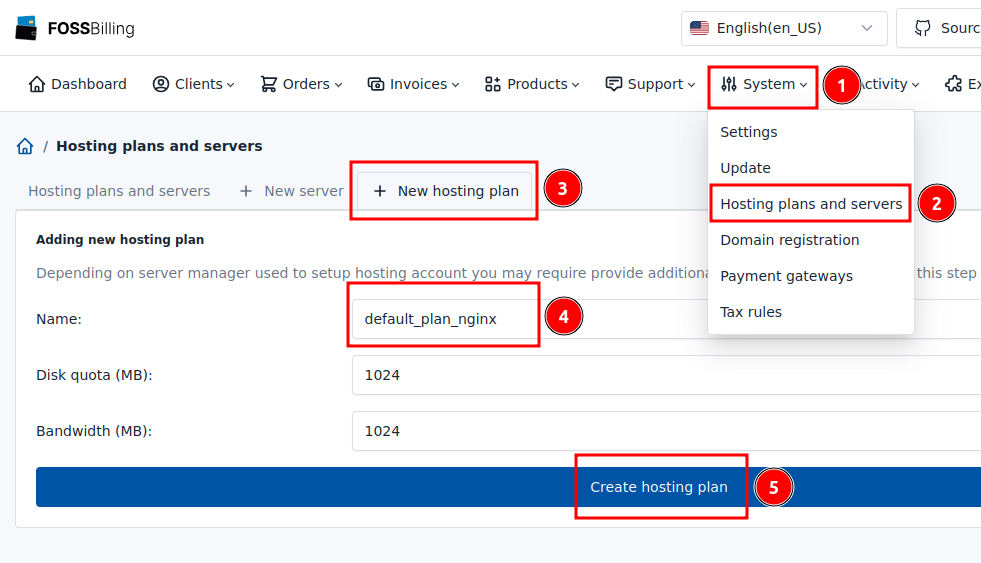
From your FOSSBilling admin panel go to System -> Hosting plans and servers from within the navigation bar, then click on 'New hosting plan'.
Set the name for the plan same as on HiTechCloud hosting plan and click on 'Create hosting plan'.
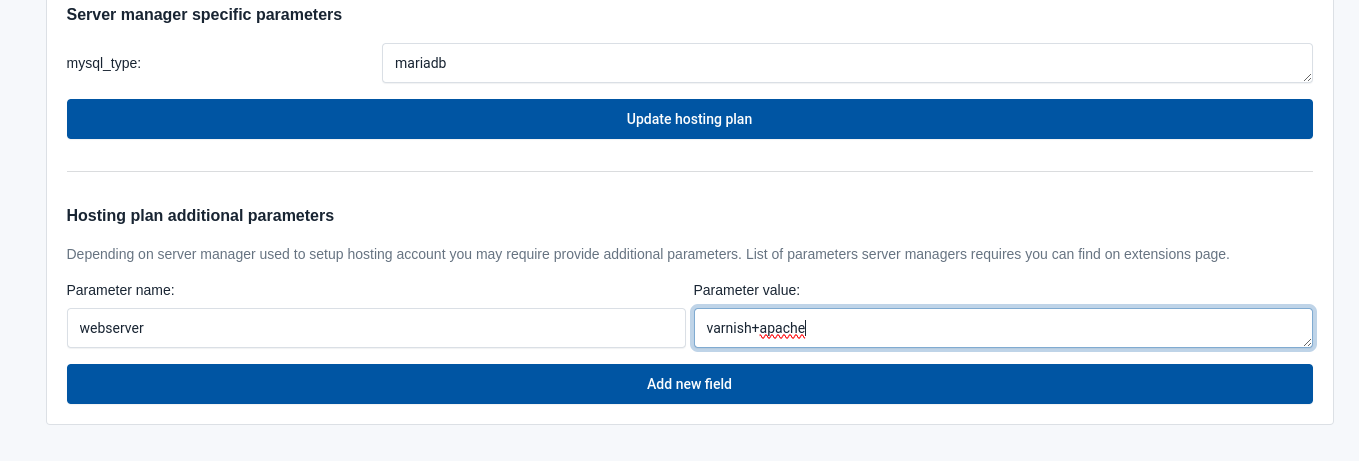
You can also set mysql type and webserver as additional parameters:
| Parameter | Values |
|---|---|
mysql_type | apache nginx openresty varnish+apache varnish+nginx varnish+openresty |
webserver | mysql mariadb |
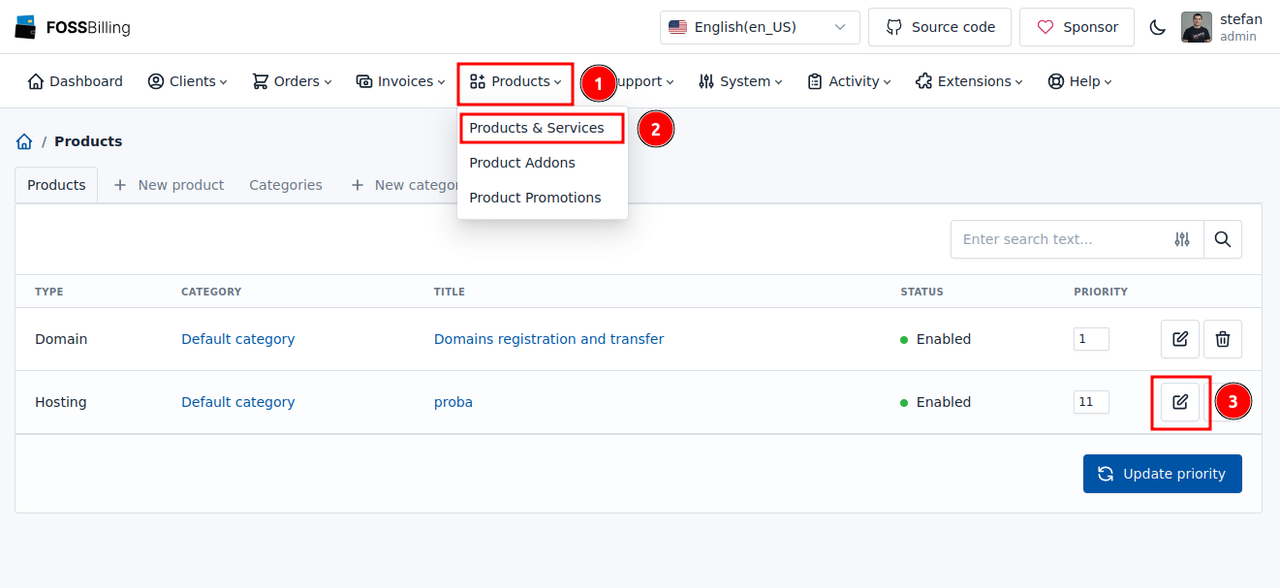
Assign HiTechCloud Server to product
From your FOSSBilling admin panel go to Products -> Products & Services from within the navigation bar, then click on the edit icon for the plan:
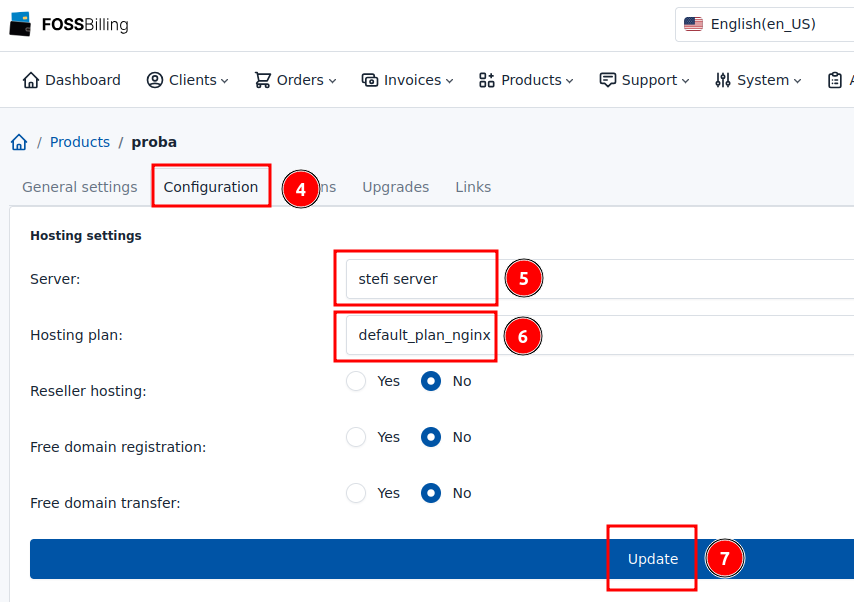
Click on 'Configuration' and for Server select the HiTechCloud server and for hosting plan set it to match the plan name on HiTechCloud server:
Test connection
Create a new client and order the product that is configured to create HiTechCloud account.
User should be able to login to their HiTechCloud account:
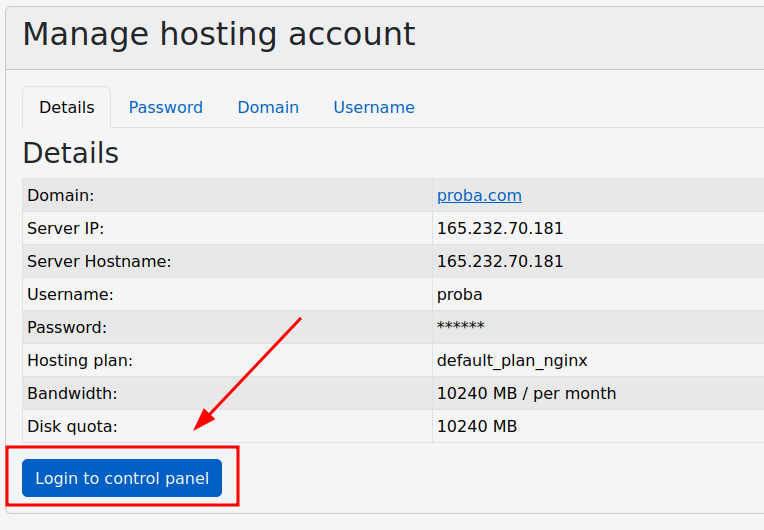
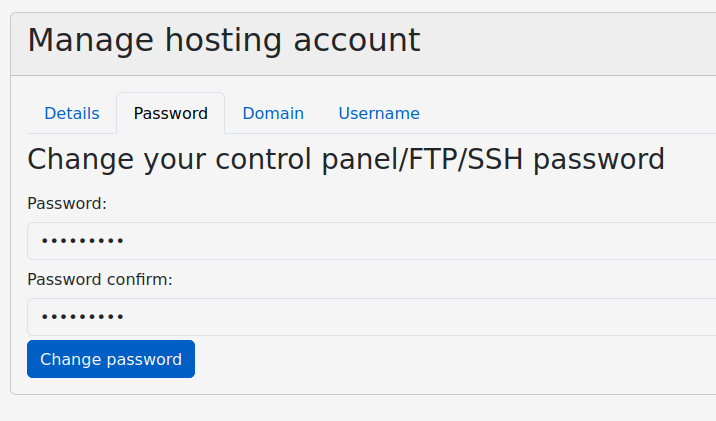
and to reset the password: